¶ Stock — Check Stock Levels and the Low-Stock Report
¶ What you'll be able to do
After reading this guide you will be able to see what the pharmacy is holding, notice what has fallen to or below
its alert level, and know how current those figures are — so that stock can be reordered before it runs out.
Who does this? All four roles can read the stock screens, including the Counter Assistant. Refreshing the
figures, recording a delivery and making an adjustment need the Responsible Pharmacist, the Dispensing
Technician or the Business Manager — the buttons are visible to everyone, but the app refuses them for a
role that does not hold those permissions.
¶ Why stock levels are checked
The professional guidance on the safe and secure handling of medicines requires that the physical condition of
medicines is protected by controlled storage, that stock levels are monitored and that records are kept
where appropriate (3.14); the GPhC's standards require that services are managed and delivered safely (4.2) and
that medicines are stored securely and safeguarded (4.3). Checking the stock figures is how the pharmacy does its
part of that — and it is what stops a patient being turned away for something that ran out last week.
One thing to understand before you read the numbers. The pharmacy app does not hold the stock ledger —
ERPNext does. These screens show a cache of what ERPNext last reported, taken at the time shown as Last
position refresh. Everything you see is as current as that timestamp, and no more.
¶ Step 1: Open the stock overview
- Log in to the pharmacy app.
- Click Stock in the top menu.
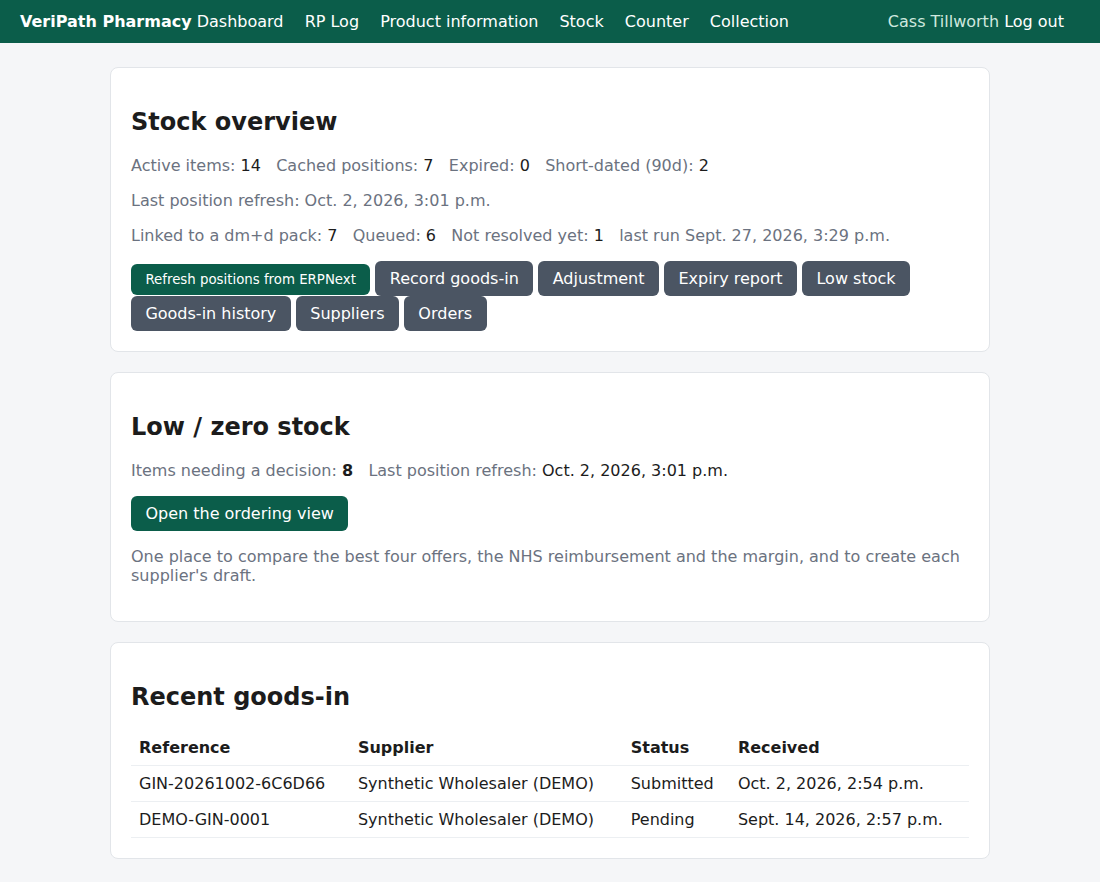
The stock overview on the test pharmacy, 2 October 2026: the pharmacy's headline figures, then what is low or at zero,
then the most recent deliveries. The row of buttons below the figures is how the other stock screens are reached.
The headline figures:
| Figure | What it counts |
|---|---|
| Active items | The stock items the pharmacy holds — the list deliveries are recorded against. |
| Cached positions | How many batch positions were reported by ERPNext at the last refresh. One item can have several positions (one per batch). |
| Expired | Positions whose expiry date has already passed. They should not be supplied — see Run the Expiry Check (C3). |
| Short-dated | Positions expiring within the warning band, shown in brackets (90 days by default). The band is a pharmacy setting. |
| Last position refresh | When the figures were last taken from ERPNext. It reads never until the first refresh. |
If the refresh time is old, the numbers are old. Anyone holding a stock-managing role can press Refresh positions
from ERPNext on this screen.
¶ Step 2: See what is low
The Low / zero stock panel on the overview is a pointer, not a second list: it shows how many items need a
decision and the last refresh, and one link — Open the ordering view. The full list has a page of its own,
Low stock — one of the buttons under the overview's headline figures, not a top-menu item; the ordering view (C6)
is where those items are compared and ordered.
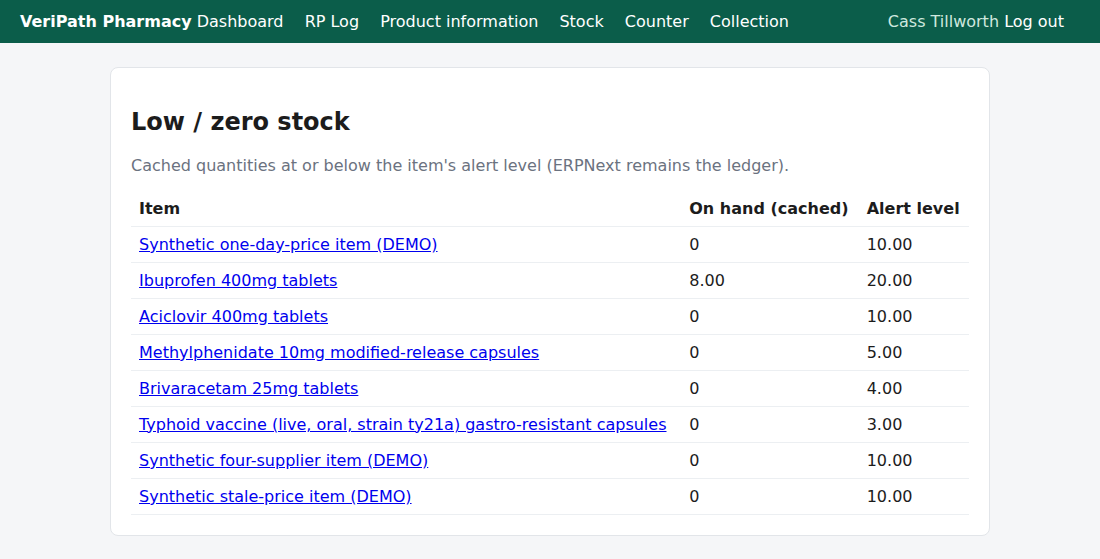
The low-stock report on the test pharmacy, 2 October 2026: the item, what is cached, and the level that triggered the
alert. The three stock-managing roles see five further price columns beside these.
| Column | What it tells you |
|---|---|
| Item | The stock item. |
| On hand (cached) | The quantity across that item's batches, as last reported by ERPNext. |
| Alert level | The item's own low-stock level — set per item, by whoever looks after stock. |
If you hold a stock-managing role the page carries five more columns, filled from the price files the pharmacy has
imported: Best price (supplier), Spread, Prices on file, Freshness and NHS reimbursement. They sit
to the right of the alert level and are the buying side of the same list — what the item could be had for, against what
it was last priced at — and they appear on the expiry report (C3) too. The Counter Assistant's page does not carry
them at all: they are left out of the response for that role, not merely hidden. What the columns mean, and what the
ordering view does with them, is C6.
When nothing is low, the page says "No items are below their alert level."
An item only appears here if it has an alert level set. The level is held against the item, and an item
without one never raises an alert. So if something you expect to see is missing, the level is the first thing to
check — that is a setting, and it needs someone with the stock-managing role.
¶ What to do with what you see
- Low, and the pharmacy needs it — use the ordering view (C6), which shows each item's best four supplier
offers beside the NHS reimbursement and the margin, and creates the supplier's draft. The app does not place orders
itself; the delivery is recorded when it arrives (see Receive a Delivery, C1). - What the ordering view may claim. Its prices are only the files the pharmacy holds, so a supplier's
availability is whatever their latest imported price file says and nothing more. A supplier's minimum order
value is contractual and never enforced by the app. The margin is advisory, gross, and per pack or not at
all — it excludes the Single Activity Fee, which is per prescription item. - Zero, but you know there is some on the shelf — the figures are only as good as the last refresh and the
movements recorded since. Refresh first; if it still disagrees with the shelf, that is a stock correction — tell
whoever looks after stock (an adjustment is C4). - Expired — do not supply it. The expiry report is C3.
¶ If it doesn't work
| What you see | What it means |
|---|---|
| Every figure is 0 and the refresh says never | The positions have never been refreshed, so there is nothing cached to show. Anyone with a stock-managing role can press Refresh positions from ERPNext. |
| "Could not refresh stock positions from ERPNext." | The refresh could not reach ERPNext, so the cache was left as it was. Nothing has been changed — try again, and tell your Business Manager if it keeps failing. |
| An item you expect is not in the low list | Its alert level is not set, or its quantity is above the level, or it has never been received into stock. |
| A button is refused when you press it | Your role does not hold the permission for that action — all four roles can read these screens, but only some may act on them. |
¶ What this screen does not do
- It is not the ledger. ERPNext holds the stock ledger; these are cached positions, as at the last refresh.
- It does not refresh itself on a schedule the screens show you — the refresh is the button, and the timestamp
tells you how old the figures are. - It does not order stock, and it does not move it: receiving a delivery is C1, an adjustment or wastage is C4.
¶ Related
- Stock — Coverage — where this guide sits in the stock group
- Stock — Receive a Delivery — putting a delivery into the ledger (C1)
- Roles and Permissions in the Pharmacy App — what each
role may read and do - Run the Expiry Check (C3) · Record an Adjustment or Wastage (C4) · Sync Stock Positions (C5)