¶ Counter — Give the Customer a Receipt
¶ What you'll be able to do
After reading this guide you will be able to give a customer their receipt: print it from the till, or
email a copy — and know what the receipt carries, and how to bring one back up later.
Who does this? The Counter Assistant owns the counter, and every other staffing role can serve
at it too. The receipt opens by itself when a sale is completed; printing and emailing are part of
serving at the counter.
¶ Why the receipt reads the way it does
It is the customer's copy of the sale — and the document a customer can ask for. The receipt carries
the pharmacy's identity, the time of supply, what was supplied and the totals broken down by VAT rate,
so it can serve as the pharmacy's VAT document for the sale: the figures on it are the ones on the
submitted invoice in the books, not a summary made at the till.
The NHS prescription charge is shown zero-rated, never exempt. It appears as its own line at £9.90
with no VAT in it, and the rate summary reads Zero-rated @ 0% beside the standard-rated goods.
Change is on it too. The receipt records the tender and the change, so the money side is on the same
record as the goods.
The emailed copy is the same figures in plain text — not a picture and not a PDF. It repeats the
identity, the time of supply, the lines, the net / VAT / total and the per-rate totals.
¶ Before you start
- The sale must be complete. A basket in progress has no receipt.
- Give it where the customer asks. Printing is for any customer who wants one; email only where
the customer asks for an email copy — and only to the address they give you.
¶ Step 1: Open the receipt
The receipt is shown to you the moment the sale completes (see D3). Any sale's receipt can be brought
back up later from the counter's front page: Recent sales lists the last few sales with a Receipt
link on each row.
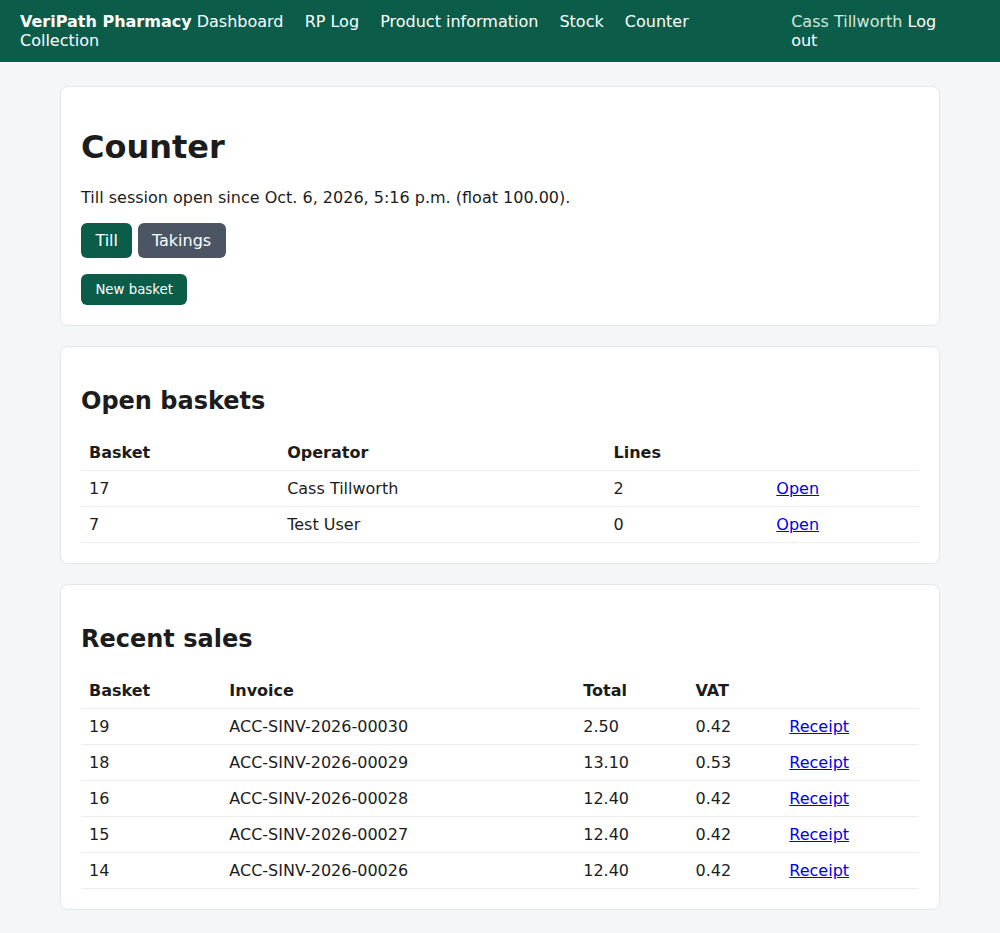
The Counter screen: Recent sales at the foot, one row per sale with its invoice, total, VAT and the
Receipt link — this is where an earlier sale's receipt is found again.
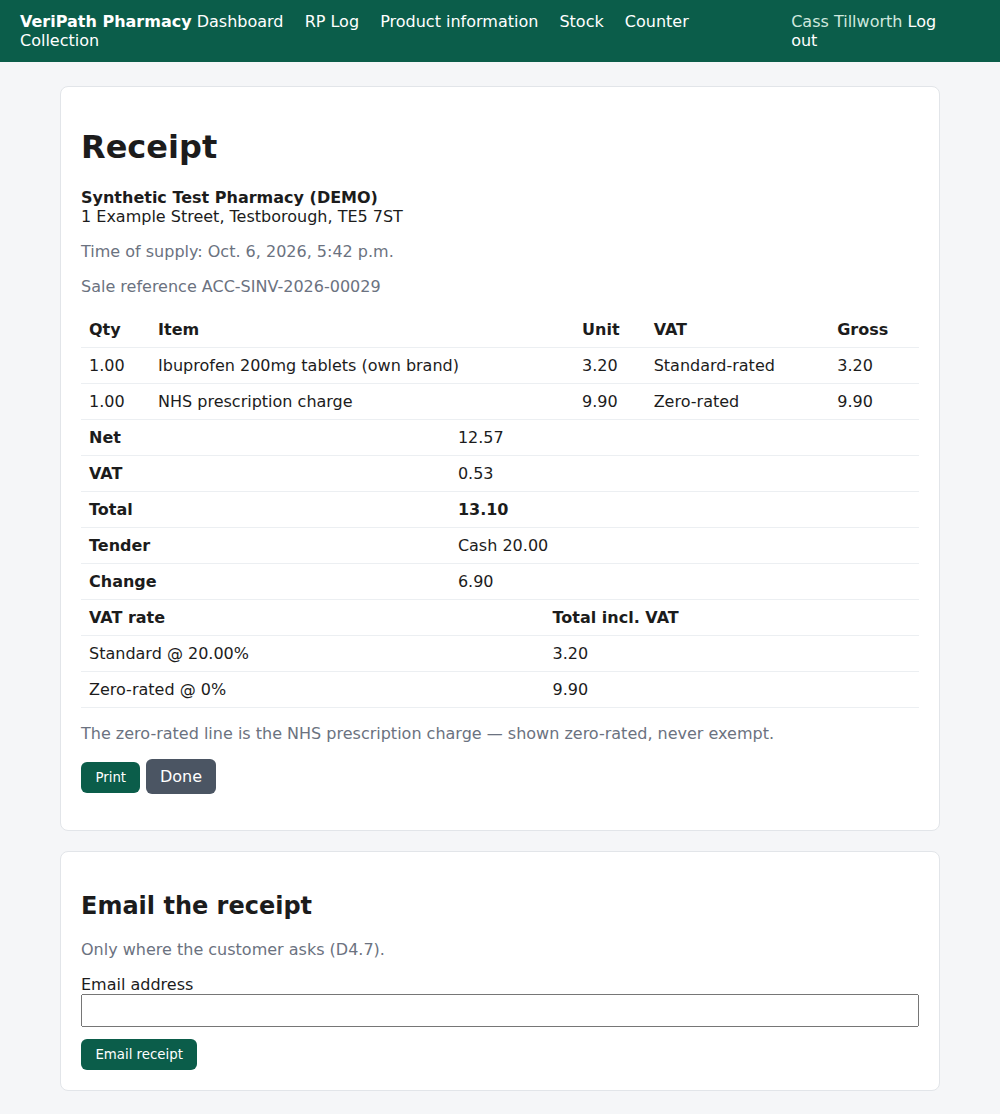
The receipt for a completed sale on the test pharmacy, 6 October 2026: the pharmacy's identity at the
top, the time of supply and the sale reference, a line per item with its VAT band, then Net · VAT ·
Total, the Tender and the Change, and the rate summary — Standard @ 20.00% beside the goods and
Zero-rated @ 0% for the prescription charge.
Reading it from the top:
| On the receipt | What it is |
|---|---|
| The pharmacy's name and address | The identity block. The VAT No. line appears here only where the pharmacy's VAT registration number is recorded for it. |
| Time of supply | When the sale was completed. |
| Sale reference | The sale's invoice reference — the same reference the books carry. |
| Each line | Quantity, item, the unit price (the price the customer paid), the VAT band and the line total. |
| Net · VAT · Total | The sale's figures as the invoice holds them. |
| Tender / Change | What was handed over and what was given back. |
| VAT rate table | For each rate, the total payable including VAT — the split a VAT document needs. |
¶ Step 2: Print it
Press Print. The app has a print layout: the counter's header and menu, the messages, the buttons and
the email the receipt card are left off, and the receipt prints on its own as a plain slip — identity,
time of supply, sale reference, the lines, and the net / VAT / total with the per-rate table. The browser's
print dialogue opens, and that is where you choose the printer. Check the preview before printing.
When you are finished, press Done to go back to the counter.
¶ Step 3: Email a copy (only where the customer asks)
At the foot of the receipt, enter the customer's Email address and press Email receipt.
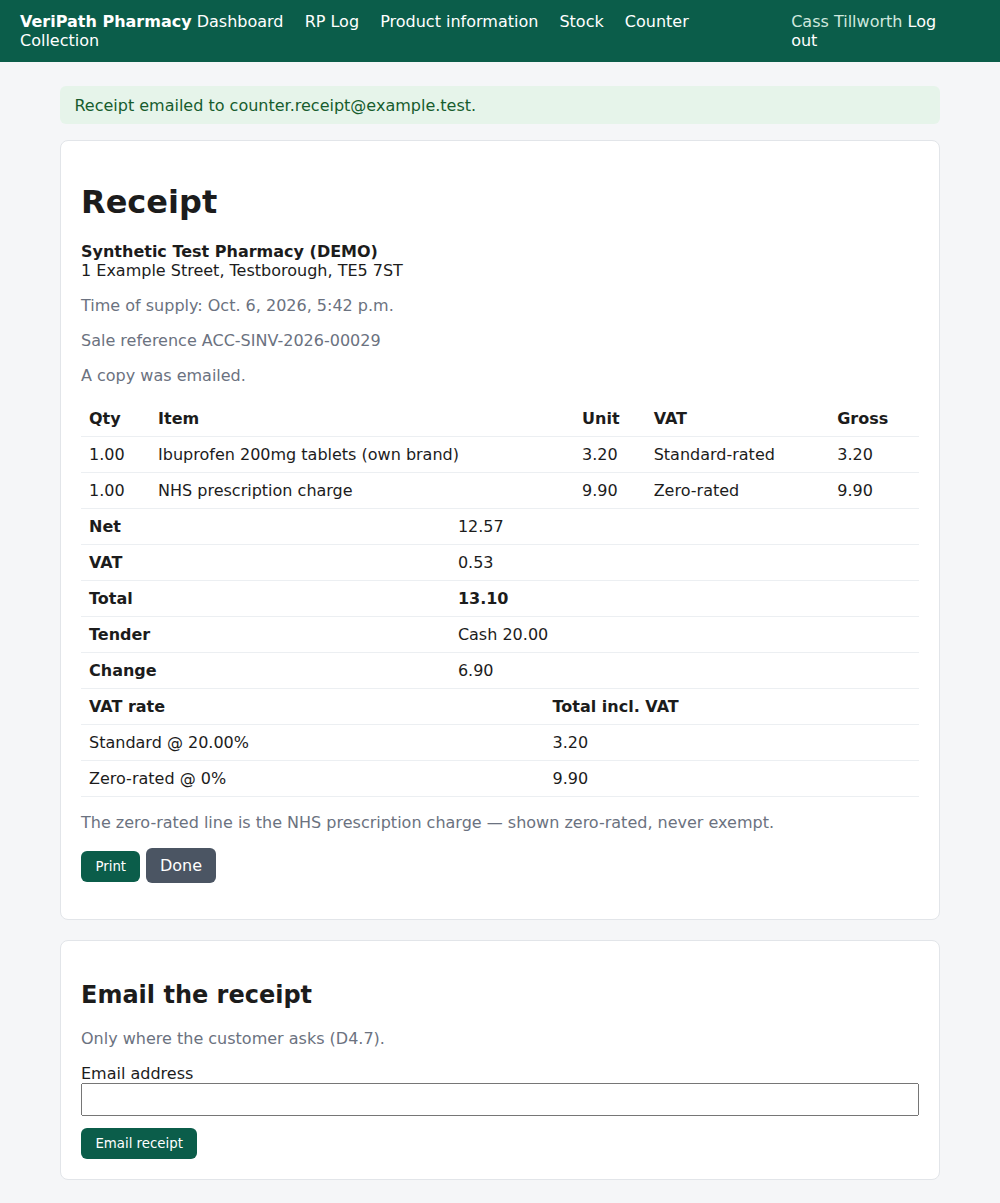
Sending a copy: the app reports Receipt emailed to counter.receipt@example.test., and the receipt
then carries the line A copy was emailed. The address is used for that one send — the app does not
store it against the sale.
The same receipt can be opened again later from Recent sales and printed or emailed a second time if
the customer asks.
¶ When something is not right
| What you see | What to do |
|---|---|
| Enter an email address for the receipt. | The address box was empty. Type the customer's address and press Email receipt. |
| The receipt could not be emailed. | The message did not go. Check the address with the customer and try again; if it keeps failing, print the receipt instead and tell the business manager. |
| The customer wants a receipt for a sale from earlier | Find the sale under Recent sales on the counter's front page and open its Receipt — printing and emailing work the same way. |
| The customer says the figures are wrong | The receipt shows the sale's posted invoice figures. Do not alter anything at the counter: a completed sale is corrected only by a refund or void (D5). |
| The receipt is for a sale that has since been reversed | The receipt itself does not carry a reversal mark — the sale's own page reads This sale has been reversed. (see D5). Check the sale before re-printing an old one. |
| The receipt should print without the app around it | It does — the print layout drops the counter's menu, the messages, the buttons and the email card, so the receipt prints on its own. |
¶ What happens next
- D5 — refund or void a sale. The reverse path, with a reason, for the pharmacist or business manager.
- D6 — the till and the day's takings. The receipt's tender and change are the session's takings.
- D3 — take payment and close the sale. Where the receipt comes from.
¶ Related pages
- Pharmacy App Guides — the published guides
- Counter — Take Payment and Close the Sale — D3, the sale the receipt belongs to
- Counter — Add the NHS Prescription Charge — D2, the zero-rated line on the receipt
- Coverage Plan — every everyday task, and what is published
- Roles and Permissions in the Pharmacy App