¶ Stock — Manage the Supplier List
¶ What you'll be able to do
After reading this guide you will be able to add a supplier the pharmacy buys from, correct its details, take one out of
use and put it back, and see on one screen who supplies what, what the order file looks like for each of them, and
what is known about how an order would reach that supplier's own portal.
Who does this? All four roles can read the supplier list. Adding, editing, deactivating and reactivating
are for the Responsible Pharmacist, the Dispensing Technician and the Business Manager — the Counter Assistant
sees the same list with no buttons on it, and cannot open a supplier's own page (it is refused). If Stock is
not in your top menu, your login does not hold a stock role.
¶ Why the supplier list is recorded
It is the record of where the pharmacy's medicines come from. The goods-in records the standard already quoted in
Stock — Receive a Delivery require medicines to be obtained from a
reputable source, and every receipt names the supplier it came from. That is why a supplier is never deleted:
a receipt may not lose the name of who supplied it. Taking a supplier out of use is deactivating it, not removing
it, and the whole history stays readable.
It is also where the ordering side is configured. Each supplier carries the account reference the wholesaler's
portal knows the pharmacy by, the export profile that decides the layout of the order file, and an advisory
minimum order value. The order file itself is built and downloaded on
Stock — Order Stock and Export the Order File;
this page is where the supplier it is built for is set up.
And it holds the portal record — a note about how an order would reach that supplier. One rule governs it, and
it is the reason the fields exist in this shape: a portal configuration is recorded only from evidence — the
portal's own address, the date it was seen, and what was seen and by whom. Nothing is guessed, nothing is filled in
from a similar-looking site, and a synthetic configuration is marked DEMO and shown as such. The app never
stores a wholesaler's login and never contacts a portal: the address is a record, not a connection.
¶ Before you start
- Log in as one of the three configuring roles:
tc.rp.one,tc.tech.oneortc.bm.one(the Counter Assistant,
tc.ca.one, is the read-only comparison). - Go to Stock in the top menu. Suppliers is not in the top menu — it is one of the buttons under the figures
on the stock overview.
¶ Step 1: Read the list
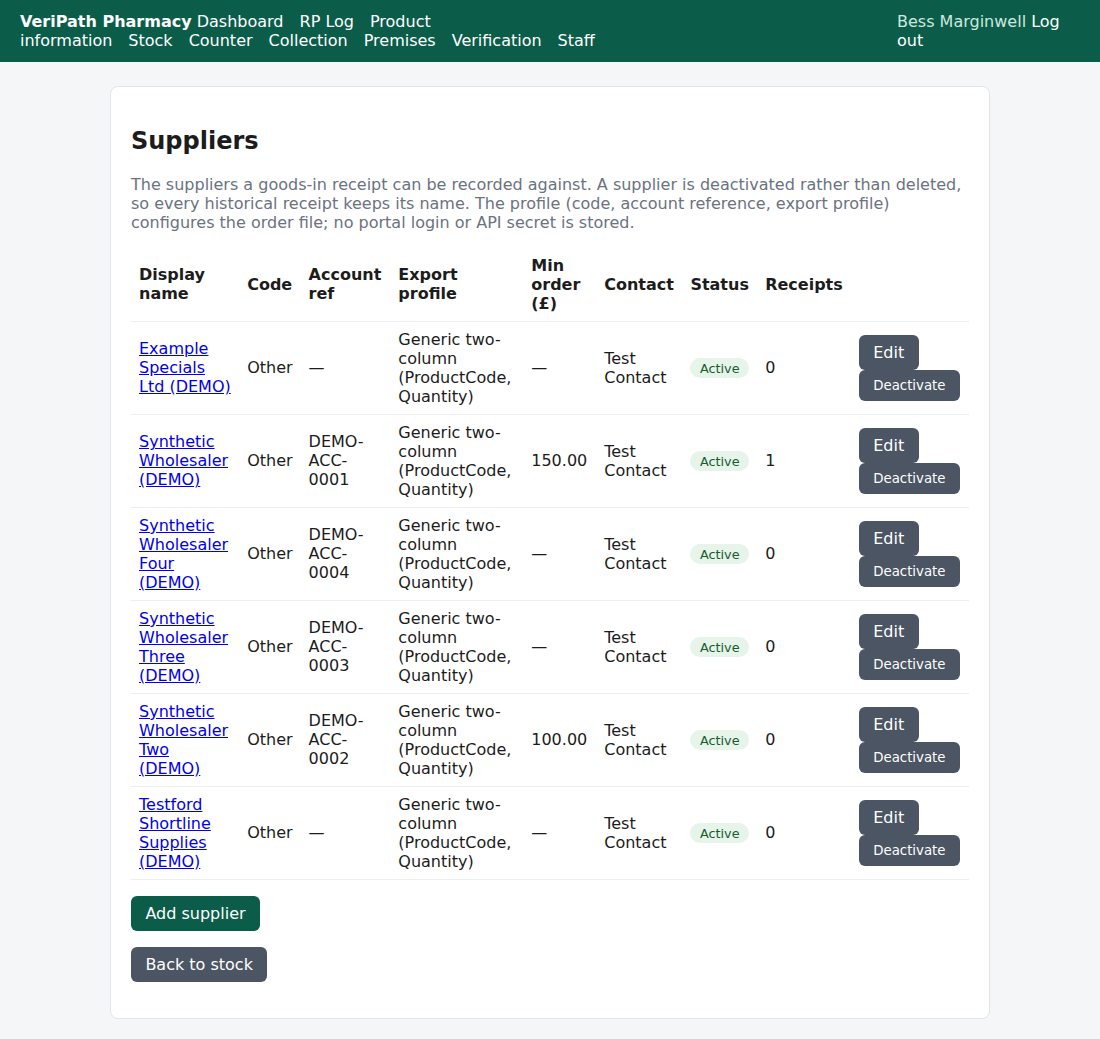
Each row is one supplier the pharmacy can record a delivery against:
| Column | What it tells you |
|---|---|
| Display name | The name that appears on screens and receipts. For the three configuring roles it is a link to that supplier's own page. |
| Code | The wholesaler key — AAH, Alliance Healthcare, Phoenix or Other. It is how the app and the order profile identify the wholesaler, and it does not change. |
| Account ref | The pharmacy's own account number with that wholesaler. It is the pharmacy's number, not a password, and nothing is sent anywhere from here. |
| Export profile | The order-file layout this supplier uses. With one profile in the app today every supplier reads Generic two-column (ProductCode, Quantity). |
| Min order (£) | The wholesaler's contractual minimum. It is shown on the order pages as an advisory only — the app never enforces it. |
| Contact | The name held for the supplier. |
| Status | Active or Inactive. An inactive supplier cannot be chosen on a goods-in or a price-file import. |
| Receipts | How many deliveries have been recorded against this supplier. It is why a name becomes unchangeable (Step 3). |
On the test client the list holds six suppliers, and Synthetic Wholesaler (DEMO) is the worked example: one
receipt, an account reference, a minimum order value, and a complete DEMO portal record.
¶ Step 2: Add a supplier
Add supplier is the green button under the table (the three configuring roles only). The form asks for:
- Display name — required, and it must be unique. A second supplier with the same name is refused:
"A supplier with this name already exists." - Supplier code — the wholesaler key (AAH / Alliance Healthcare / Phoenix / Other).
- Account reference — the pharmacy's own account number with this wholesaler.
- Export profile — the order-file layout. Integration profile sits beside it and records the honest position:
"Direct API is not implemented; CSV export is always used." - Minimum order value (£) — an advisory, not a rule. It cannot be negative ("The minimum order value cannot be
negative."). - The four portal fields — covered in Step 4. Leave Portal method as No portal configuration unless you are
recording a portal you have actually seen. - Contact name, Telephone, Email — optional.
- Is active — untick it to add the supplier already switched off.
Adding a supplier is recorded in the audit trail, and the message at the top of the list confirms it.
¶ Step 3: Edit a supplier — and the two things you cannot change
Edit on any row, or Edit supplier on the supplier's own page. Everything in Step 2 can be changed except:
- A name that is already in use. Two suppliers cannot share a name.
- The name of a supplier that has been delivered against. Once the Receipts column is no longer
0, the name
is fixed, because the receipts and the goods-in history read it. The form says so before you try —
"This supplier is on 1 receipt(s), so its name cannot be changed. Deactivate it and add a new supplier instead." —
and saving a changed name is refused with the same advice.
That is deliberate: the record of where medicines came from must not change underneath the receipts that cite it.
If a wholesaler is taken over or renamed, deactivate the old supplier and add the new one.
¶ Step 4: The portal record
A supplier's own page carries three blocks: its details, the Portal block, and its price-file history.
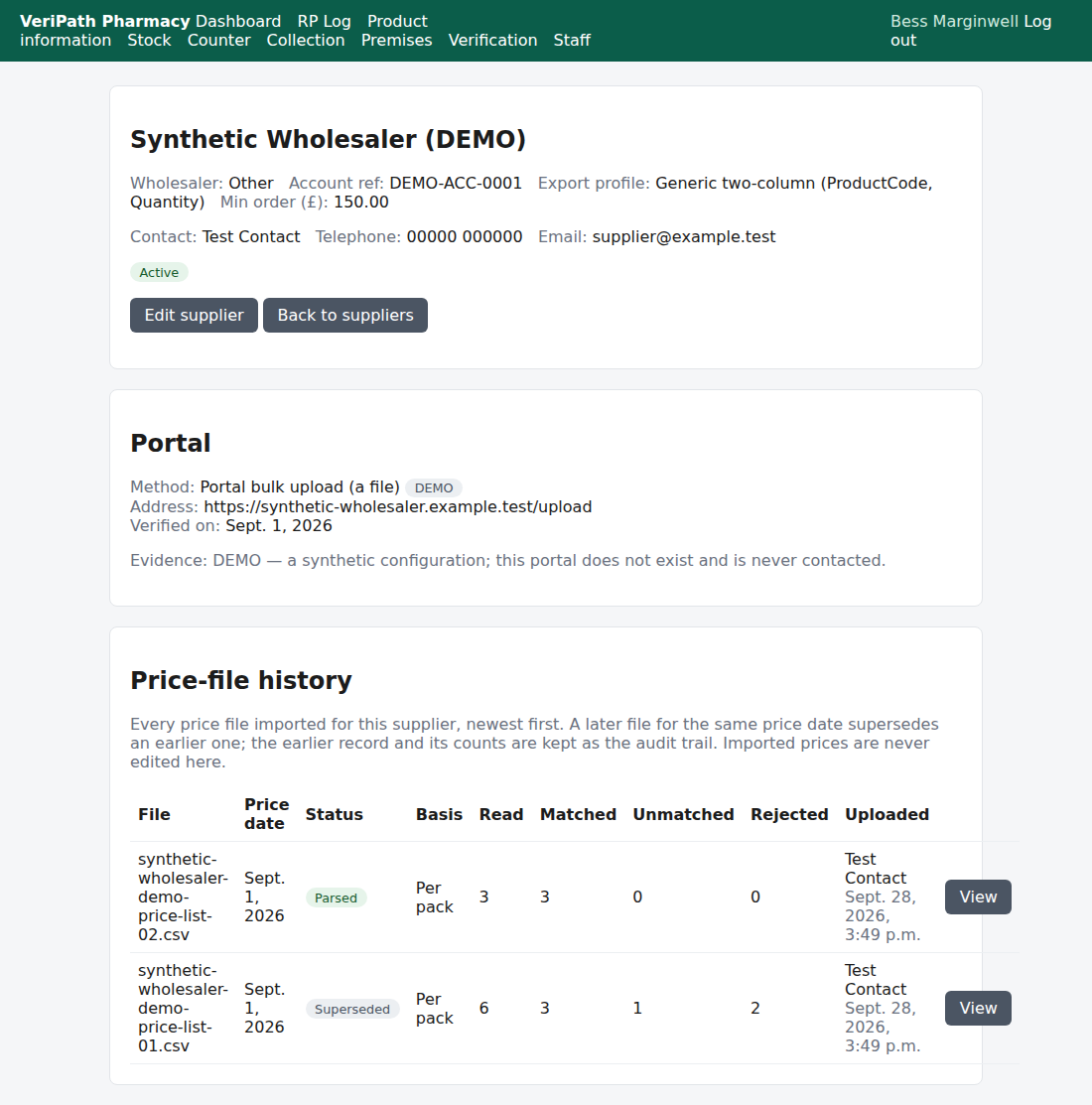
Portal method says how an order would reach that supplier's portal:
| Method | Meaning |
|---|---|
| No portal configuration | Today's behaviour, and the state for most suppliers: the app produces the file and a person carries it to the portal. |
| Portal bulk upload (a file) | The portal is one where the order file is uploaded on its own bulk-upload screen. |
| Portal quick-order grid (codes and quantities) | The portal is one where product codes and quantities are typed into a quick-order grid. |
The other three fields are the evidence, and the app will not save a method without all of them:
- Portal target — "The portal's own address, as seen — never guessed."
- Portal verified on — "The date the portal was last seen working."
- Portal evidence — "What was seen, and by whom. A synthetic configuration is marked DEMO."
The three refusals you will meet, word for word:
"A portal method needs the portal's own address — record it only once the portal has been seen."
"A portal method needs the date the portal was seen."
"Record what was seen, and who saw it, before saving a portal method."
Two things follow from the rule, and both are deliberate. Setting the method back to No portal configuration does
not erase the address, the date or the evidence — they stay as the record of what was once known. And a synthetic
configuration must begin its evidence note with DEMO, which the supplier's page shows as a grey DEMO pill
beside the method. On this test client both synthetic wholesalers carry one, and on every other supplier the page reads
"No portal configuration on this supplier."
Nothing is sent, opened or contacted from here. This record exists so that the app — and, later, the small local
program that will stage an order in a portal — knows what has actually been seen. Recording an address does not
connect to it, and no portal login or API secret is stored anywhere on this page.
¶ Step 5: Deactivate, and put back
Deactivate on the row (there is no Delete, by design). The supplier's row turns Inactive, the confirmation
reads "Supplier … deactivated.", and the supplier disappears from the goods-in dropdown and from the price-file
import. Everything historical stays: its receipts still name it, and its price-file history is still on its own
page.
Reactivate puts it back in the dropdown, with "Supplier … reactivated." Both moves are recorded in the audit
trail. Deactivating a supplier does not cancel or alter any order already built for it.
¶ What the Counter Assistant sees
The same list, read-only: no Add supplier button, no Edit or Deactivate buttons, and the names are plain
text rather than links.
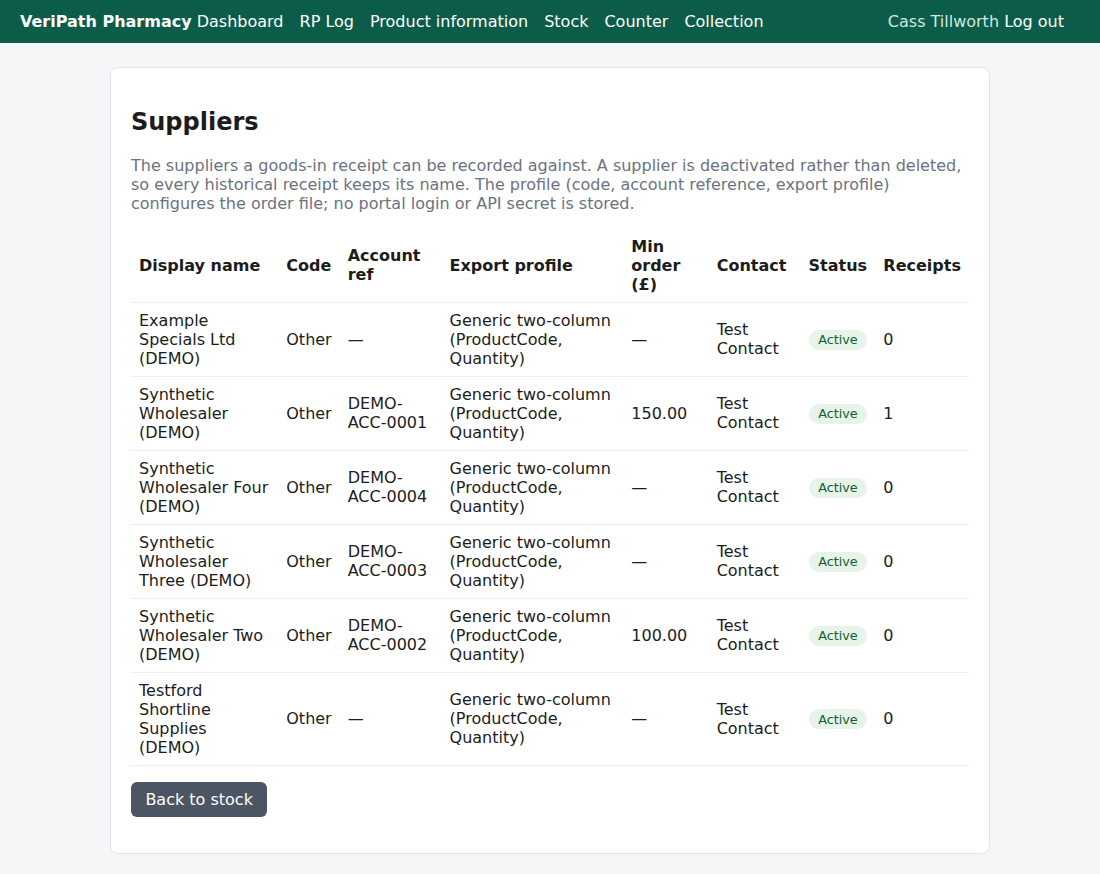
Trying to open a supplier's own page as the Counter Assistant is refused. That is deliberate: the supplier's page
carries the price-file history, and prices are commercially sensitive. The counter keeps the read view it needs —
who the pharmacy buys from — without the commercial detail.
¶ The record it keeps
- An audit entry for every change — supplier created, updated, deactivated and reactivated, with who did it and
when. - The receipts column and, on the supplier's page, its price-file history: every price file imported for it,
newest first, with the counts of what was read, matched, unmatched and rejected, and the file's status —
Parsed, Failed or Superseded. A later file for the same price date supersedes an earlier one; the earlier
record is kept as the audit trail. - The portal evidence line itself: the address, the date, and what was seen and by whom — or, where there is none,
the honest statement that there is no portal configuration.
¶ What this does not do
- It does not delete a supplier. A supplier is deactivated so that historical receipts keep their name.
- It does not store a portal login, password, API key or session. The app has no field for one, and no portal
credential is ever requested from the pharmacy. - It does not contact a portal. The recorded address is a note about a site that has been seen; nothing on this
page opens, tests or drives it. The app still cannot place an order anywhere. - It does not enforce a minimum order value. The figure is shown on the order pages as an advisory; the
wholesaler's own terms apply, and the portal is what enforces them. - It does not edit or delete imported prices. The price-file history is read-only here.
¶ If it doesn't work
| What you see | What it means |
|---|---|
| "A supplier with this name already exists." | The display name is already taken. Check the list for the spelling — or edit the existing supplier instead of adding a second one. |
| "This supplier has receipts, so its name cannot change. Deactivate it and add a new supplier instead." | The name is cited by a delivery that has already been recorded. Deactivate and add the new name. |
| "The minimum order value cannot be negative." | The figure has a minus sign, or pasted currency text. Enter the plain number, e.g. 150.00. |
| "This field is required." beside Display name | The name is empty. |
| "A portal method needs the portal's own address…" / "…the date the portal was seen." / "Record what was seen, and who saw it…" | You set a Portal method without all three pieces of evidence. Either fill in what you have actually seen, or set the method back to No portal configuration. |
| A supplier is missing from the goods-in dropdown | It has been deactivated, or its name changed. Check the Status column on this list. |
| Suppliers is not among the buttons on the stock overview | Your login does not hold a stock role. |
| There are no buttons on the list, and a name does not open | You are logged in as the Counter Assistant: the list is read-only for that role. |
| A supplier's page says 403 Forbidden | The page is for the Pharmacist, Technician and Business Manager. Your role is refused it. |
¶ Related
- Stock — Coverage — where this guide sits in the stock group
- Stock — Receive a Delivery — the goods-in that names a supplier
- Stock — Order Stock and Export the Order File — the order file, built from the supplier's export profile
- Roles and Permissions in the Pharmacy App — what each role may open
- Supplier Portals — Stage 1: the Portal Record and the Signal — why the portal fields exist, and the evidence rule