¶ Collection — Record a Patient Opt-out
¶ What you'll be able to do
After reading this guide you will be able to record that a patient does not want to be messaged about their
prescriptions — and to reverse it when they change their mind — knowing exactly what the opt-out stops and
where it shows.
Who does this? Any of the four pharmacy roles. The Counter Assistant records it straight from the
Collection screen: every row has an Opt-out button, and that screen shows no contact details. The
Responsible Pharmacist, Dispensing Technician or Business Manager can use the same button, or the
Opt-out card on the patient's contact-preference screen, where the contact details also live.
¶ What an opt-out does
It stops the messages, not the service. The prescription is still dispensed, still recorded, still
handed over (E1) — the patient simply is not messaged about it.
It is honoured on every send. The app checks the opt-out when a message is prepared and again when it
is about to go, so an opt-out recorded after a message was queued still stops it. Nothing goes out to an
opted-out patient by accident.
Nothing disappears silently. A message the app would have sent is recorded as Suppressed (opted
out) on the prescription's trail (E4), and the patient's row on the Collection screen carries the same
pill. That is how a reader can tell "we chose not to" from "we tried and failed".
It is reversible. Opting the patient back in restores the messages — the next one goes as normal. The
record of the opt-out and of the reversal both stay in the audit trail.
¶ Step 1: Open the screen
From the Collection screen, press Opt-out on the prescription's row. That screen shows the patient,
the prescription and the current preference — and no contact details, which is why the Counter Assistant
may use it too.
The Responsible Pharmacist, Dispensing Technician and Business Manager can instead press Preference,
where the Opt-out card sits under the contact details.
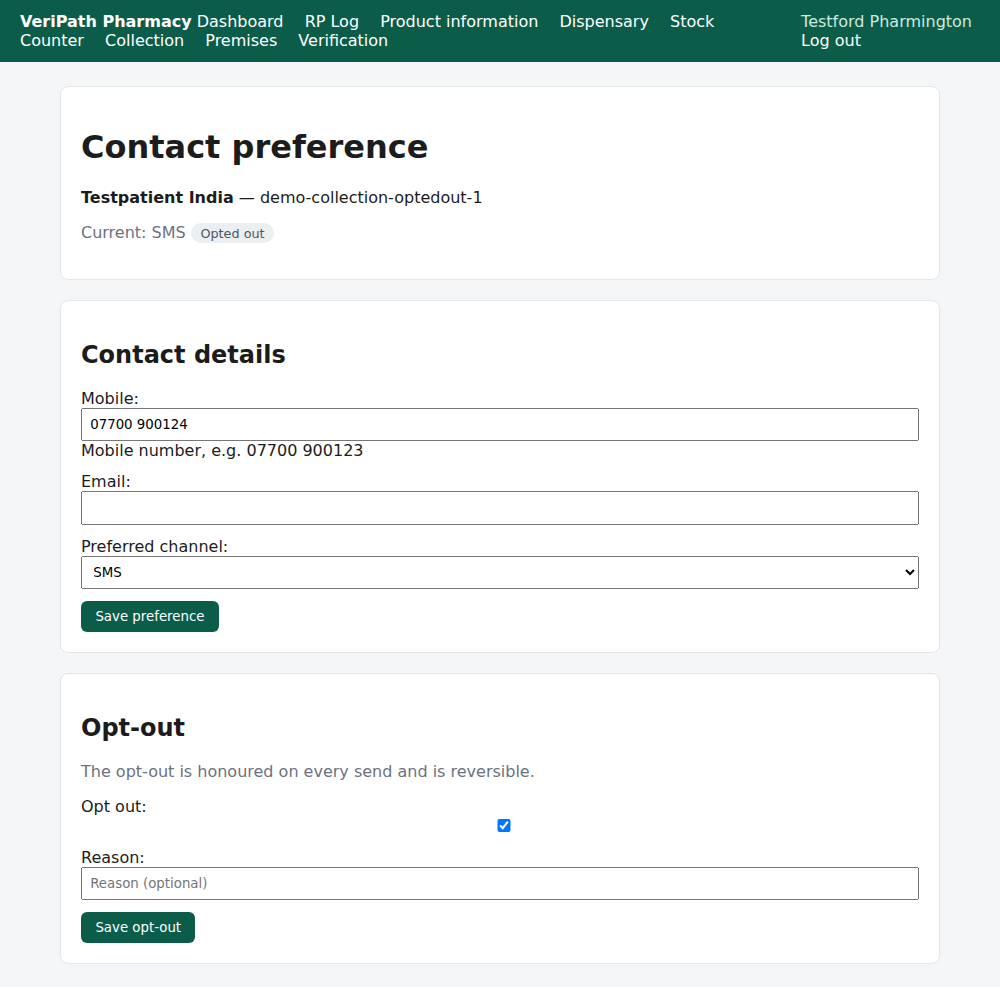
An existing opt-out on the test pharmacy, 6 October 2026, as the pharmacist: the header reads Current:
SMS with the Opted out pill, and the Opt-out card shows the box already ticked, with the
Reason box beside it. The card's note says what matters: the opt-out is honoured on every send and is
reversible.
¶ Step 2: Record it (or reverse it)
- Tick Opt out — and write the Reason if there is one worth keeping ("asked not to be messaged",
"prefers to phone the surgery"). The reason is optional; it is stored. - Press Save opt-out.
- The app confirms with Patient opted out of notifications. — or, when you untick the box and save,
Patient opted back in to notifications.
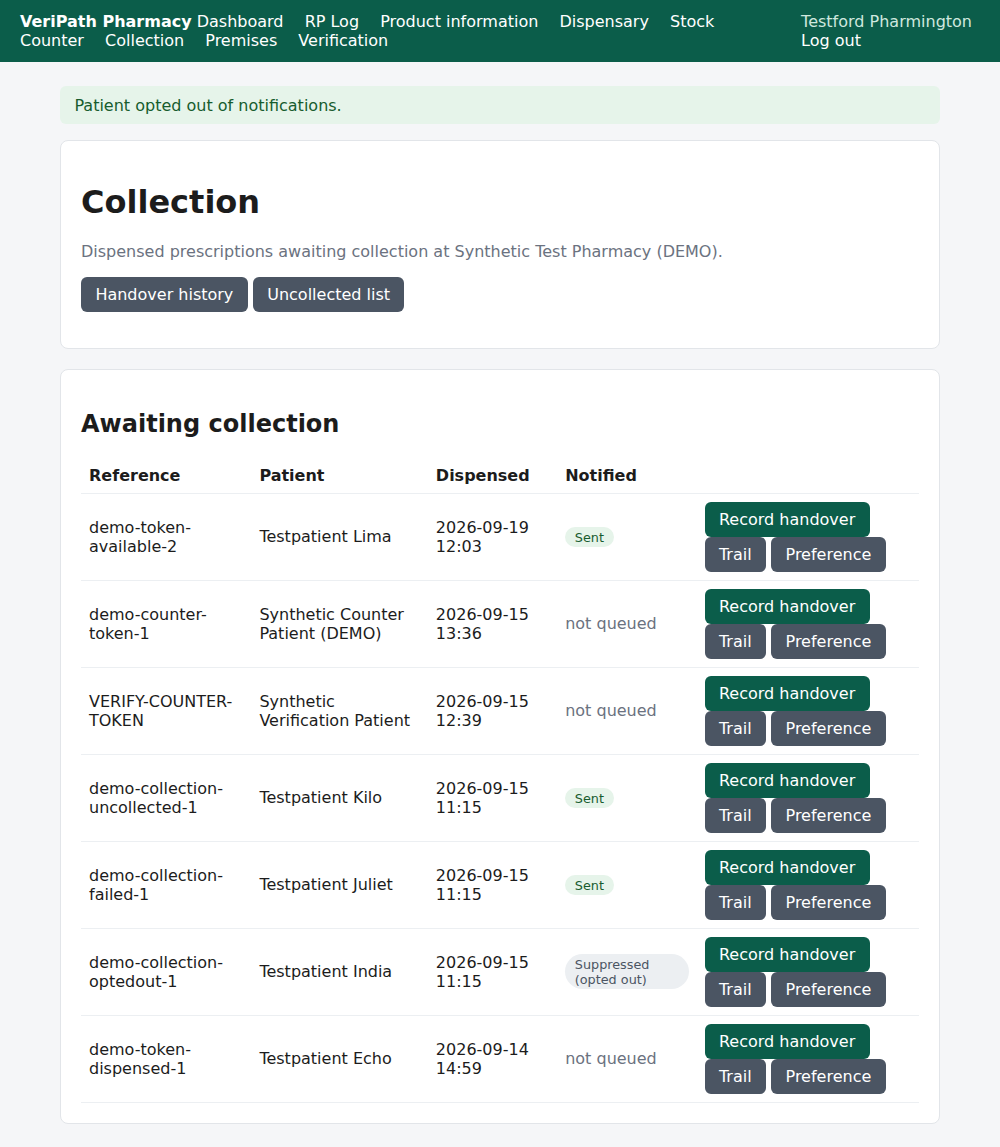
Saved: the app reports Patient opted out of notifications. and returns to the Collection screen, where
the patient's Notified column now carries Suppressed (opted out) — visible to everyone who works
the list, without opening any contact details.
A patient with no contact details on file can still be opted out: the app creates the preference to hold the
opt-out, so the instruction is never lost for want of a phone number (E5).
¶ When something is not right
| What you see | What to do |
|---|---|
| Patient opted back in to notifications. | You saved with the box unticked. That is the reversal — the patient will be messaged again from the next message (E3). |
| The patient keeps being messaged after opting out | They should not be — the opt-out is checked at send time. Check the Trail (E4): a message that failed before the opt-out is not the same as one sent after it. If a message shows Sent with a time after the opt-out was recorded, tell the pharmacist and the business manager. |
| The patient wants only texts stopped, not everything | That is not what the opt-out does — it stops the messages. Change their Preferred channel or contact details instead (E5), and keep the opt-out off. |
| Nobody can find where to record it | Press Opt-out on the patient's row on the Collection screen — available to all four roles. The Preference screen (contact details, then the opt-out card) carries the same control for the pharmacist, technician or business manager. |
| You cannot tell whether the patient is opted out | The Collection screen's Notified column shows Suppressed (opted out); the trail's rows show the same (E4); the preference screen's header shows the Opted out pill. |
| The patient asks what they have been sent | The trail answers that (E4) — including the messages suppressed because of their opt-out. |
¶ What happens next
- E5 — record a patient's contact preference. The screen the opt-out sits on.
- E3 — send or resend a collection notification. Why an opted-out patient is not messaged.
- E4 — the delivery trail. Where the suppression is recorded.
- E1 — hand a prescription over. The act an opt-out never blocks.
¶ Related pages
- Pharmacy App Guides — the published guides
- Coverage Plan — every everyday task, and what is published
- Roles and Permissions in the Pharmacy App