¶ Appointment Booking (Private vs. NHS)
¶ What you'll be able to do
After reading this guide you will be able to book a dental appointment in the VeriPath Dental app, choose whether the patient is being seen under the NHS or privately, pick the right NHS band, and confirm the booking on the practice calendar. You will also understand what happens to the appointment once it has been saved — and, if a date shows no slots, how to create the schedule blocks that generate them.
Who does this? Receptionists book most appointments. Clinicians and practice managers can also book on behalf of a patient.
¶ Workflow at a glance
How to read this: the boxes are what you see and click in the app
(UI), what the app does automatically (Backend) and where the result
is stored (DB). You can reach the form either via Book in the nav or
via Scheduling → pick provider and date → Book on a free slot (the
form opens pre-filled). Steps 1–6 below walk through the same flow in detail.
Try it on the demo: on the
test-client-dentalinstance, book
Oliver Reed — Filling, NHS Band 2, provider Holloway — and watch the
booking appear with a success banner and an AI Priority score. The
symptoms note is what triggers the rule-based triage; without symptoms the
appointment is simply BOOKED.
¶ Before you start
You will need:
- A VeriPath Dental login with the Receptionist, Clinician, or Practice Manager role
- The patient's name (or NHS number) so you can find them in the system
- To know whether the patient is NHS or private, and (if NHS) which band applies:
- Band 1 — examination and diagnosis
- Band 2 — treatment such as fillings and extractions
- Band 3 — complex treatment such as crowns and dentures
Tip: the calendar only shows slots for dates where the provider has a
schedule block. If a date comes up empty, see the section
No slots available? Create schedule blocks first below before trying to
book.
¶ Step 1: Open the Slot Calendar
- Log in to VeriPath Dental.
- Click Scheduling in the top navigation bar.
Note: the menu items you see depend on your role. Receptionists see Dashboard, Practices, Appointments, Staff, Providers, Recalls, and Scheduling. Clinical and management roles see additional items such as Charting, Radiographs, Financial, and FP17.
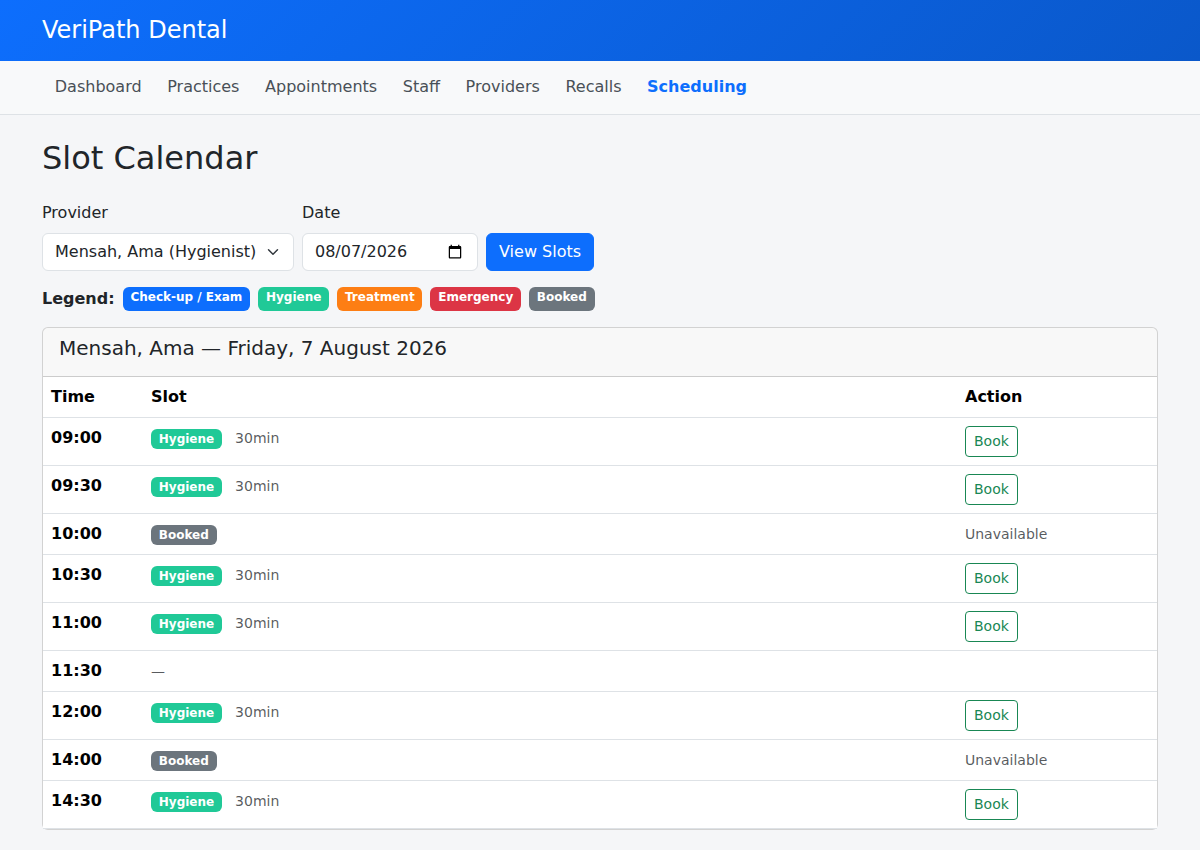
The Slot Calendar opens. It shows which time slots are available for a chosen clinician (provider) on a chosen day.
¶ Step 2: Choose the provider and date
- From the Provider drop-down, select the clinician the patient will see (for example, a Dentist or Hygienist).
- In the Date box, pick the appointment day.
- Click View Slots.
The calendar now shows the clinician's day, colour-coded by zone:
| Colour / Badge | Meaning |
|---|---|
| Coloured badge (e.g. blue, green, orange, red) | An available slot for that zone — e.g. Check-up / Exam, Hygiene, Treatment, or Emergency |
| Grey "Booked" badge | The slot is already taken |
| — (dash) | No slot scheduled at this time |
Each available slot shows how long it lasts (for example, 30min).
No slots appeared? If the calendar shows "No slots available for this
date. Create schedule blocks in Settings first.", the provider has no
schedule block for that weekday — read on.
¶ No slots available? Create schedule blocks first
The Slot Calendar is generated from schedule blocks. A date only shows
slots when the chosen provider has an active block for that weekday.
If none exist, you see the message above — and no amount of date-picking
will fix it until a block is created.
Who can create schedule blocks? The Settings menu is visible to
practice managers, practice admins, and super admins. Receptionists and
clinicians cannot create blocks — if you are booking and a clinician's
diary is empty, ask your practice manager to set the blocks up.
¶ What a schedule block is
A schedule block is a repeating weekly window during which a provider can
see patients. Each block combines:
| Field | What it means |
|---|---|
| Practice | The practice the block belongs to |
| Provider | The clinician whose diary it fills (dentist, hygienist, therapist, orthodontist) |
| Zone | The appointment type (e.g. Check-up, Hygiene, Treatment). This sets the colour shown on the calendar and how long each slot lasts |
| Day | The weekday the block repeats on — blocks are weekly, not tied to a single date |
| Start Time / End Time | When the block starts and finishes on that day (e.g. 09:00–17:00) |
| Turnaround (min) | The gap left between appointments (default 5 minutes) |
The calendar turns each block into a run of slots: one slot of the zone's
duration (e.g. 30 minutes) after another, with the turnaround gap in
between. No block, no slots — that is why you saw the message.
¶ Create a schedule block
- Click Settings in the top navigation bar, then Schedules.
- Click Add Block.
- Fill in the form:
- Practice — the practice the provider works at.
- Provider — the clinician whose diary you are filling.
- Zone — the appointment type (drives the slot colour and length).
- Day — the weekday (create one block per day the provider works).
- Start Time and End Time — the working window for that day.
- Turnaround (min) — keep 5 unless your practice uses a different standard.
- Click Create Block.
You can add several blocks for the same provider and day — for example, a
morning Check-up block and an afternoon Treatment block.
¶ Edit or deactivate a block
- The Schedules page lists every block and can be filtered by provider.
- Click Edit to change the day, times, zone, or turnaround. Untick
Active to stop the block generating slots without losing its settings. - Click Deactivate to switch a block off — its slots disappear from the
calendar straight away.
¶ Return to the calendar
Once blocks exist for the provider and weekday you need, go back to
Scheduling, choose the provider and date, and click View Slots — the
calendar now fills with that provider's available slots.
¶ Step 3: Book the slot
- Find the time you want.
- Click Book on that row.
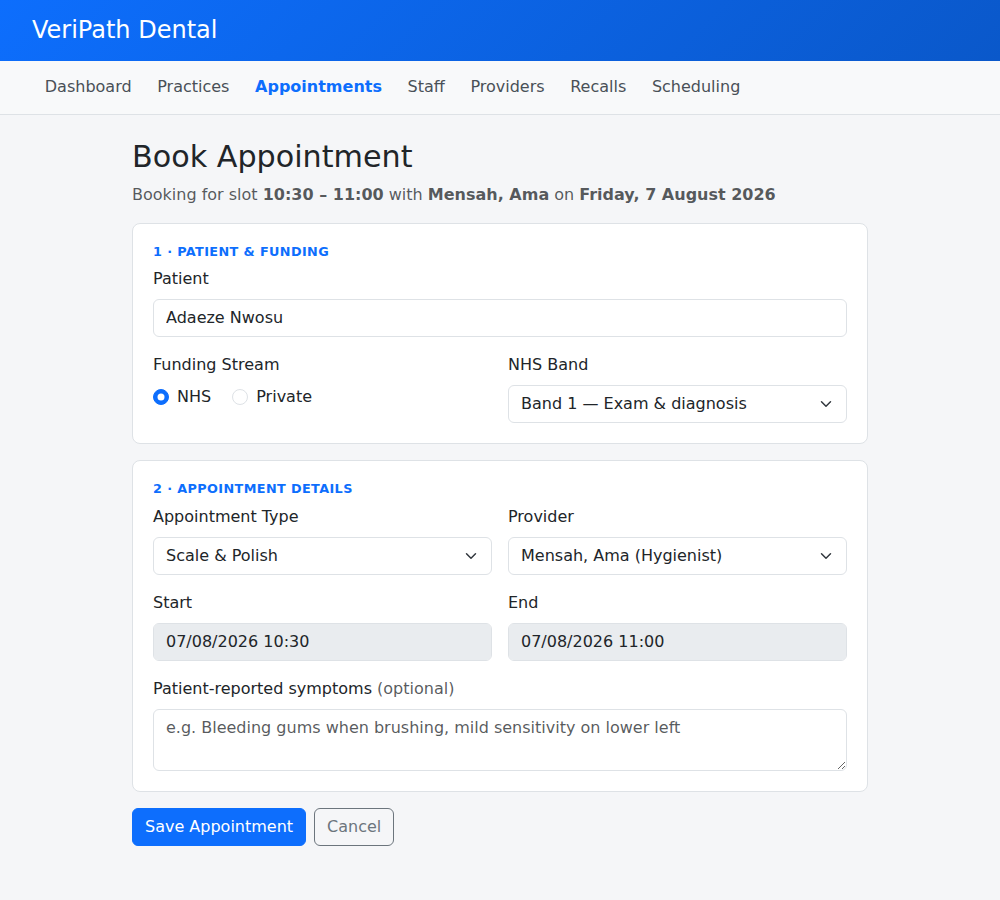
The Book Appointment form opens, pre-filled with the chosen clinician, date, and time.
¶ Step 4: Enter the patient and funding details
- Patient — search for the patient by name or NHS number and select them.
- Funding Stream — choose either:
- NHS — the appointment is funded by the NHS; or
- Private — the patient pays for the treatment themselves.
- If you selected NHS, choose the NHS Band that matches the treatment (Band 1, 2, or 3).
If the patient is private, the NHS Band box is not used.
¶ Step 5: Complete the appointment details
- Appointment Type — select what the appointment is for. Options include:
- Check-up
- Emergency
- Scale & Polish
- Filling
- Extraction
- Root Canal
- Hygienist Appointment
- Orthodontic Review
- Consultation
- Provider — confirm the clinician (usually already filled in from the calendar).
- Start and End — the appointment time (already filled in from the slot you chose).
- Patient-reported symptoms (optional) — note anything the patient has told you, for example "bleeding gums when brushing".
¶ Step 6: Save the appointment
- Click Save Appointment.
- The appointment is now created with the status Booked and appears on the Appointments list for the practice.
What happens next: The appointment shows as Booked on the list. After the patient is seen, the status moves to Attended. If the patient does not turn up, it becomes Did Not Attend (DNA). If the booking is cancelled, it becomes Cancelled.
¶ Useful tips
- Check for duplicates — search for the patient first to make sure they do not already have a booking at that time.
- Ask about funding before booking — it is easier to pick the correct band or private stream up front than to change it later.
- Slots follow the weekday — a block set for Monday only produces slots on Mondays. If a date shows no slots, check the provider's Schedules for that weekday before creating a new block.
- Emergency slots — if the patient needs urgent care and no slot is free, speak to the practice manager about how emergency capacity is handled at your practice.