¶ Emergency Slot Management
Emergency appointments are for patients who need urgent dental care, often at short notice. This guide shows how emergency handling works now: every emergency request is checked through the symptom checker before a slot is offered, red-flag cases are never booked, and urgent cases go into the red Emergency zone slots with a review flag for the triage queue.
Who does this? Receptionists handle emergency requests at the front desk and by phone. Dentists treat emergency patients. Emergency zones are set up by practice managers or administrators in Settings → Zones and Settings → Schedules. Patients cannot book emergency appointments themselves — the patient app shows Request a callback instead, and staff work through this guide when they call back.
¶ What you'll be able to do
- Run a patient through the symptom checker and know what each outcome means.
- Spot a life-threatening red flag and handle it safely — without booking a slot.
- Book an urgent case into a red Emergency zone slot on the slot calendar.
- Understand the 5–10 minute slot hold on urgent slots.
- Follow up urgent cases in the triage queue.
¶ How emergency handling works
When a patient needs urgent care, work through the three questions in the symptom checker on the Book Appointment screen. The first question that matches decides what happens:
| Checker result | Tier | What you do |
|---|---|---|
| Q1 — red flag (difficulty breathing/swallowing, swelling spreading to eye or neck, uncontrollable facial bleeding) | Emergency | Hard stop — never book. Show emergency guidance and direct the patient to 999 / A&E. |
| Q2 — urgent (severe pain not managed by painkillers, dental trauma, localised swelling or abscess) | Urgent | Book into a red Emergency zone slot within 24 hours. The appointment is flagged for confirmation in the triage queue. |
| Q3 — non-urgent (lost filling/crown/bridge, broken denture, dull ache, bleeding gums) | Non-urgent | Book a standard slot within 7 days and share the self-care advice on screen. |
| No boxes ticked | Routine | Book into the ordinary calendar as usual. |
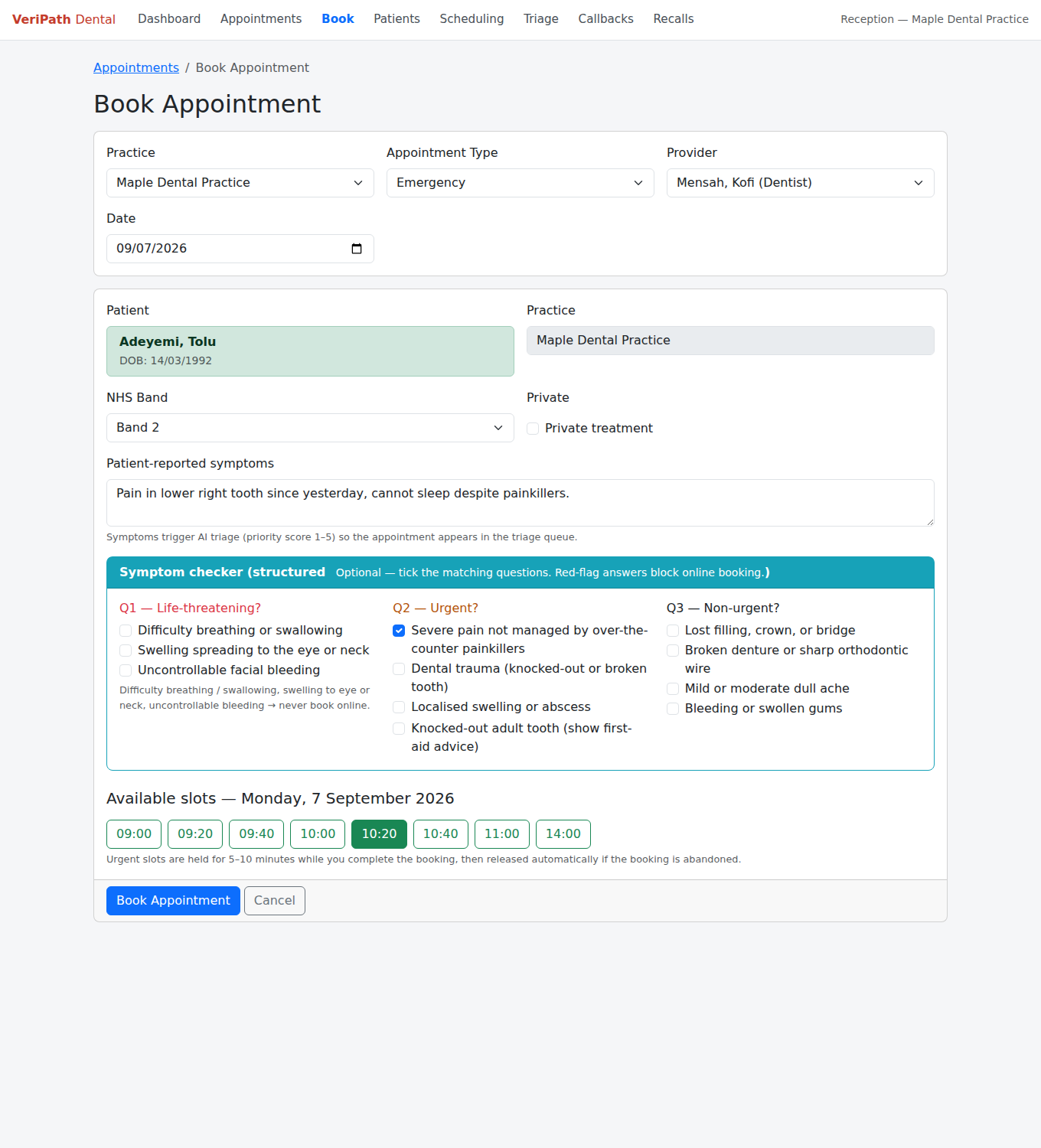
The symptom checker is optional — you can still type the patient's own words into Patient-reported symptoms if you prefer. But for emergency requests, working through the tick-boxes makes sure nothing serious is missed.
¶ Red-flag symptoms — the hard stop
If you tick any Q1 box, the booking is blocked. A red alert appears at the top of the screen with the practice's emergency guidance:
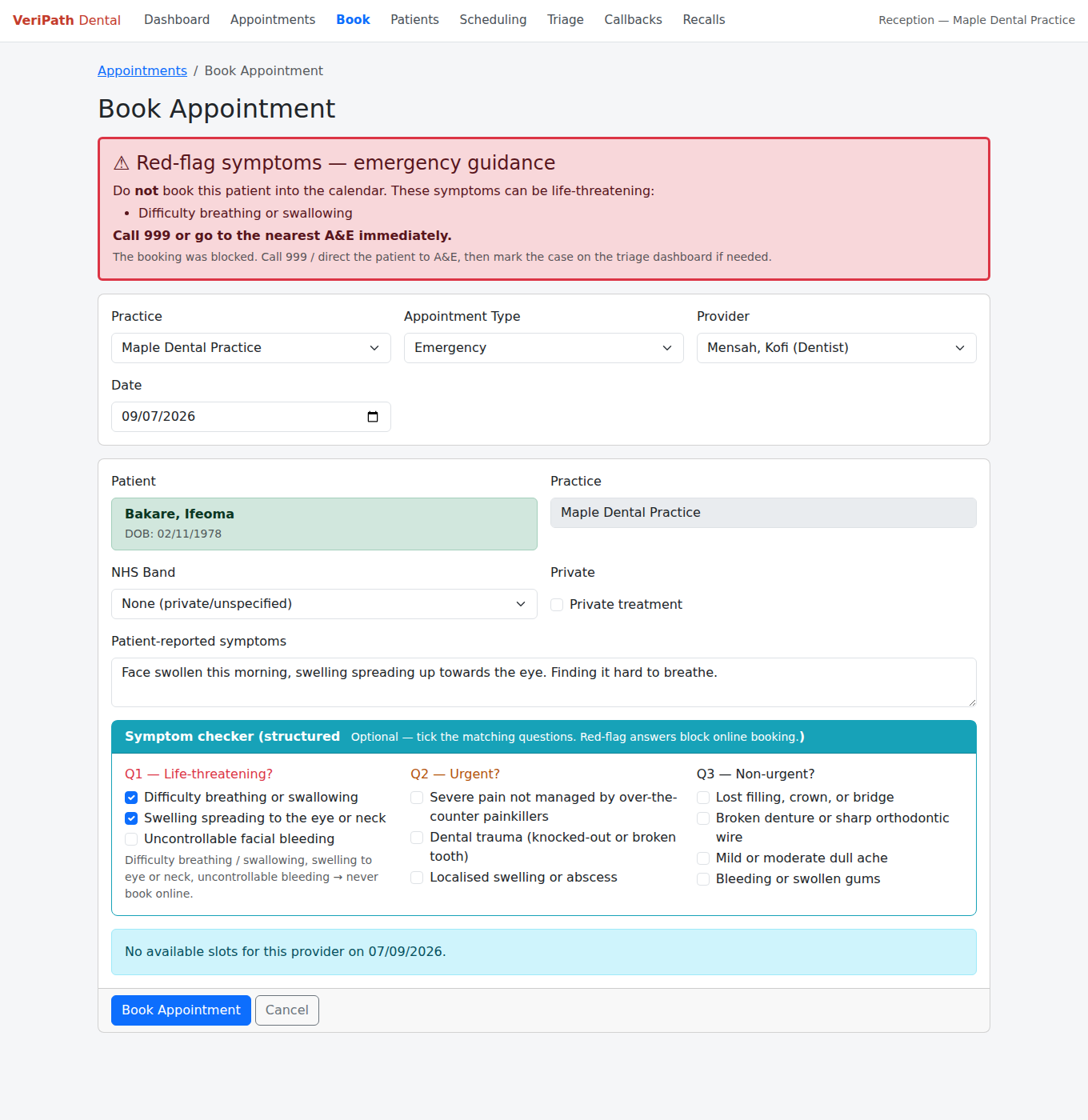
- Do not book the patient into the calendar — the form will not save the booking.
- Read the patient the practice's emergency guidance (by default: Call 999 or go to the nearest A&E immediately).
- If the practice has a local after-hours number or a specific A&E, it will be shown here instead — it is set per practice in the practice settings.
- Tell a clinician what happened so the case can be followed up.
Why this happens: symptoms like difficulty breathing or swelling spreading towards the eye or neck can be life-threatening. The app blocks online booking for these cases on purpose, so nobody is given a routine appointment instead of emergency care.
¶ Book an urgent emergency appointment
¶ 1. Open the booking screen
Go to Appointments → Book. Pick the practice, the appointment type (Emergency), the provider (dentist), and the date.
¶ 2. Find the patient
Search for the patient by name or NHS number and select them, or register a new patient if this is their first visit.
¶ 3. Tick the urgent symptoms
In the Symptom checker card, tick the Q2 — Urgent? boxes that match what the patient told you. For example:
- ☑ Severe pain not managed by over-the-counter painkillers
- ☐ Dental trauma (knocked-out or broken tooth)
- ☐ Localised swelling or abscess
If it is a knocked-out adult tooth, also tick Knocked-out adult tooth — the screen will show the first-aid advice (handle by the crown, keep the tooth in milk, see a dentist as soon as possible) to pass on to the patient.
¶ 4. Pick an emergency slot
Choose a slot from the Available slots row. Emergency slots come from the practice's red Emergency zone.
Slot holds: when an urgent slot is offered, it is held for 5–10 minutes while you complete the booking. If the booking is abandoned (for example the patient walks away), the hold is released automatically and the slot becomes available again. Nothing stays locked.
¶ 5. Save the appointment
Click Book Appointment. The appointment is created with the tier Urgent and a Confirm flag, so it appears in the triage queue for review. The confirmation screen shows the self-care advice for the patient (pain relief guidance, what to avoid, and when antibiotics are — and are not — appropriate).
¶ Emergency slots on the slot calendar
Emergency slots live on the Slot Calendar (Scheduling in the top menu). They show as a red Emergency zone — for example 20-minute slots kept aside each day for urgent cases.
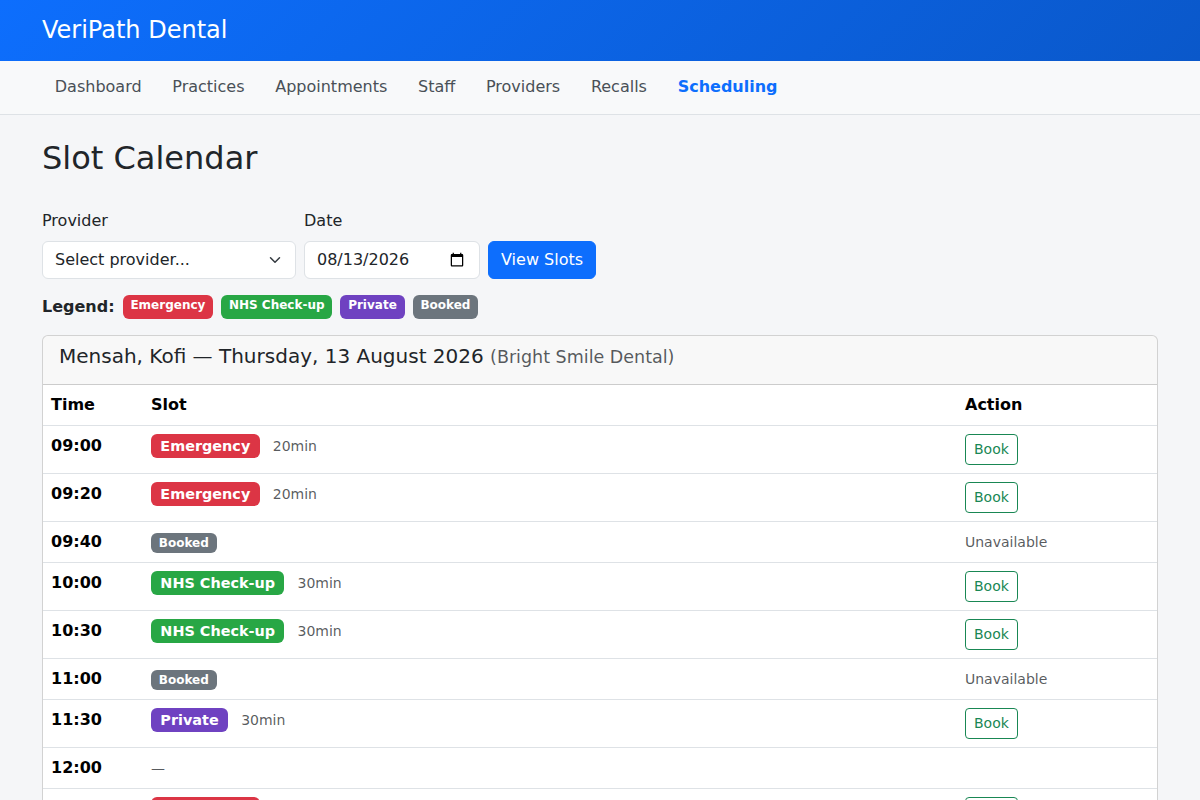
In the Slot column you'll see one of three things:
| What you see | What it means |
|---|---|
| Red Emergency badge + minutes | A free emergency slot you can book |
| Grey Booked badge | The slot is already taken |
| — (dash) | No schedule on the calendar for that time |
If the calendar shows only dashes or the message "No slots available for this date":
- Check the zone — ask a practice manager to open Settings → Zones and confirm the practice has an active Emergency zone (red, marked as an emergency zone, with dentists as the allowed provider role).
- Check the schedule — the emergency zone must be attached to a dentist's schedule block for that day in Settings → Schedules.
- Offer the next available day — emergency blocks are often added at short notice, so suggest checking back, or ask a manager to add an emergency block for today.
¶ Follow up in the triage queue
Urgent appointments appear in the Triage Queue (the Triage link in the top menu) with the Urgent badge and a Confirm flag. From there you can:
- Review the appointment and its symptoms.
- Confirm or re-run the triage.
- Override the tier with a reason (this is recorded in the audit log) if a clinician decides the urgency is different.
- Mark handled once the case has been reviewed.
The full workflow is explained in the Recording Symptoms & Triage guide.
¶ Staying safe with patient data
- Bookings, symptoms, and triage notes are confidential patient information — only look at them when you need to.
- Log out or lock your screen when you leave the desk.
- Never share login details or leave a patient's details visible on screen.