¶ Automated Reminders (Recalls)
¶ What you'll be able to do
After reading this guide you will understand how the app reminds patients that their dental check-up or treatment is due, and how to manage those reminders. You will be able to see which patients are due a reminder, check and update a patient's recall settings, and generate recall appointments from the dashboard.
Who does this? Reminders are sent automatically by the system. Receptionists and practice staff use the Recalls area to see who has been reminded, check the rules, and update patient recall preferences.
¶ How reminders work
Every night, the system:
- Looks at each practice's patients who are due for a recall — their recall date falls within the next 30 days.
- Sends each due patient an SMS reminder through the NHS Notify service, with a booking link so the patient can arrange their appointment.
- Records the outcome (sent or failed) in the patient's message log.
Reminders only go out for patients whose recall is active (see Step 3 below).
¶ Step 1: Open the Recalls dashboard
- Log in to VeriPath Dental.
- Click Recalls in the top navigation bar.
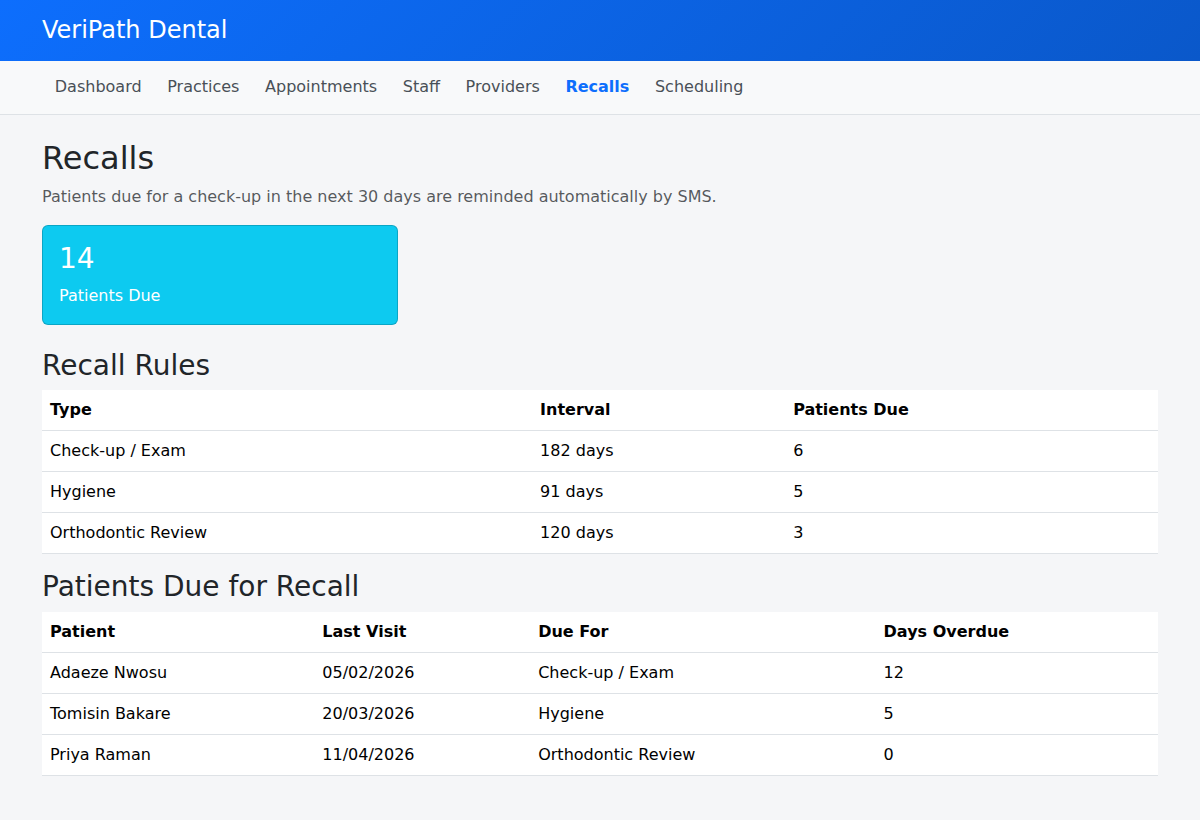
The dashboard shows:
- Patients Due — how many patients across the practice are due a recall in the next 30 days.
- Recall Rules — the appointment types with recall intervals (for example, Check-up / Exam every 182 days) and how many patients are due under each rule.
- Patients Due for Recall — a list of the patients, their last visit, what they are due for, and how many days they are overdue.
¶ Step 2: Understand the "Patients Due" list
| Column | Meaning |
|---|---|
| Patient | The patient due for a recall |
| Last Visit | When the patient was last seen |
| Due For | The type of appointment they need (e.g. Check-up / Exam, Hygiene) |
| Days Overdue | How many days past their recall date they are (0 or more) |
The system uses this list to send the automatic SMS reminders. Patients who are overdue are included in the nightly sweep until they book.
¶ Step 3: Check or change a patient's recall settings
You can control whether a patient receives automatic reminders.
- Open the patient's Recall Profile (from the patient's record in the system).
- Review the three settings:
| Setting | What it does |
|---|---|
| Risk Category | The patient's recall risk level (Low / Medium / High). This can influence recall planning. |
| Recall Due Date | The date the patient's next recall becomes due. Reminders are sent when this date is within 30 days. |
| Recall active | When ticked, the patient receives automatic reminder SMS messages. Untick to stop reminders for this patient (for example, if they have asked not to be contacted). |
- Click Save.
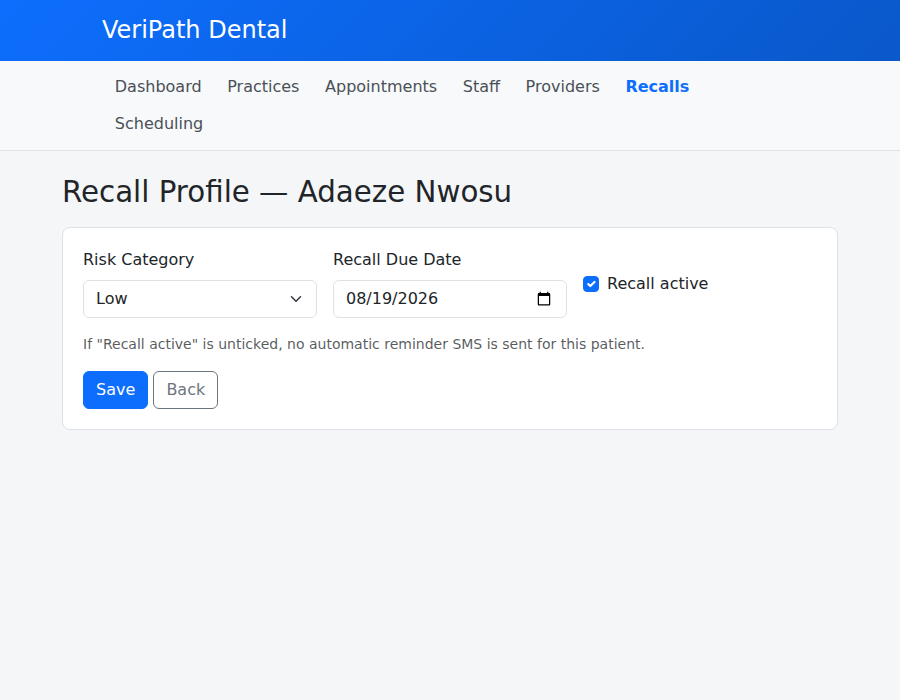
Tip: If a patient asks not to receive reminder messages, untick Recall active and save. The system will not send them any more automatic recall SMS messages.
¶ Step 4: Generate recall appointments (practice managers)
Practice managers can turn the list of due patients into actual appointments in one click:
- Open the practice's Recalls page.
- Click Generate Recall Appointments.
- The system creates a draft appointment for each patient who is due.
This helps the practice book capacity ahead of time for upcoming recalls.
¶ Useful tips
- Reminders are automatic — no-one needs to send them manually. If a patient says they did not receive one, check their Recall Profile is active and the due date is within 30 days.
- Keep recall dates up to date — after a patient attends, make sure their next recall date is set so the reminder cycle continues correctly.
- Failed messages — if the system cannot deliver a reminder (for example, an invalid phone number), the message is logged as failed. Check the patient's contact details are correct.