¶ Stock — Order Stock and Export the Order File
¶ What you'll be able to do
After reading this guide you will be able to build an order from what has run low, adjust it, and download the file
the wholesaler's portal expects — so that ordering does not mean retyping product codes, and so that the pharmacy has
a record of what it ordered, when, and what actually arrived.
Who does this? The Responsible Pharmacist, the Dispensing Technician and the Business Manager —
the same three roles that record a delivery. The Counter Assistant has no ordering surface at all (the pages are
refused). If Stock is not in your top menu, your login does not hold a stock role.
¶ Why the order is recorded
The other half of the delivery record. The professional guidance already quoted in the goods-in guide requires
that all orders and dispatches are authorised and recorded (3.38), and the GPhC's standards require medicines to
be obtained from a reputable source (4.3). Recording a delivery shows what arrived; this is the record of what
was asked for, by whom and when — and it is what lets a delivery be checked against something, instead of against
memory.
The app does not order anything. It produces the file; the pharmacy uploads it in the wholesaler's own portal and
submits the order there. The app never holds a wholesaler's password and never talks to their portal. What it
does hold is the pharmacy's own record: the order, its lines, who built it, who exported it, and — once the delivery
is in — the comparison between what was ordered and what turned up.
¶ Before you start
- Refresh the stock figures first if the order matters. The list of what has run low is built from the
cached positions, exactly as the stock overview and the low-stock report are (C2), so it is as current as the
last refresh (C5). The build screen shows Last position refresh and offers the refresh button itself. - An item can only appear in an order if its stock record is set up: an alert level (so it can go low), a
preferred supplier, and a code the wholesaler knows — its PIP code, or the pack's barcode. Whoever looks
after stock sets those; the supplier screen is where suppliers come from. - One order is one supplier. The view shows every low item on one grid, but an order is still created for one
supplier at a time — the basket bar at the foot of the screen gives each supplier its own Create draft
button. Nothing is routed to a supplier you have not chosen. - Have your wholesaler login to hand — the upload happens at their end, not here.
¶ Step 1: Build the order
- Log in to the pharmacy app.
- Click Stock in the top menu, then Orders — one of the buttons below the stock figures.
- Click Build an order.
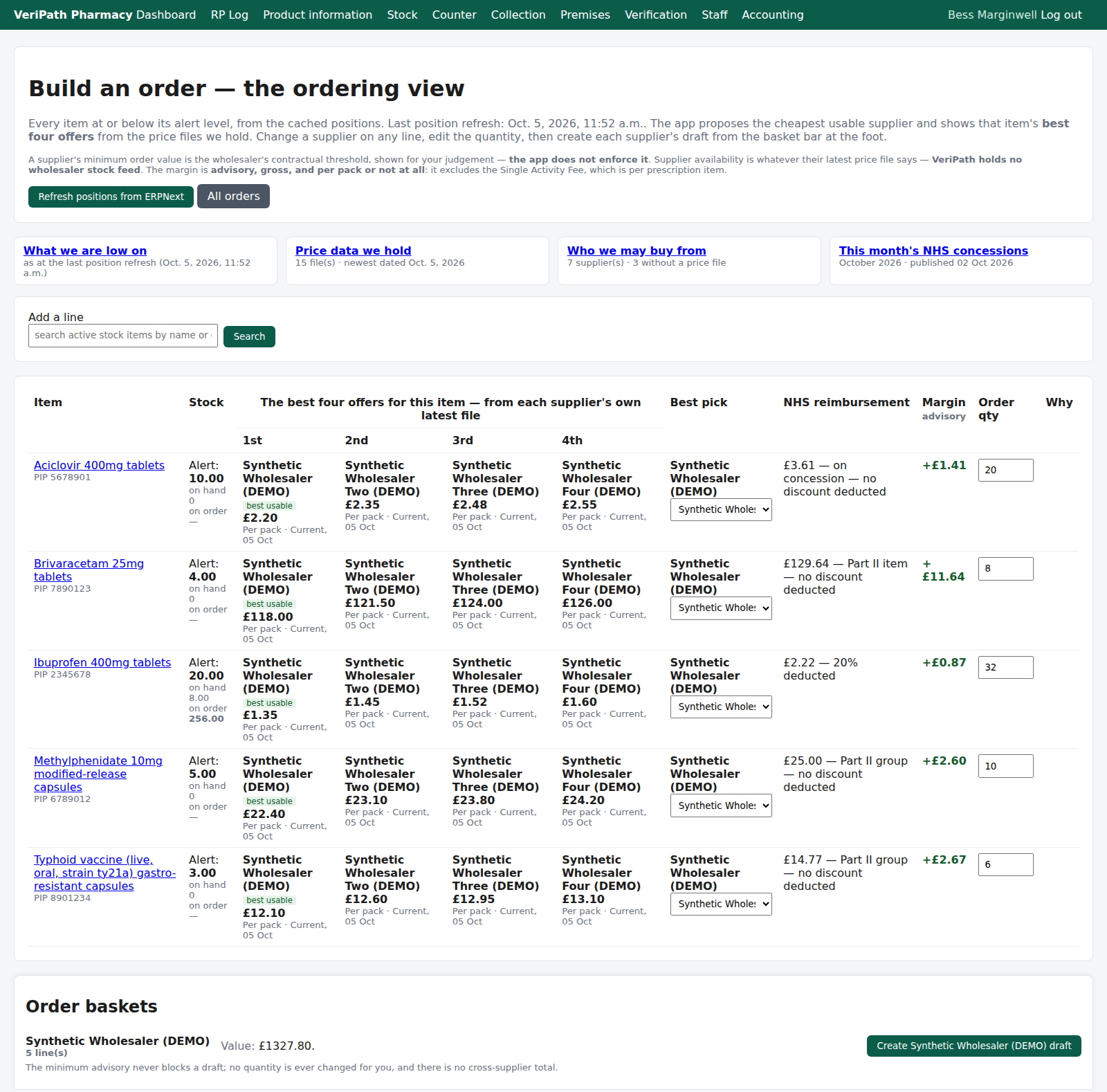
The ordering view: every low item on one grid, the best four offers for each, the NHS reimbursement and the margin
beside them, and the basket bar at the foot.
The screen is one decision view rather than a form. Read a row left to right:
| Column | What it tells you |
|---|---|
| Item | The stock item that has run low. |
| Stock | What the pharmacy is holding (cached), the item's alert level, and the quantity already on order — on an order in Draft or Exported that has not arrived yet. That on-order figure is shown, never subtracted from the quantity the app proposes. |
| The best four offers | That item's best four supplier offers from the price files the pharmacy holds, ranked cheapest usable first. Each cell names its own supplier, its price and basis, and the file's date and freshness. Where a supplier's file does not list the item the cell says not in their file of <date>; where more than four suppliers have an offer the row counts the rest as +N more offers not shown, and every candidate stays reachable on the line's supplier dropdown. |
| Best pick | The supplier the app proposes (the cheapest usable price); change it on any line with the dropdown. |
| NHS reimbursement | The published figure for the pack, with the rule that produced it. |
| Margin | The reimbursement minus the best usable per-pack price — advisory, and gross: it excludes the Single Activity Fee, which is per prescription item. A loss is shown, not hidden. |
| Order qty | What the app suggests: enough to bring the item back up to its order-up-to level, or back to its alert level when no order-up-to level is set. |
| Why | The reason the line is routed as it is, or the reason it cannot be. |
The app proposes; you decide. Change any quantity in the Order qty box, change a supplier with the dropdown,
then press that supplier's Create draft button in the basket bar. A quantity must be a whole number of packs:
the app refuses a fraction or a zero rather than rounding for you.
Add a top-up line deliberately with the Add a line search above the grid; a searched item carries the same
offers, reimbursement and margin as a low one.
Nothing has been ordered when a draft is created: it is a record in the pharmacy's own files, with its own reference
(for example ORD-20260921-D123C9).
Lines you do not want are dropped on the next screen — the draft order's Edit lines, where each line has a
Drop box. Dropping a line there also lets you change a quantity after the fact.
¶ Step 2: Check the draft
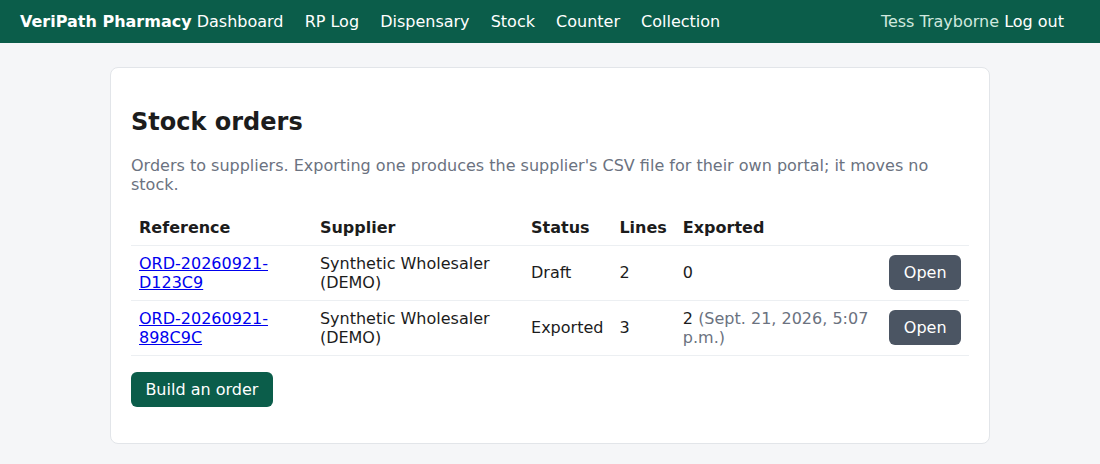
The orders list: every order with its supplier, state, how many lines and how many times it has been exported.
Build an order starts a new one.
| Status | What it means |
|---|---|
| Draft | Built but not sent anywhere. Lines can still be edited or dropped. |
| Exported | The file has been downloaded at least once. The lines are now locked. |
| Received | A delivery has been recorded against it (see Step 5). |
| Cancelled | It is not going to be sent. It cannot be exported, and it stays on the list as the record. |
Open the order to see its lines, or use Edit lines while it is still a Draft — change quantities, tick
Drop against any line you do not want, and Save changes. Once an order has been exported it can no longer be
edited: "Only a draft order can be edited." If an order is not going to be sent, open it and Cancel order with a
reason.
¶ Step 3: Export the file
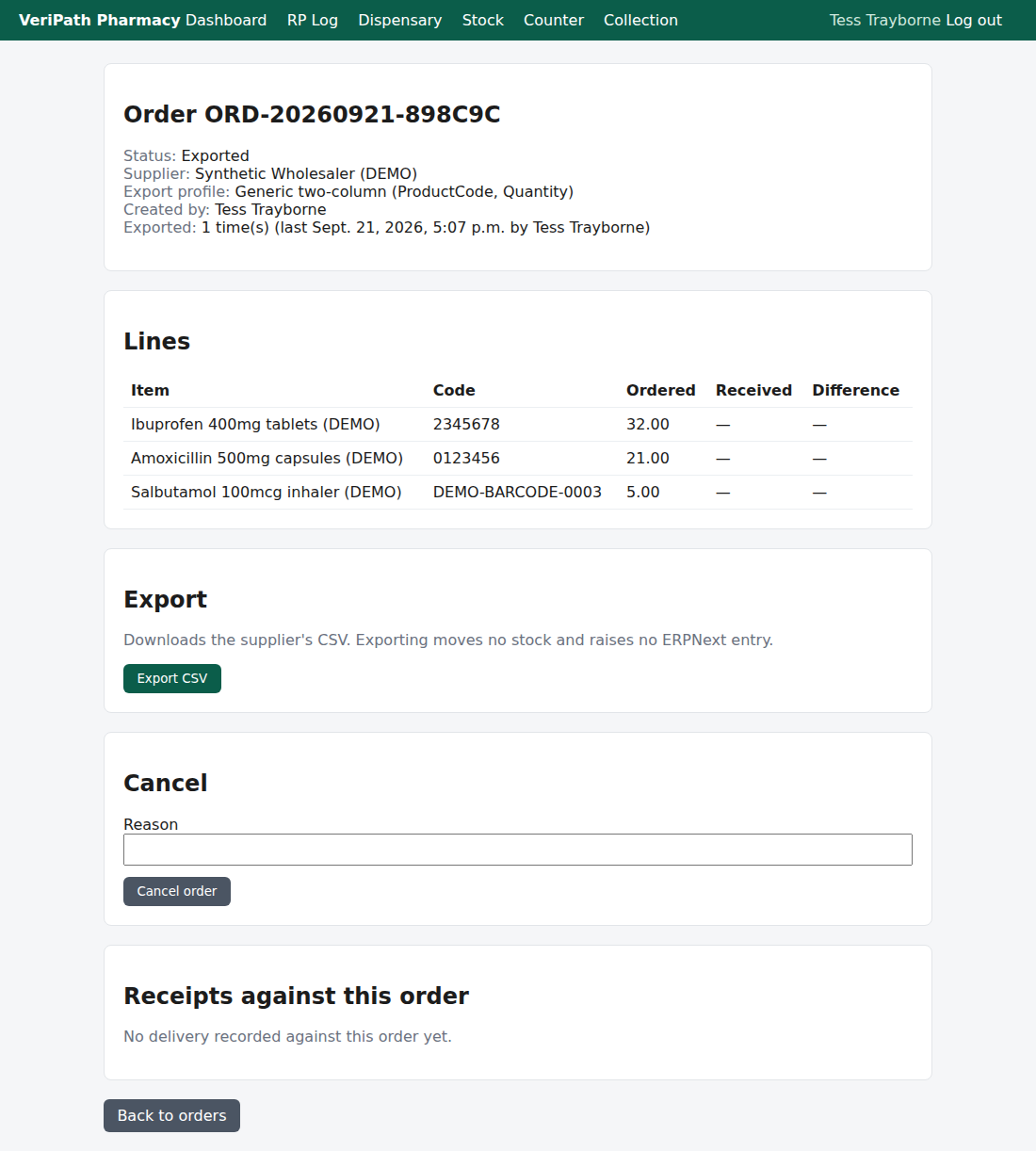
An exported order: the state, who created it and how many times it has been exported, the lines with the code that
goes in the file, and the Export CSV button. The Received and Difference columns stay empty until a
delivery is recorded against it.
On the order page, click Export CSV. The app then:
- downloads the file the portal expects — named
<supplier>-order-<reference>.csv, for example
synthetic-wholesaler-demo-order-ORD-20260921-898C9C.csv; - marks the order Exported, and records who exported it, when, and how many times;
- writes it to the audit trail, including a note of any line left out for having no supplier code.
What is in the file. Two columns and nothing else — no header row (the portal's importer already knows which
column is which), no product names, no pack sizes, no prices, because the portal looks the item up itself:
2345678,32
0123456,21
DEMO-BARCODE-0003,5
The code is the item's PIP code where it has one — leading zeros kept, so 0123456 stays 0123456 — and the
barcode where it does not. Quantities are whole packs.
Exporting moves no stock and posts nothing. It is a file, not a transaction: the ledger is untouched, and nothing
appears in ERPNext. If the download is lost, press Export CSV again — the order remembers that it has been
exported twice.
¶ Step 4: Upload it in the wholesaler's portal
This part is not in the pharmacy app, and deliberately so:
- Log in to the wholesaler's portal yourself, as you always have.
- Open its bulk upload / quick add screen and attach the file you downloaded.
- Check the basket the portal builds — its own stock validation, prices and pack sizes are its business, not ours —
then submit the order there.
The wholesaler confirms the order, and the printed order or invoice comes back with the delivery. If the portal
rejects the file, that is a layout mismatch between that wholesaler's template and the one configured here: pass
the portal's message and the supplier's name to whoever looks after the platform. A wholesaler's layout is only ever
taken from that wholesaler's own template, never guessed.
¶ Step 5: When the delivery arrives
Record the delivery exactly as the goods-in guide describes (C1) — supplier, one line per batch, quantity, batch and
expiry — and use the optional Against order box to name the order it fulfils. It lists the orders that have been
exported (each shown with its supplier); picking one that belongs to a different supplier from the one on the
receipt is refused, with "That order belongs to a different supplier."
Once the receipt is posted successfully, the order turns Received and its page fills in Received and
Difference for every line. That is where a short delivery becomes visible: three ordered and two received
shows a difference of −1 on that line, in the pharmacy's own records, at the time it happened.
If a delivery arrives with no order behind it — a special order, a one-off — leave Against order blank and record
it as normal.
¶ The record it keeps
- The order: its reference, the supplier, the export profile used, who created it and when.
- Every export: who, when, and how many times — the app never hides a second download.
- The lines: item, the code exported, the quantity ordered.
- The delivery link: the receipts recorded against the order, with the ordered-versus-received difference.
- A cancellation, with its reason, and audit entries for creating, editing, exporting, cancelling and
receiving — no patient content anywhere, because an order has none.
¶ What this does not do
- It does not order anything, and it never contacts the wholesaler: you upload the file and submit the order in
their portal. - It does not raise a purchase order in ERPNext. The order record lives in the pharmacy app; ERPNext keeps the
stock ledger, and the goods-in receipt (C1) is what posts to it. - It does not move stock, change the figures, or refresh the positions — an exported order changes nothing until a
delivery is recorded. - It does not check a supplier's minimum order value. The minimum is the wholesaler's contractual threshold,
shown as an advisory in the basket bar — the app never enforces it and never blocks a draft. - Its prices are only the files the pharmacy holds. A supplier's availability is whatever their latest imported
price file says and nothing more — the app holds no wholesaler stock feed, so no cell ever claims "short supply". - Its margin is advisory and gross, per pack or not compared at all — never a net profit.
- It does not order automatically on a schedule, and it does not top items up by itself.
- It does not export an item with no code, an item with no supplier, or a quantity that is not a whole pack.
- It is not available to the Counter Assistant at all.
¶ If it doesn't work
| What you see | What it means |
|---|---|
| "Nothing is at or below its alert level." | No item is low according to the cached positions. Refresh the positions (C5) and look again; if it still says this, nothing needs ordering. |
| An item you expected is missing from the list | It has no alert level set, so it can never go low; or its cached quantity is above its level; or it has no preferred supplier (see below). |
| A row showing — instead of offers | The item cannot be ordered yet — it has neither a supplier code (a PIP code or barcode) nor a supplier that can produce one. Tell whoever looks after stock; the code and the preferred supplier are set on the item, not here. |
| An item that cannot be ordered | It has neither a PIP code nor a barcode recorded, so the portal would not know what is being ordered. It is left out of the file (the export notes how many were), and whoever looks after stock needs to add the code. |
| "…: quantity must be a whole number of packs." | The quantity is a fraction, or zero. Order whole packs. |
| "Keep at least one line to create an order." | Every line was dropped or invalid, so there is nothing to order. |
| "Only a draft order can be edited." | The order has already been exported, and its lines are locked. Build a new order instead. |
| "No line on this order has a supplier code to export." | Every line lacks a usable code, so the file would be empty. Fix the item codes first. |
| "A cancelled order cannot be exported." / "A received order cannot be cancelled." / "This order is already cancelled." | What the state allows: a cancelled order will not be exported, and a received one cannot be cancelled. |
| The portal rejects the uploaded file | A layout mismatch — tell whoever looks after the platform, with the portal's message and the supplier. |
| You cannot see Orders at all | Your role does not hold a stock-managing permission: this screen is for the Pharmacist, the Technician and the Business Manager. |
¶ Related
- Stock — Coverage — where this guide sits in the stock group
- Stock — Receive a Delivery — recording what arrives, and the
Against order box (C1) - Stock — Check Stock Levels — the low-stock list this screen
builds from (C2) - Stock — Sync Stock Positions — refreshing the figures the list
is built from (C5) - Roles and Permissions in the Pharmacy App — who may order