¶ Stock — Set Up and Run the Order Satellite
¶ What you'll be able to do
After reading this guide you will be able to switch the order satellite on for the pharmacy, download it, install it on
the PC that builds orders, and run it each day so that it reads the order file the app has just exported, tells you
what it found, and hands you off to the wholesaler's portal with everything checked first.
Who does this? Setting it up is the Business Manager's job — the satellite screen carries commercial settings,
and it is refused to everyone else (the Responsible Pharmacist, the Dispensing Technician and the Counter Assistant
all see a refusal page). Running it day to day is done by whoever builds and sends orders: the Pharmacist, the
Dispensing Technician or the Business Manager (C6). If Stock is not in your top menu, your login does not hold a
stock role.
¶ What the satellite is, in one paragraph
The satellite is a small program that runs on the pharmacy's own PC. It attaches to a browser window you already
have open, finds the order page in the app, reads the short note that page carries about the order, and picks up the
order file the app exported into your Downloads folder. Then it prints a report and stops. It is the local
half of ordering: the app still produces the file (C6), and the satellite is what makes sure the file you are about to
send is the file the app just produced, for the order you think you are sending.
It does not replace anything you do today. You still log into the wholesaler's own portal and submit the order
there, exactly as before. What changes is that the file on your PC has been read back against the app's record before
you do.
¶ What it never does
- It never asks for a wholesaler password and never logs into any portal.
- It never submits an order and never opens a portal. The one address it shows on screen is the supplier's own
recorded address, displayed and not opened. - It never sends anything anywhere — the order file is read on the PC, and nothing leaves the machine.
- It holds no credential of any kind, and there is nothing to type into it.
- It reports nothing back to the app yet. The app knows what it sent; it cannot see what happened on the PC.
That reporting is a later piece of work, and the app says so in plain words rather than pretending (see
What the app shows about it). - It never writes to the app, and it never changes an order. Reading only.
¶ Before you start
- The pharmacy's PC needs Python 3 installed. The download is provisional — today's package is the program
itself, not a single self-contained file — and the launcher says so plainly if Python is missing rather than
failing silently. If you are not sure whether it is on the machine, ask support before the first run. - Chrome, Chromium or Edge must be installed on that PC (Brave and Vivaldi also work). The satellite drives one
of those in the window the launcher opens; it installs nothing and needs no driver. - Know which kind of PC it is, because the launcher depends on it: Windows uses
run-satellite.bat,
Linux usesrun-satellite-linux.sh— see Step 2. - The supplier must be configured. The app only calls an order ready to send when the supplier has a portal
method recorded with its address, the date it was seen and what was seen — the evidence rule from
Stock — Manage the Supplier List. Until then every order
page reads not ready, with the app's own reason, and the satellite simply repeats that sentence to you. - Have the wholesaler's own login to hand — you still submit the order at their end.
¶ Step 1: Switch it on and download it (Business Manager)
- Log in and click Stock in the top menu.
- Under the stock figures, click Order satellite (it is also linked from the bottom of the supplier list, labelled
Order satellite setup).
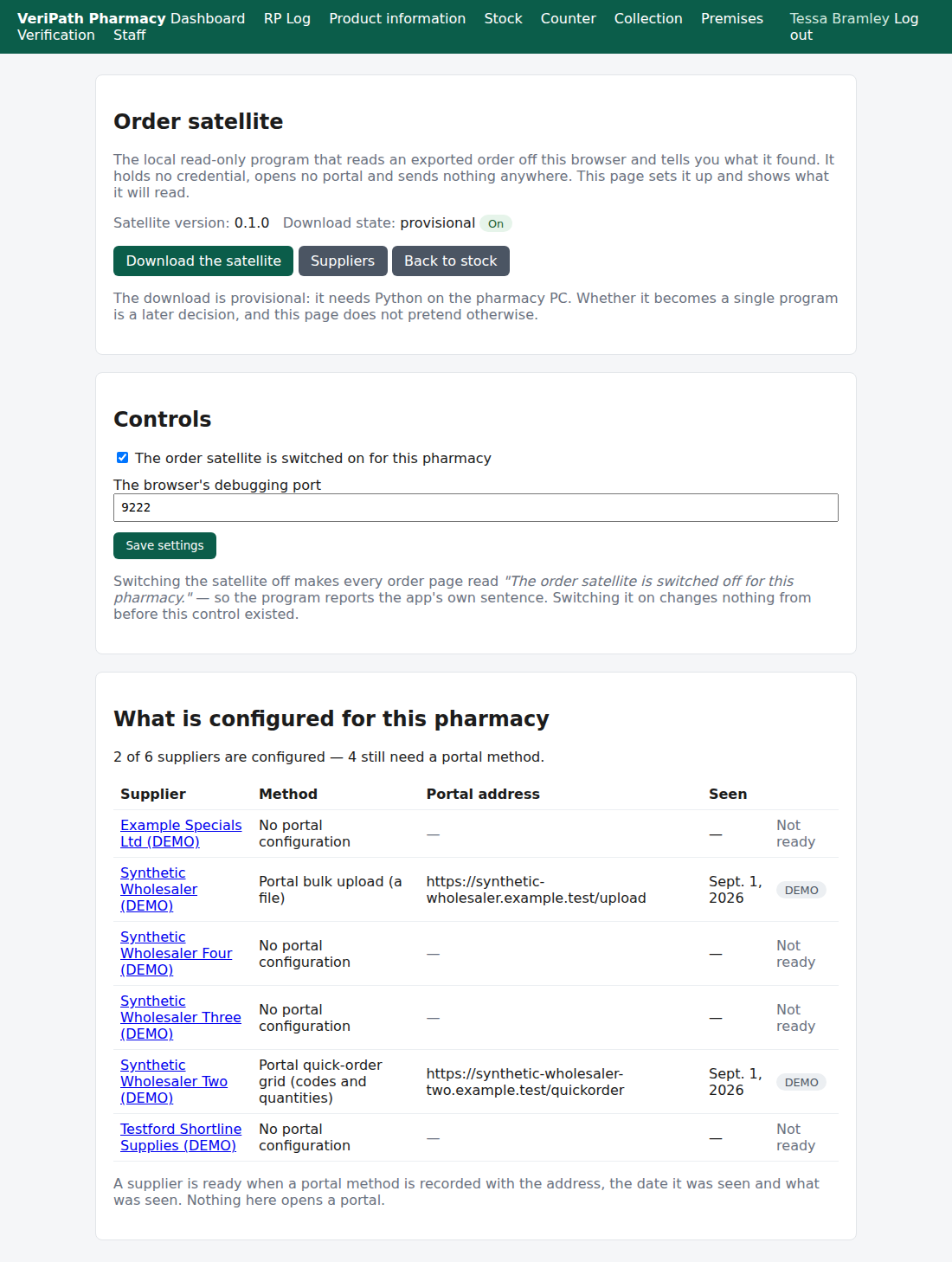
The top of the satellite screen: the version, whether the download is provisional, the on/off switch and the port,
the download button, and the list of suppliers with what is configured for each one.
Read the middle card first. "2 of 6 suppliers are configured — 4 still need a portal method." is a statement about
this pharmacy's supplier records, not about the satellite: each row shows the supplier, its portal method, the recorded
address, the date it was seen, and a DEMO marker where the configuration is synthetic. The message under the table
says what "configured" means: a supplier is ready when a portal method is recorded with the address, the date it was
seen and what was seen. Nothing here opens a portal.
Then, in the Controls card:
| Control | What it does |
|---|---|
| The order satellite is switched on for this pharmacy | The switch. While it is off, every order page reads "The order satellite is switched off for this pharmacy." and the satellite prints that sentence rather than a report. Switched on, the order page reads exactly as it always did. |
| The browser's debugging port | The number the satellite uses to talk to the browser on the PC. Leave it at 9222 unless support tells you otherwise — it travels inside the download, so you do not have to remember it. |
Click Save settings.
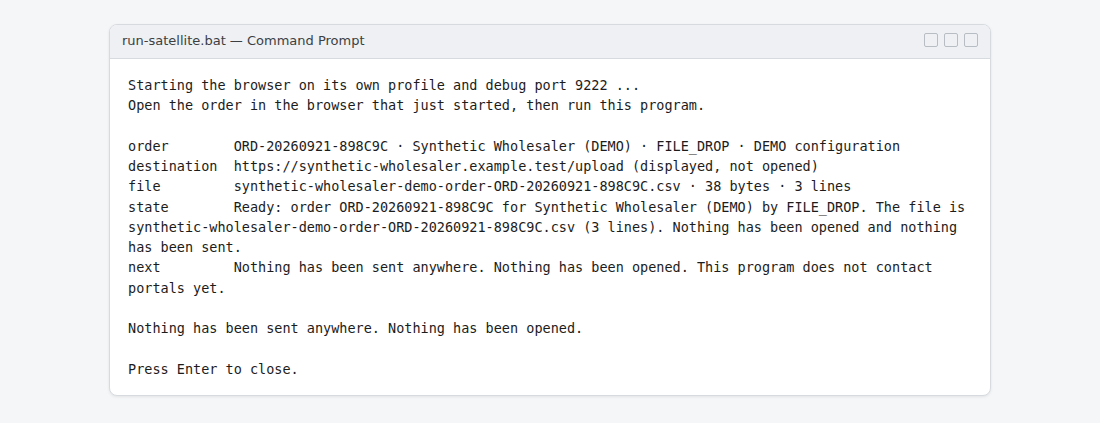
What you will see on the PC: the launcher's two lines, and then the report. The line above "order" names the page the
program read, so you can check it read the order you meant — it is left out of this picture because it names your own
pharmacy's web address.
- Click Download the satellite. You get one zip file,
veripath-satellite-0.1.0.zip(the number is the version, and the page names the same version). Keep it — the
page will always name the version the app is serving.
¶ Step 2: Install it on the PC
- Extract the whole zip into a folder of your choosing — for example
C:\VeriPath\satelliteon Windows, or
~/VeriPath/satelliteon Linux — and keep it there. Do not move single files out of it, and do not rename them:
the launcher finds the program by looking beside itself. - That is the whole installation. Nothing is installed into the system, no service or scheduled task is
registered, no registry key is touched, and nothing starts on its own. On Linux, use Extract All rather than
the archive tool's preview window: the launcher has to run from a real folder. - Leave the folder in place. Inside it, the program keeps two small files of its own: a browser profile for the
window it opens, and a note of which order files it has already read. Deleting them is harmless but the program
will read the same file again.
The package contains the program itself, a short read-me, and the launcher — the thing you start. On Windows
that file is run-satellite.bat, which you double-click. On Linux it is run-satellite-linux.sh, run from the folder
that holds the extracted package: bash satellite/run-satellite-linux.sh. The package as it stands ships the
Windows launcher only; the Linux one is written and verified, and support will give it to you until it ships with the
rest — its page is
The Satellite on a Linux PC — the Launcher.
The download carries only two things about your pharmacy: the
port and the version. Nothing else about the pharmacy, its suppliers or its orders is in it, because the
satellite reads all of that off the page in the app.
¶ Step 3: The daily routine
- Build the order and export it, exactly as you do today — see
Stock — Order Stock and Export the Order File.
The exported file lands in that PC's Downloads folder, and it has to be that PC's own Downloads folder:
the satellite looks there and nowhere else. If Downloads has been moved (OneDrive's folder backup does this), or
the browser is set to save elsewhere, check the browser's Settings → Downloads before the first run. - Start the launcher. A browser window opens on its own profile with the port enabled, and the program's own
window stays open afterwards so you can read the report. - In that browser window, log in to the app and open the order you just exported. It is a fresh browser profile,
so this is a normal login. - Run the launcher again once the order page is open. The first time through you will usually be told that no
VeriPath page is open — you were still logging in. That is the program telling you the next step, not a fault: open
the order, run it again, and the report appears at once. - Read the report (the next section says what each line means).
- Then log into the wholesaler's own portal and submit the order yourself, exactly as you do today.
The program will not read the same file twice for the same order. If you run it again after a successful read it
says "Already handled … Nothing done — nothing has been sent anywhere." — so there is no risk in running it again to
check.
¶ What the report means
The report is six labelled lines and one closing sentence. The state line is the one to read:
| State | What it means, and what to do |
|---|---|
| Ready: order … | The file the app named is in Downloads, it is newer than the order's own export, and nothing has been sent. You are clear to submit the order in the wholesaler's portal. |
| The app says this order is not ready: … | The app is not offering this order to a satellite, and it says why in its own words — the order is cancelled, the supplier has no portal method, the supplier's configuration is incomplete, or the satellite is switched off for this pharmacy. Fix the cause in the app, or send the order by hand as before. |
| The app named … but it isn't in the Downloads folder yet | The export has not finished, or it was saved somewhere else. Export it again in the app and keep the file in Downloads. |
| … is in Downloads but was written before this order was exported | The file with that name is older than the export that produced the order page — so it cannot be the file for this order. Export the order again (the app will produce it afresh), then run the satellite again. It refuses a stale file on purpose: sending the wrong order is worse than sending none. |
| No browser is listening on the local debugging port | The browser the launcher starts is not running. Close it, start the launcher again, and let it open its own window. |
| No VeriPath page is open in that browser | Nothing in the browser carries an order page: log in, open the order, and run it again. |
| The VeriPath page is still loading | The order page had not finished. Run it again in a moment. |
| Already handled … | This order file has already been read. Nothing was done, and nothing was sent anywhere. |
The first line of the report names the page the program read, so you can check it read the order you meant, and the
last line always says the same thing: "Nothing has been sent anywhere. Nothing has been opened."
¶ What the app shows about it
Back on the satellite screen, two cards are about the app's side of the story:
- What the app has exported — the orders the app has sent out, newest first: the order, its supplier, when, how
many times, and the file name the app would name. This is what the app sent. The app cannot see the PC, so this
list is not a record of the satellite having run. - Self-check — four plain statements: whether a supplier has a complete portal configuration, whether the order you
mean to send is exported, the file name the app would name, and whether a satellite has ever run on this PC. The
answer to that last one is "cannot tell — the satellite does not report back yet". It is deliberately not a
tick: the app does not know, and it will not pretend.
¶ Sending prices in the other direction
The satellite as it stands reads an outbound order file. Bringing a wholesaler's price file into the app is a
separate job, and today it is done by hand:
- Stock in the top menu, then Price files (under the stock figures).
- Click Import a price file, choose the supplier, the price date, and the wholesaler's own file
(.csv,.txtor.tsv— one file at a time), then Upload and map. - The next step asks you to confirm which column is the code and which is the price before the file is read. Set
the price date to the date on the file, not to today: that date decides which rows supersede which.
Uploading a price file is a Business Manager task. Each file is then listed with what the app did with every line —
matched to a stocked item, unmatched, or rejected.
Not yet available (checked 2026-09-29). The automatic route — the satellite fetching a price file from a
wholesaler's portal by itself — is not built. It is specified as a proposal and awaits a decision, so nothing on
the satellite screen offers it, and nothing here should be read as promising it. Until it exists, price files come in
through Import a price file as above.
¶ What this does not do
- It does not place the order. You submit it in the wholesaler's portal, as you always have.
- It does not contact a wholesaler and holds no portal password.
- It does not report back to the app — no run history, no "it worked" tick, nothing on the PC is visible to the
app. - It does not run on its own, on a schedule, or in the background: it runs when someone double-clicks it, and it
stops when it has read the page. - It does not check prices, minimum order values or pack sizes — those are the portal's and your checks.
- It does not download price files (see Not yet available above).
- It does not open, edit or re-export the order file. It reads it — its name, size, line count — and says so.
- It is not for the Counter Assistant, the Pharmacist or the Technician to set up — the setup screen is the
Business Manager's. Running it day to day is not restricted.
¶ If it doesn't work
| What you see | What it means |
|---|---|
| "No Chrome or Edge was found on this PC." / "No Chrome, Chromium or Edge was found on this PC." | The launcher needs one of those browsers installed on the machine. Install one, or ask support. |
| A Linux terminal seems stuck, and the command you type next never runs | The browser was started without a trailing &, so it holds that terminal. Leave it alone and open a second terminal, or press Ctrl+C and start the browser again. |
| "The browser did not open its debug port (9222) in time." | The browser did not come up with the port the app recorded. Close the browser the launcher opened, and double-click the launcher again. |
| The browser opens but the report says no VeriPath page is open | You are not logged in yet, or the order page is not the one open in that window. Log in, open the order, and run the launcher again. |
| The report says the file is not in Downloads | The export did not complete, or the browser saved it elsewhere. Export the order again in the app; the file must keep the exact name the app gives it. |
| The report says the file was written before the order was exported | Delete or move aside the stale file, export the order again, and run the satellite again. |
| Nothing happens when you double-click the launcher | On Windows, the file extension may be hidden or Python may be missing. On Linux, double-clicking the Windows launcher (run-satellite.bat) hands it to Wine, which finds no browser and no Python and closes — use run-satellite-linux.sh. Either way, ask support and tell them the version the satellite screen names. |
| The satellite screen is not there for you | It is for the Business Manager (the platform administrator sees it read-only). Ask the Business Manager. |
| You cannot change the settings | Only the Business Manager can save the switch and the port. |
| The order page says "The order satellite is switched off for this pharmacy." | Someone switched the satellite off on the satellite screen. Switch it back on if that was not intended. |
¶ The next thing to run, and where the test portals are
The first real run has happened — 2026-09-30. On the Business Manager's own PC the launcher opened the browser, the
order page was opened in it, and the report read Ready: order … The file is … (3 lines). Nothing has been opened and
nothing has been sent. That is the full pass, not a rehearsal, and it was checked afterwards against the app's own
record of the export. That PC is Linux, which is why this guide names both launchers: the packaging question is no
longer whether the launcher works, but which launcher the package ships — and whether the download can become one
file that needs nothing installed. Nothing was installed by that run, nothing was sent anywhere, and running it again
is safe.
The satellite does not drive a wholesaler's portal yet, and that is the work that follows. The places it will be
proven against are four throwaway wholesaler portals of our own, each shaped like a real one, with what each is for
listed on
The Synthetic Wholesaler Portals. They are
test equipment, not part of the pharmacy app: none of them carries real content, and none of them can accept a real
order. Look at them if you want to see what the satellite will meet when it starts reading a price file back the other
way, which is the job described under Sending prices in the other direction above.
¶ Related
- Stock — Order Stock and Export the Order File
— building the order and producing the file the satellite reads (C6) - Stock — Manage the Supplier List — the portal record and
its evidence rule, which is what makes an order ready (C7) - Stock — Coverage — where this guide sits in the stock group
- Roles and Permissions in the Pharmacy App — who may do what