¶ Counter — Take Payment and Close the Sale
¶ What you'll be able to do
After reading this guide you will be able to finish a sale: post it to the ledger, take the money the
customer hands over, give the right change, and see the sale recorded — with the figures the books
themselves hold.
Who does this? The Counter Assistant owns the counter, and every other staffing role can serve
at it too. One tender per sale. Refunding or voiding a completed sale is not a counter job — that
is the Responsible Pharmacist's or the Business Manager's (see D5).
¶ Why the sale is closed in this order
The document goes to the ledger before the money is taken. Pressing Post sale to ERPNext creates
and submits the sale's Sales Invoice. That document is what the pharmacy's books, the VAT and the stock
ledger are based on, so it is posted first; the money you take afterwards is the counter's record of the
tender, not a second set of books.
The app keeps one ledger, not two. Completing the sale consumes the goods through the same stock
ledger as deliveries and adjustments (with the reason sale). The NHS prescription charge is not
stock — nothing comes off the shelf for it.
Cash or card, and never the card's details. The tender records that a cash or card payment
happened and how much was handed over. No card number, no terminal reference — the card is taken by the
pharmacy's own standalone terminal.
A completed sale is final. It cannot be edited afterwards. If it has to be undone, the sale is
reversed with a refund or a void, with a reason, by someone entitled to do it (D5).
¶ Before you start
- The till must be open, and the basket must have at least one line on it.
- Have the basket right before you post. The invoice is the customer's bill, and the charge line
belongs on it if a charge is being collected (see D2).
¶ Step 1: Post the sale
In the basket, press Post sale to ERPNext in the Post the sale card.
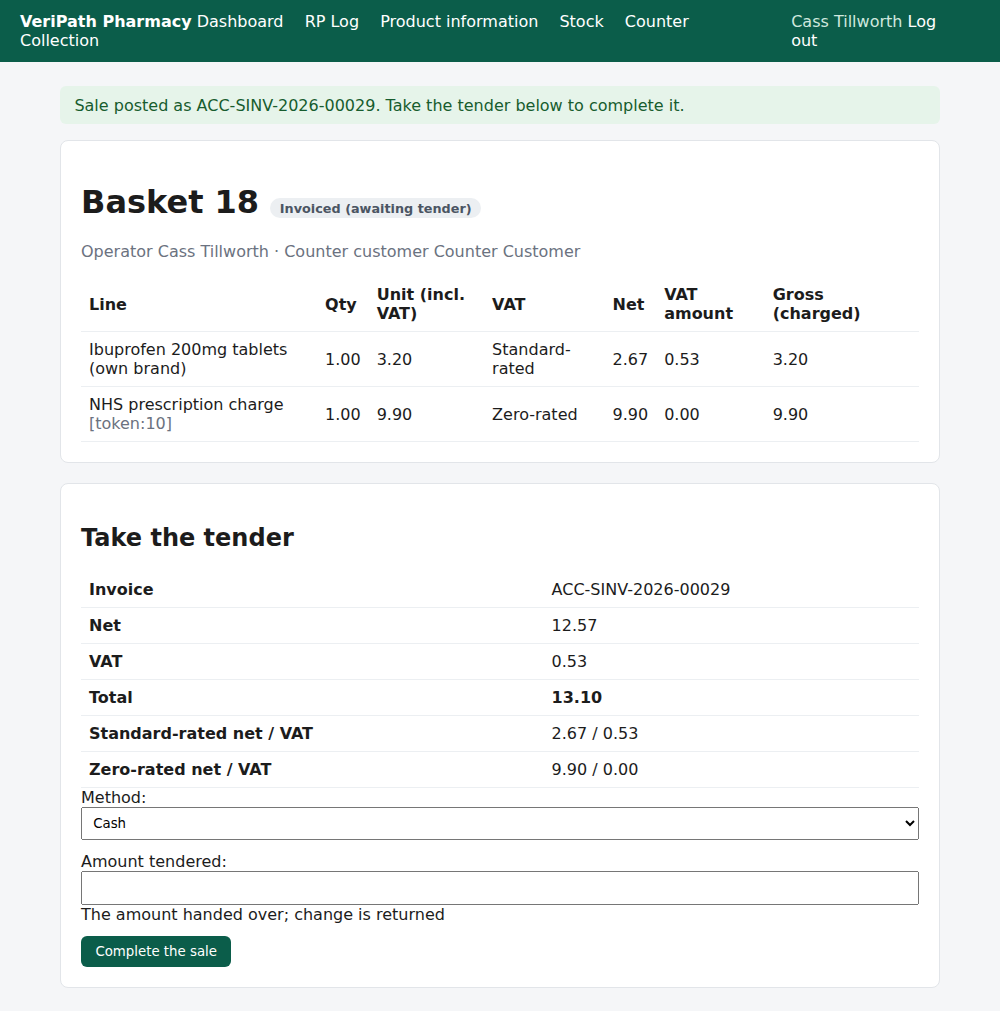
Basket 18 on the test pharmacy, 6 October 2026, as the Counter Assistant: the app reports Sale posted
as ACC-SINV-2026-00029. Take the tender below to complete it. The basket now reads Invoiced (awaiting
tender), and the Take the tender card has appeared at the foot of the page with the figures the
invoice came back with.
Two things worth knowing here:
| On the screen | What it means |
|---|---|
| Net · VAT · Total (12.57 · 0.53 · 13.10) | ERPNext's own figures for this sale, not the app's estimate. Once posted, these are the numbers that count. |
| Standard-rated net / VAT and Zero-rated net / VAT | The two bands side by side: the shop goods are standard-rated (2.67 / 0.53), the NHS charge is zero-rated (9.90 / 0.00). |
Posting is safe to press again. If you are unsure whether it worked, press it once more: the app
finds the sale's existing invoice and shows it rather than posting a second one.
¶ Step 2: Take the tender
In the Take the tender card:
- Choose the Method — Cash or Card (standalone terminal).
- Type what the customer handed over in Amount tendered.
- Press Complete the sale.
The app checks the amount against the invoice before it takes anything.
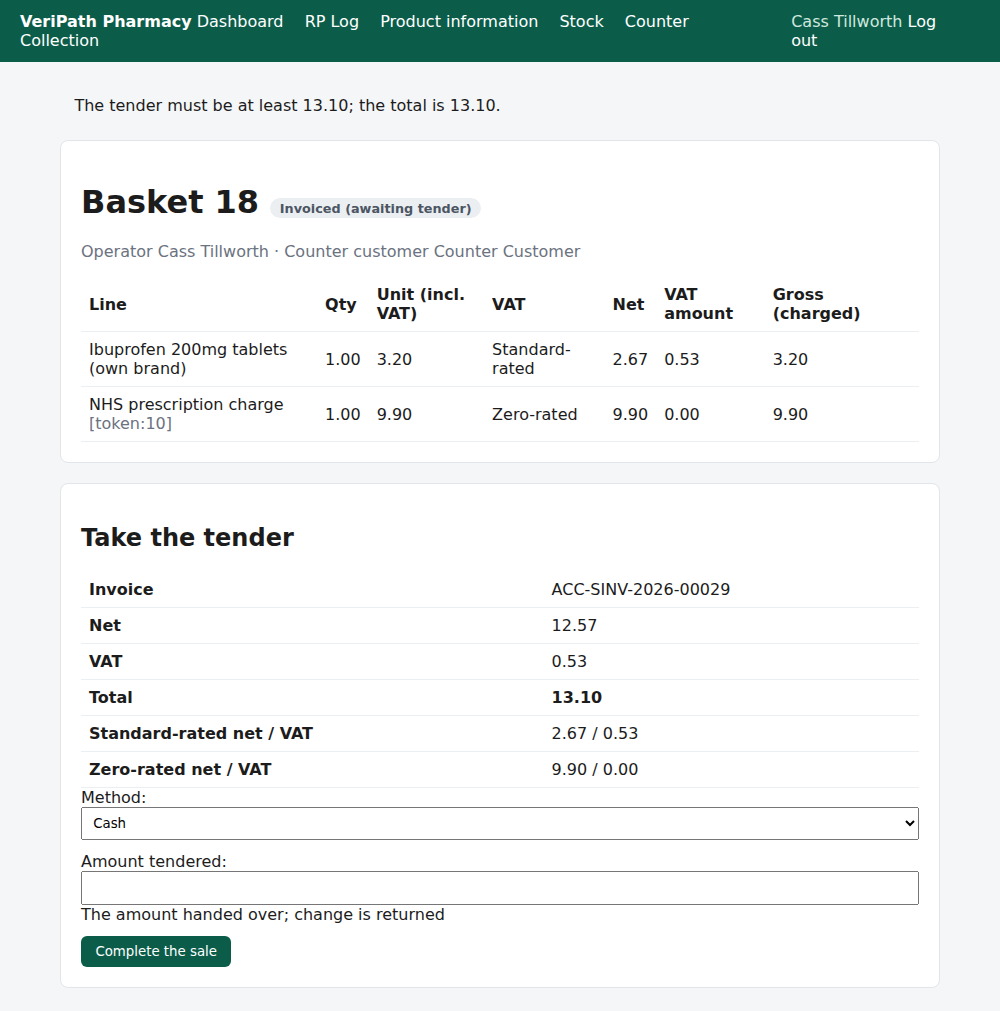
Too little offered: the app refuses and says why — The tender must be at least 13.10; the total is
13.10. Nothing has changed: the sale is already invoiced, so simply enter the right amount and press
Complete the sale again. There is no need to post it a second time.
¶ Step 3: Give the change
The change is the amount tendered minus the total — £20.00 − £13.10 = £6.90 — and it is recorded on
the sale, not left to memory.
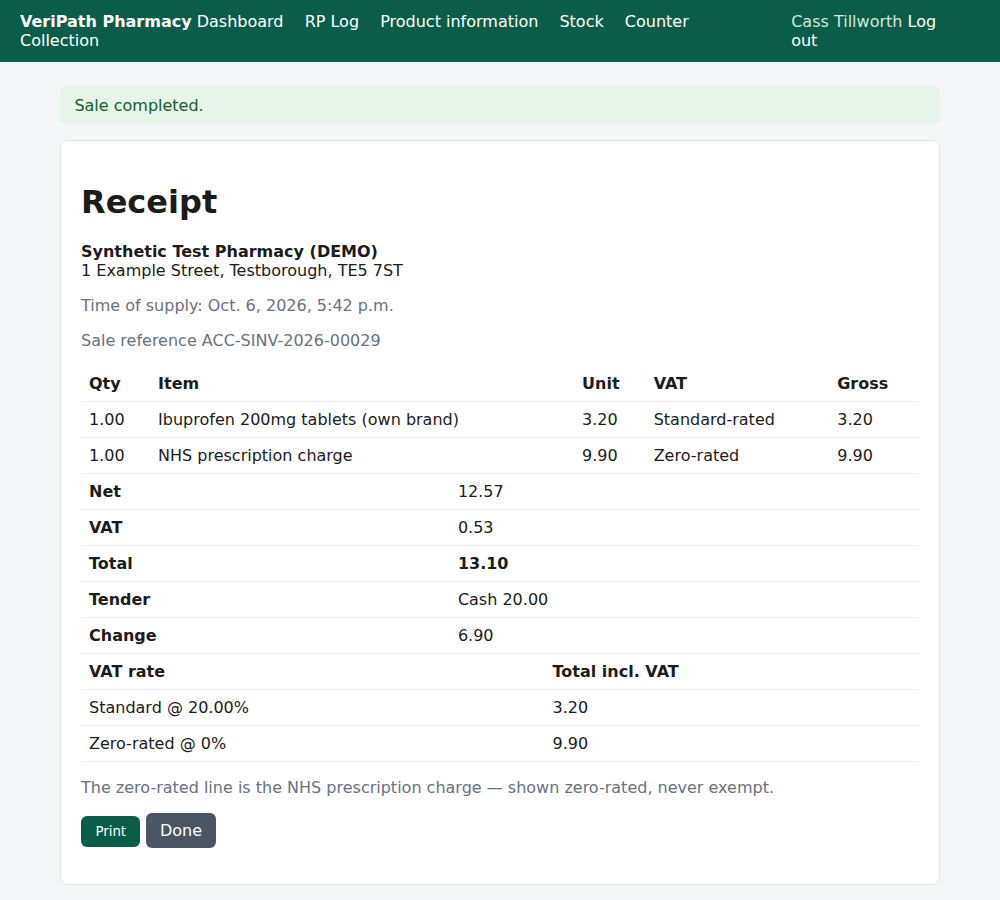
The sale completed: the app reports Sale completed. and opens the receipt, which carries the
Tender (Cash 20.00) and the Change (6.90) beside the totals — so the money handed over and the
change given are both on the record. This is the page where the customer's receipt is printed or
emailed (see D4).
Completing the sale does three things besides recording the money: it posts the payment to the ledger
against the pharmacy's counter till account, it consumes the counter stock for the goods sold, and the
basket becomes a sale.
¶ If you are interrupted after posting
The money has not been taken yet, and nothing is lost. The counter's front page lists the sale under
Awaiting tender, with a link to take the tender whenever you are free.
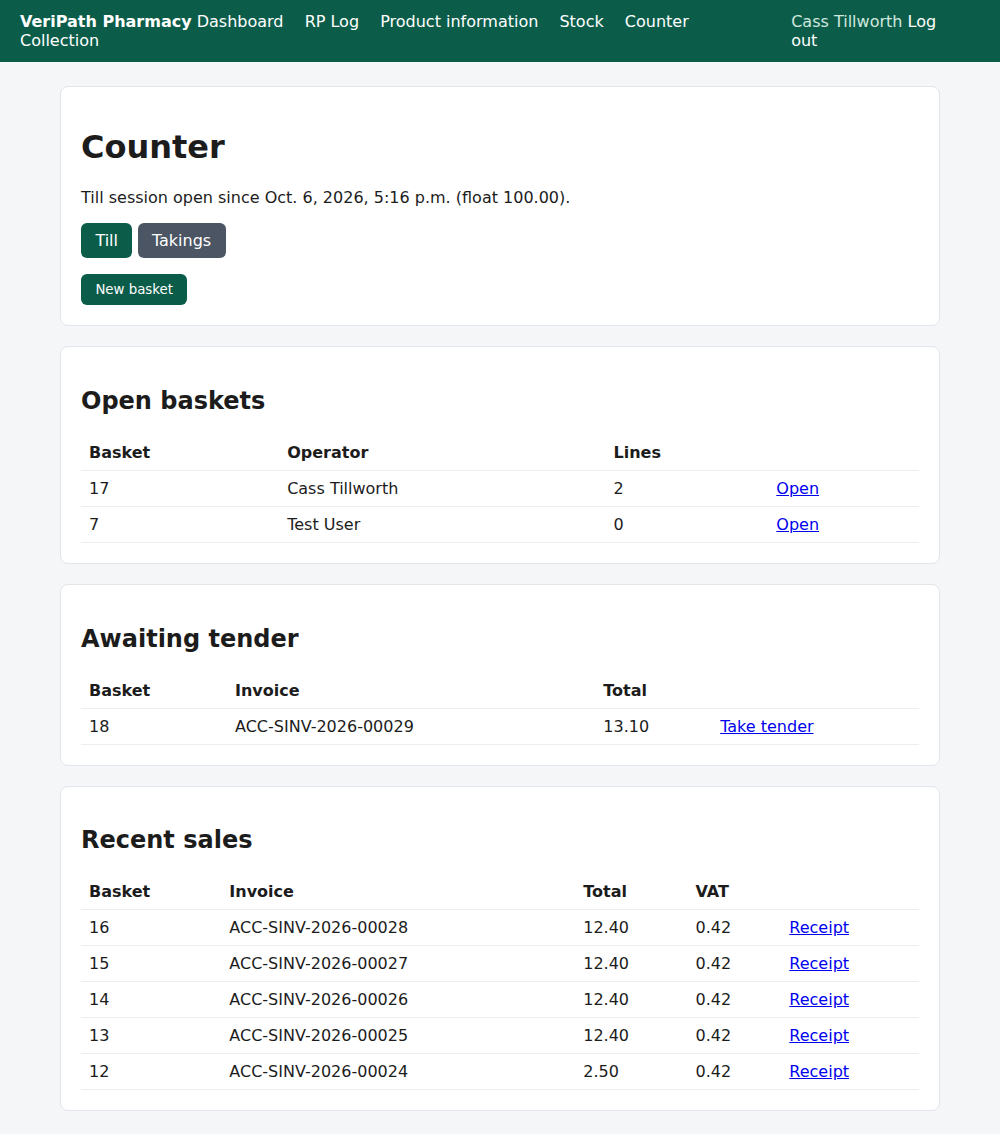
The Counter screen: the open baskets are still listed, and basket 18 sits under Awaiting tender
with its invoice and total — the sale is posted, the money is not taken. Recent sales below holds the
sales already completed.
¶ When something is not right
| What you see | What to do |
|---|---|
| Add at least one line before posting. | The basket is empty. An empty basket cannot be posted — add the goods (or the prescription charge) first. |
| The sale could not be posted to ERPNext. The basket is unchanged; please try again. | The ledger did not take the sale, so nothing has posted and no stock has moved. Press Post sale to ERPNext again. If it keeps failing, tell the business manager — do not rebuild the basket. |
| The tender must be at least 13.10; the total is 13.10. | The amount entered is below the total. Enter what the customer is actually handing over. The sale stays invoiced, so nothing needs re-posting. |
| Enter a tender method and amount. | The tender box was empty or the method was not chosen. Fill both in. |
| The sale could not be completed. Please try again. | The payment step did not finish. Press Complete the sale again: the app checks what was already posted rather than posting it twice. |
| The customer pays by card | Choose Card (standalone terminal) and take the card on the pharmacy's own terminal. No card details are entered or stored in the app. |
| The customer changes their mind after paying | The sale is complete and cannot be edited. It has to be refunded or voided by the pharmacist or the business manager, with a reason (D5). |
¶ What happens next
- D4 — give the customer a receipt, printed or emailed, with the VAT shown per rate.
- D5 — refund or void a sale. The reverse path, with a reason.
- D6 — the till and the day's takings. What the day took, split between cash and card, and the cash-up.
- D2 — add the NHS prescription charge. Where the zero-rated line comes from.
¶ Related pages
- Pharmacy App Guides — the published guides
- Counter — Sell an Over-the-Counter Item — D1, the basket the sale is built from
- Counter — Add the NHS Prescription Charge — D2, the zero-rated charge line
- Coverage Plan — every everyday task, and what is published
- Roles and Permissions in the Pharmacy App