¶ Check-In & Arrival
¶ What you'll be able to do
After reading this guide you will know how the app shows which patients have arrived for their appointment, how an appointment's status changes when a patient checks in, and how the clinical team is alerted that a patient is ready. This is the process that happens at the front desk when a patient arrives at the surgery.
Who does this? Receptionists check patients in when they arrive. The Dashboard shows the live picture of today's appointments so the clinical team can see who is ready.
¶ How check-in works
Every appointment has a status, which the app displays as a colour-coded badge:
| Badge | Status | Meaning |
|---|---|---|
| Blue | Booked | The appointment is confirmed but the patient has not arrived yet |
| Green | Attended | The patient has arrived and been checked in |
| Red | DNA | Did Not Attend — the patient did not turn up |
| Grey | Cancelled | The appointment was cancelled |
When a patient arrives, the receptionist updates the appointment status to Attended. The badge on the dashboard changes from blue to green, and the clinical team can see at a glance that the patient is ready.
¶ Step 1: Open the Dashboard
- Log in to VeriPath Dental.
- Click Dashboard in the top navigation bar.
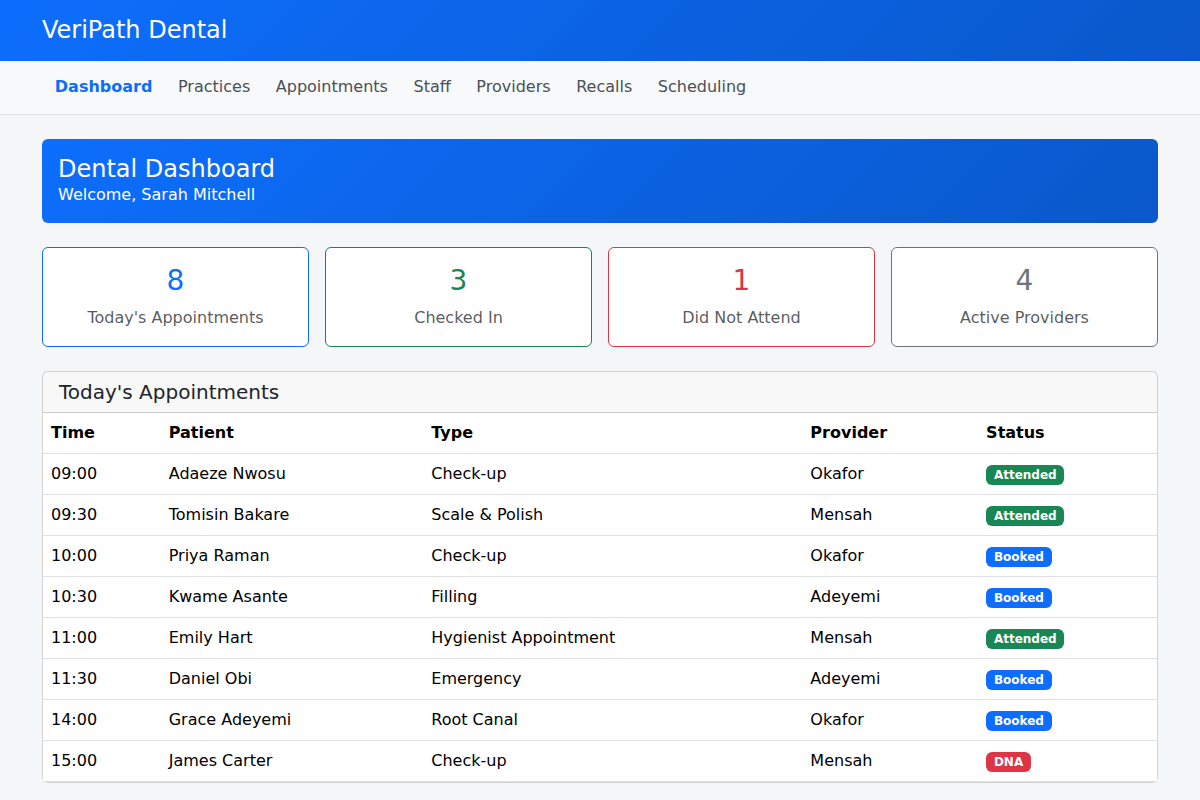
The dashboard opens with an overview of today's activity:
- Today's Appointments — how many appointments are scheduled today
- Checked In — how many patients have arrived and been checked in
- Did Not Attend — how many patients did not turn up
- Active Providers — how many clinicians are working today
¶ Step 2: Find the patient on today's list
The Today's Appointments table lists every appointment for the day:
| Column | Meaning |
|---|---|
| Time | When the appointment is scheduled |
| Patient | The patient's name |
| Type | The type of appointment (e.g. Check-up, Filling, Root Canal) |
| Provider | The clinician who will see the patient |
| Status | The current badge — Booked, Attended, DNA, or Cancelled |
When the patient arrives, find their row. It will show a blue Booked badge.
¶ Step 3: Check the patient in
- Open the appointment (from the dashboard list or the Appointments page).
- Update the appointment status to Attended.
- Save the change.
The badge on the dashboard now shows green — Attended. The clinical team can see the patient is in the surgery and ready to be seen.
Tip: The dashboard updates in real time, so once you check a patient in, the whole team sees it immediately — no need to call through or send a message.
¶ If the patient does not attend
If a patient does not turn up for their appointment:
- Update the appointment status to DNA (Did Not Attend).
- The badge turns red, and the day's Did Not Attend count on the dashboard updates.
Recording a DNA accurately matters for the practice's attendance records and recall planning.
¶ Useful tips
- Check patients in as soon as they arrive — it keeps the day's list accurate and lets the clinical team work efficiently.
- Check the time — if a patient arrives very early or late, speak to the clinician before checking them in.
- Keep the list accurate — if an appointment is cancelled, update the status to Cancelled so the day's numbers stay correct.