¶ Overview & Getting Started
Welcome to VeriPath. After reading this page you will be able to sign in to your
practice's system for the first time, check that your browser is set up correctly, and
find your way around the main areas of the platform. The rest of this guide takes you
through each area in more detail — links are included at the end of this page.
¶ System Access
Your practice has its own unique web address (URL), which VeriPath will send to you as
part of your onboarding — for example:
https://maple-surgery.gp.veripath.co.uk/
You do not need to change anything about this address. To get started:
- Open your web browser.
- Type the URL exactly as it was sent to you (or click the link in your welcome email).
- You will be taken straight to the secure sign-in screen, ready for your first login.
There is also a separate patient portal, which patients use to book appointments and
view practice information. Staff log in through the practice URL above only — do not use
the patient portal for clinical or administrative work.
¶ Browser Requirements
Use a current, up-to-date browser. The system supports the latest two versions of:
- Chrome — recommended
- Firefox
- Safari
- Edge
Cookies and JavaScript must be enabled. If you see a "cookies are blocked" warning, allow
cookies for the VeriPath site and try again.
¶ First Login
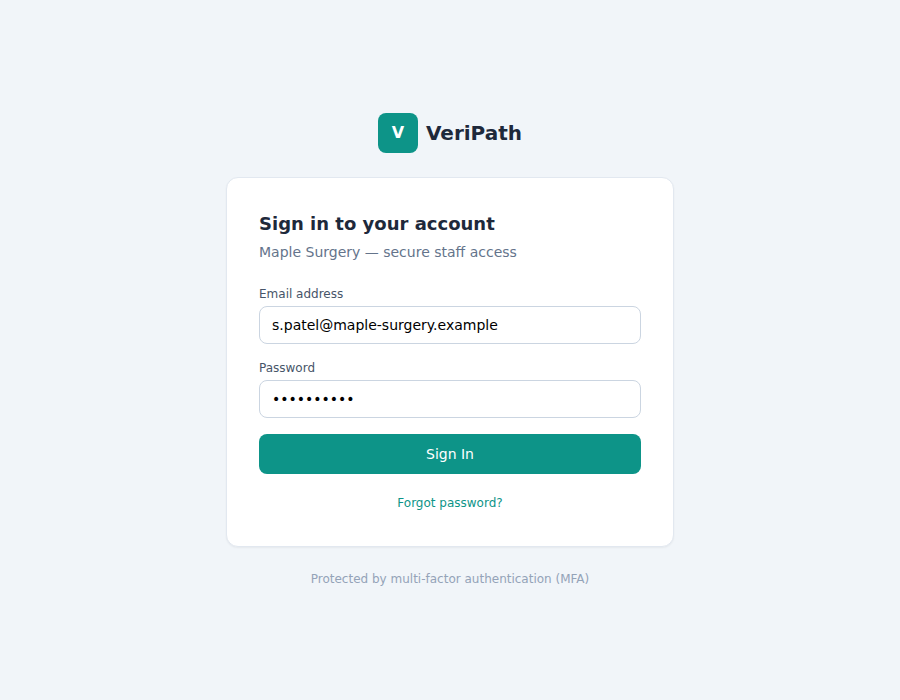
- Go to your practice's URL in your web browser (see the System Access section above).
You will be redirected to the secure sign-in screen. - Enter the username and temporary password provided by VeriPath in your welcome
email. - The first time you sign in, you will be asked to choose a new password — the
temporary password can only be used once. - You will then be asked to set up MFA (multi-factor authentication) — this is
mandatory for all staff. See the MFA guide for
step-by-step help. - Once signed in, you will land on your practice Admin Dashboard.
Tip: never share your password or MFA codes with anyone, and always sign out when you
leave your workstation.
¶ Your Dashboard
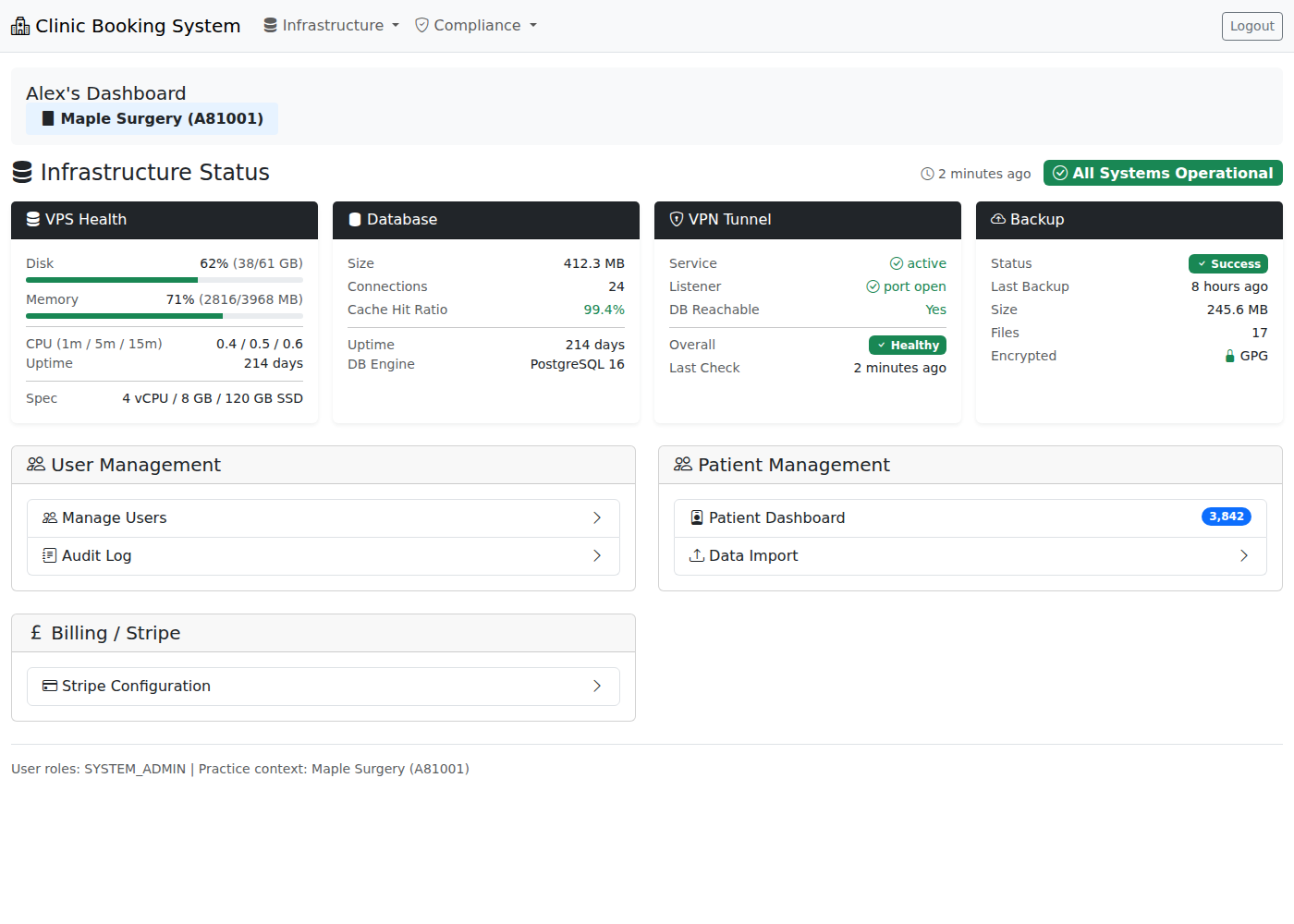
When you sign in as an admin user, you land on the Admin Dashboard, your starting point
each day:
- The panel at the top shows who is signed in and your practice details.
- The Infrastructure Status banner gives an at-a-glance health check of the systems
behind your practice — server (VPS) disk and memory usage, the database, the secure VPN
tunnel, and backups. - The quick-access cards take you straight to the main management areas: User
Management, Billing / Stripe, and Patient Management.
The main areas covered by this guide are:
| Area | What you can do there |
|---|---|
| Dashboard | Status at a glance and quick access to management areas |
| Appointments | View and manage the appointment book |
| Patients | Search, view and manage patient records |
| Staff | Manage staff accounts and roles |
| Practice | Configure practice details, opening hours, services |
| Import | Import data from your previous system (legacy migration) |
The Registered Manager also has access to additional areas for compliance, billing,
prescribing oversight and staff administration — see the
Registered Manager Overview.
¶ Staying Secure
- The system signs you out automatically after 30 minutes of inactivity.
- Always sign out manually on shared devices.
- Tell your practice manager immediately if you think your account has been used by
someone else. - For full guidance, see Account Security.