¶ Medical History Verification
¶ What you'll be able to do
After reading this guide you will be able to run the pre-treatment medical history check in VeriPath Dental before treating a patient. You will learn where to find the check, what it shows (patient details, reported symptoms, appointment information and past appointments), and how to confirm that you have reviewed the history and that there are no contraindications for the treatment.
Who does this? The clinician treating the patient — normally a dentist or hygienist — reviews and confirms the medical history before any procedure. The check must be done for the appointment before treatment starts.
¶ Before you start
You will need:
- A VeriPath Dental login with the Dentist or Dental Hygienist role
- The patient's appointment open — the check is opened from the appointment you are about to treat
¶ About the pre-treatment check
Before any procedure, the app shows a PRE-TREATMENT CHECK screen for the appointment. It brings together everything you need to verify that it is safe to proceed:
- The patient's identity details (name, email, NHS number).
- The symptoms the patient reported for this appointment.
- The appointment details (date, provider, practice, status).
- The patient's past appointments, so you can see their recent care history.
You review this information, confirm there are no contraindications, and the app records that the check was completed for this appointment.
¶ Step 1: Open the Medical History check
- Log in to VeriPath Dental.
- From the Appointments list, open the appointment you are about to treat.
- On the appointment, open Medical History (the appointment's medical-history link).
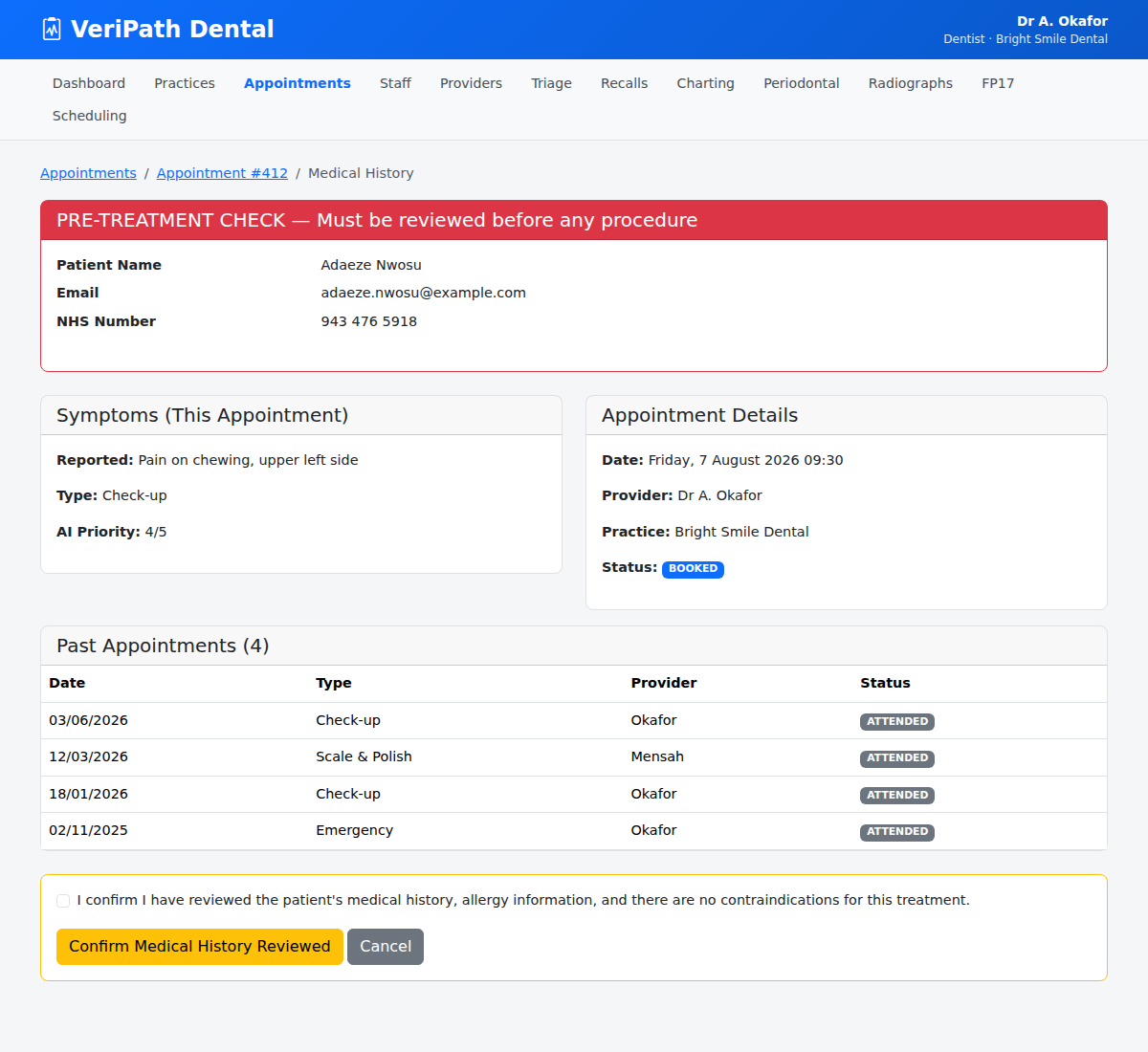
The Medical History screen opens with a breadcrumb trail — Appointments › Appointment #412 › Medical History — so you always know where you are.
¶ Step 2: Check the patient details
The red PRE-TREATMENT CHECK banner at the top is the heart of the screen. It shows:
| Field | What it shows |
|---|---|
| Patient Name | The patient's full name |
| The patient's registered email address | |
| NHS Number | The patient's NHS number (or "Not recorded" if missing) |
Note: the banner is shown in red because this step must be completed before any procedure — it is not optional.
¶ Step 3: Review symptoms and appointment details
Two cards sit side by side:
- Symptoms (This Appointment) — what the patient reported (e.g. "Pain on chewing, upper left side"), the appointment type, and the AI Priority score (out of 5) if triage has scored the case.
- Appointment Details — the appointment date and time, the provider, the practice, and the current status badge (e.g. BOOKED, ATTENDED, DNA, CANCELLED).
¶ Step 4: Review past appointments
The Past Appointments table lists the patient's previous appointments (up to 10), newest first:
| Column | What it shows |
|---|---|
| Date | When the previous appointment took place |
| Type | The appointment type (e.g. Check-up, Scale & Polish) |
| Provider | Which clinician saw the patient |
| Status | The outcome badge (e.g. ATTENDED) |
This gives you the patient's recent care history at a glance before you treat them.
¶ Step 5: Confirm the review
- Tick the confirmation box:
"I confirm I have reviewed the patient's medical history, allergy information, and there are no contraindications for this treatment."
- Click Confirm Medical History Reviewed.
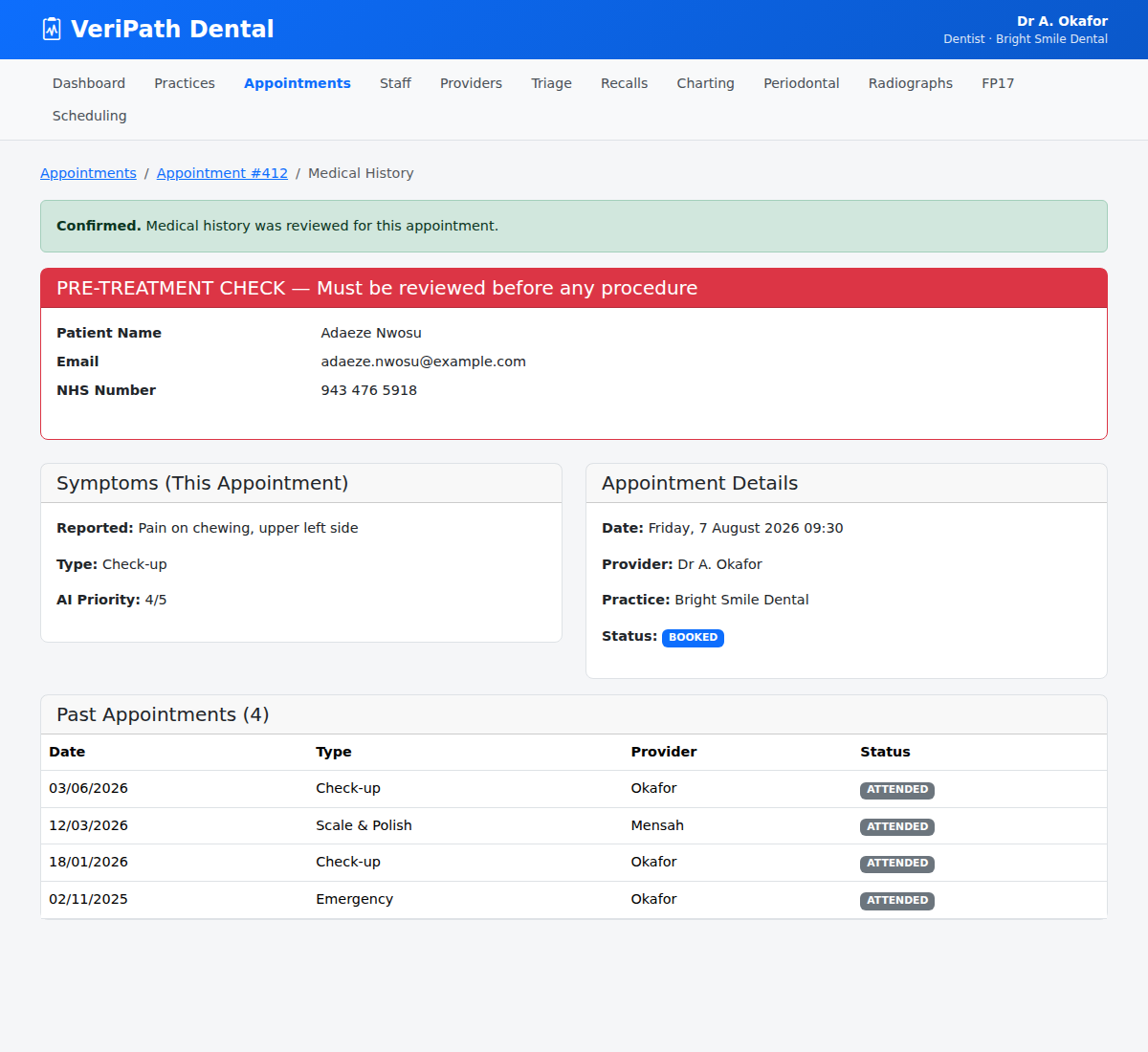
The app records that the medical history was reviewed for this appointment and returns you to the appointment. If you open the Medical History screen again, a green Confirmed banner shows that the check was completed.
Tip: if you find a contraindication or something you need to check before treating, use Cancel and resolve it before proceeding — the confirmation box should only be ticked when it is genuinely safe to treat.
¶ Useful tips
- Do this before any procedure — the check exists so treatment never starts without the history being reviewed.
- Read the reported symptoms — the AI Priority score can help you judge how urgent the case is, but your clinical review is what matters.
- Use past appointments as context — recent emergency or complex treatment can be relevant to today's plan.