¶ What you'll be able to do
After reading this guide you will be able to record the clinical note for a patient appointment in VeriPath Dental — the running, day-to-day clinical record of each visit. You will learn what a clinical note holds (SNOMED finding and procedure codes, a per-tooth FDI map, and the free-text clinical narrative), how to save a note as a draft or sign it off, where notes appear afterwards, and what staff outside the clinical team are able to see.
Who does this? Dentists and hygienists record clinical notes. Dental admins can read the full note content. Practice managers and receptionists can see that a note exists and whether it is signed off, but the clinical content itself is restricted to clinical staff.
¶ Before you start
You will need:
- A VeriPath Dental login with a clinical role (Dentist or Hygienist)
- An appointment to record against — a clinical note is always linked to the appointment it was recorded at
- The SNOMED codes for what you found and what you did (optional but recommended — e.g.
80967001Dental caries; the form shows worked examples)
¶ About clinical notes
A clinical note is the structured record of a patient interaction: what you found (finding code), what you did (procedure code), which teeth it relates to (the tooth map), and the clinical narrative that ties it together. Because notes are recorded per appointment, every entry stays traceable to the visit it was written at — and the signed-off ones carry the clinician's formal statement that the record is complete and accurate.
The clinical narrative is encrypted at rest, and the app only shows it to clinical staff. Everyone else sees that the note exists and its sign-off status — nothing more.
¶ Step 1: Open the notes for an appointment
- Open the appointment (from Appointments, or via the patient's record).
- Click Clinical Notes (top of the appointment page).
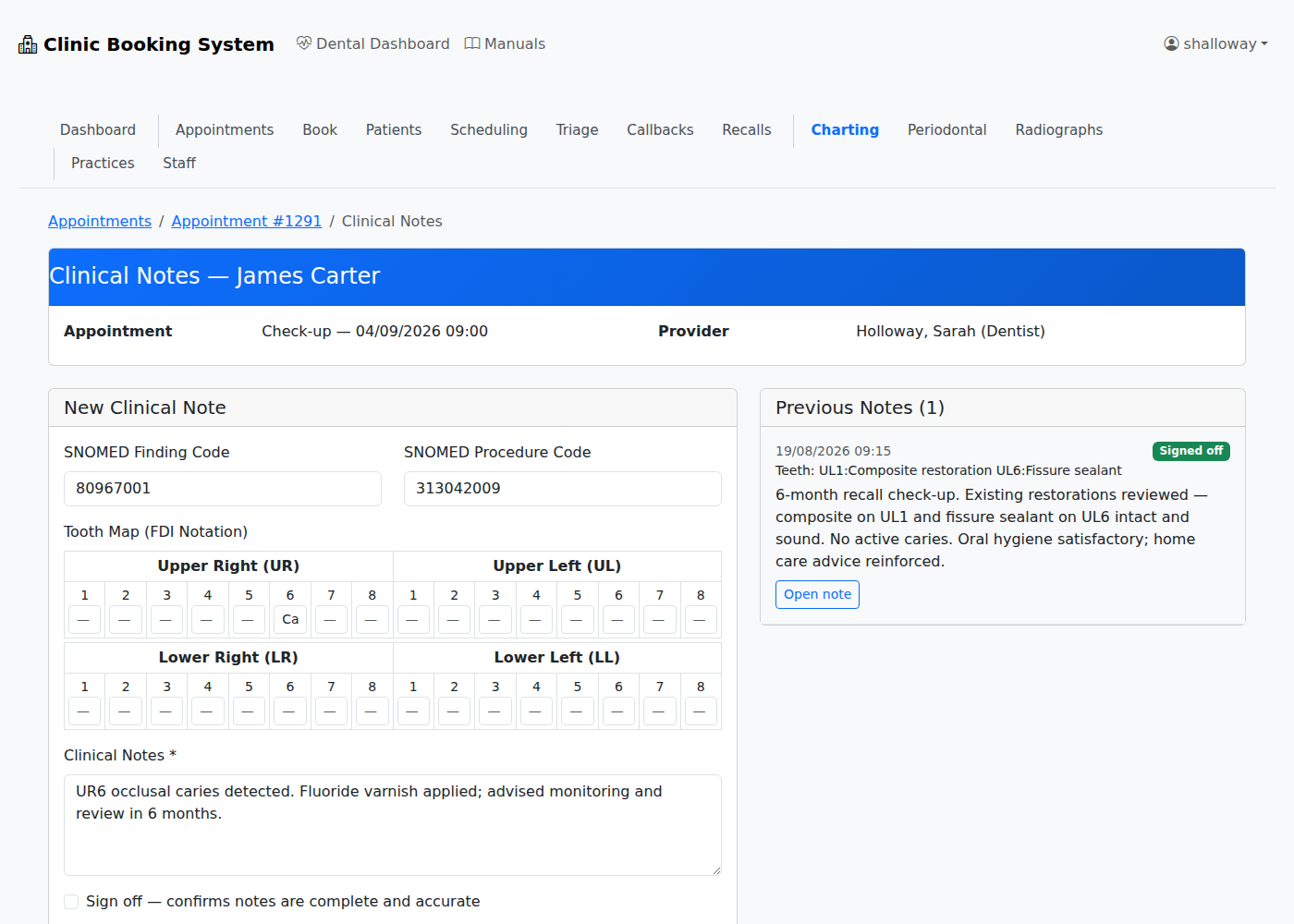
The Clinical Notes screen opens. It shows the patient, appointment and provider at the top. If your role can record notes, the New Clinical Note form is on the left and Previous Notes for this appointment on the right.
¶ Step 2: Record the finding and procedure codes (optional)
- SNOMED Finding Code — the code for what you found, e.g.
22253000(Toothache) or80967001(Dental caries). - SNOMED Procedure Code — the code for what you did, e.g.
28423000(Filling) or313042009(Application of dental fluoride varnish).
Codes are optional: leave them blank when nothing specific applies. When used, they make the record machine-readable for audits, recall and claims work, so it is worth coding the common findings and procedures.
¶ Step 3: Mark teeth on the tooth map
The tooth map is an FDI grid of all 32 permanent teeth in four labelled quadrants — UR (upper right) and UL (upper left) across the top, LR (lower right) and LL (lower left) below, teeth numbered 1–8 within each quadrant.
Type a short note against any tooth it applies to, for example:
| Box | What you might type |
|---|---|
UR6 |
Caries |
UL1 |
Composite restoration |
UL6 |
Fissure sealant |
Leave a tooth blank if nothing applies to it. Only the boxes you fill are saved.
¶ Step 4: Write the clinical narrative
The Clinical Notes box is the required, free-text heart of the note. Record what you found, what you did, and any advice you gave — write as if another clinician (or the CQC, or a court) will read it. The note cannot be saved without this text.
¶ Step 5: Sign off, or save as a draft
- Tick Sign off if the note is complete and accurate — this is the clinician's formal declaration, and the note is marked with a green Signed off badge.
- Leave it unticked to save the note as a draft (grey badge) — saved without the formal declaration.
Click Save Note. You return to the Clinical Notes screen and the note appears at the top of Previous Notes, newest first. A signed-off note also shows in the list with its green badge.
¶ Step 6: Where notes appear afterwards
- Clinical Notes screen — Previous Notes list shows the date, badge, codes, teeth and full narrative (to clinical staff).
- Appointment page — the Clinical Notes section on the appointment shows the note inline.
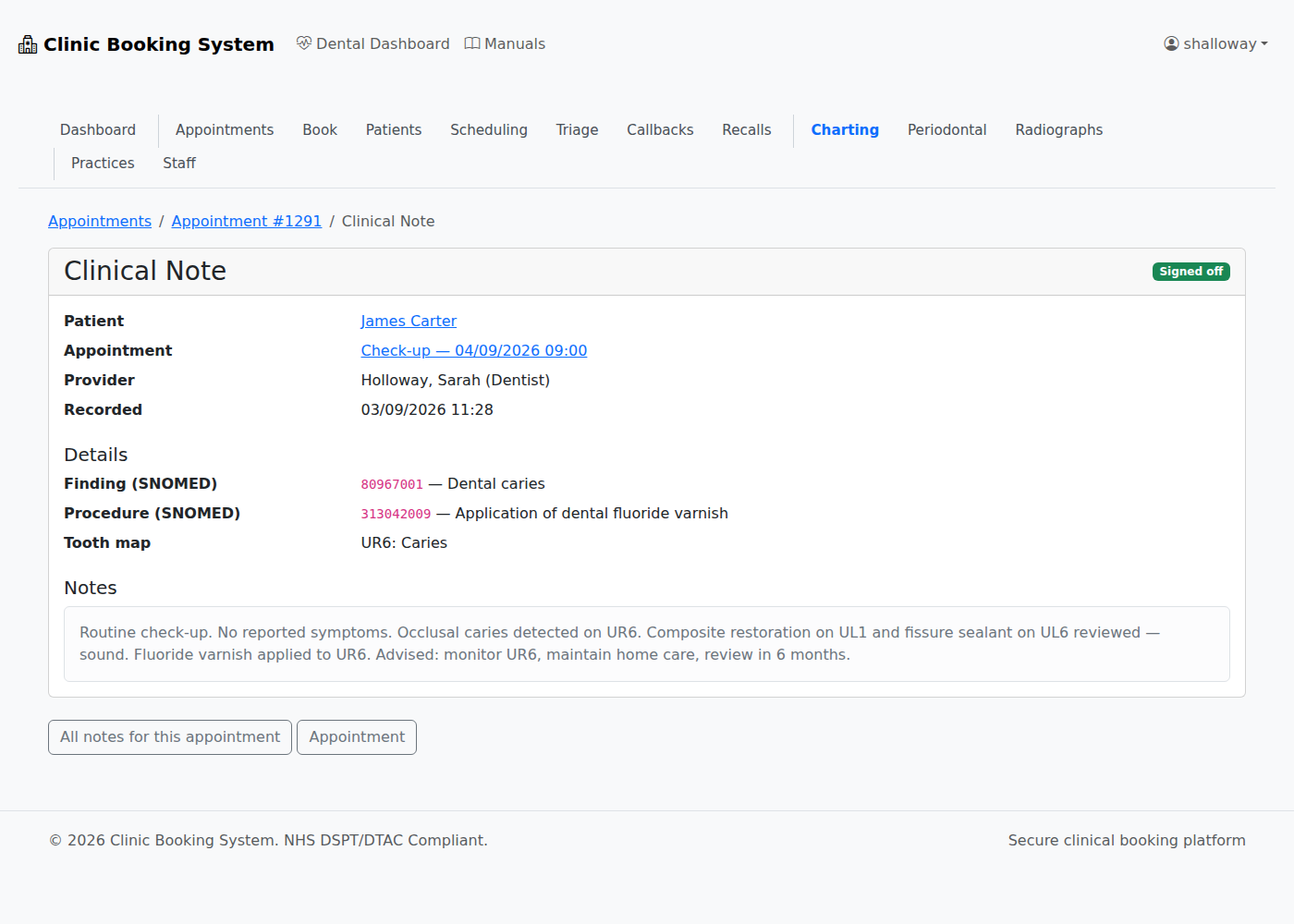
- Note detail — click Open note on any note to see its detail page: the metadata (patient, appointment, provider, recorded date, sign-off badge) always, and the clinical content for clinical staff.
- Patient record — each note appears as a row in the patient's Dental Clinical Notes section, with an Open button to the same detail page.
Note: a saved note cannot be edited afterwards. Complete it carefully before you save, and use sign-off as the point where you commit to its accuracy.
¶ What non-clinical staff see
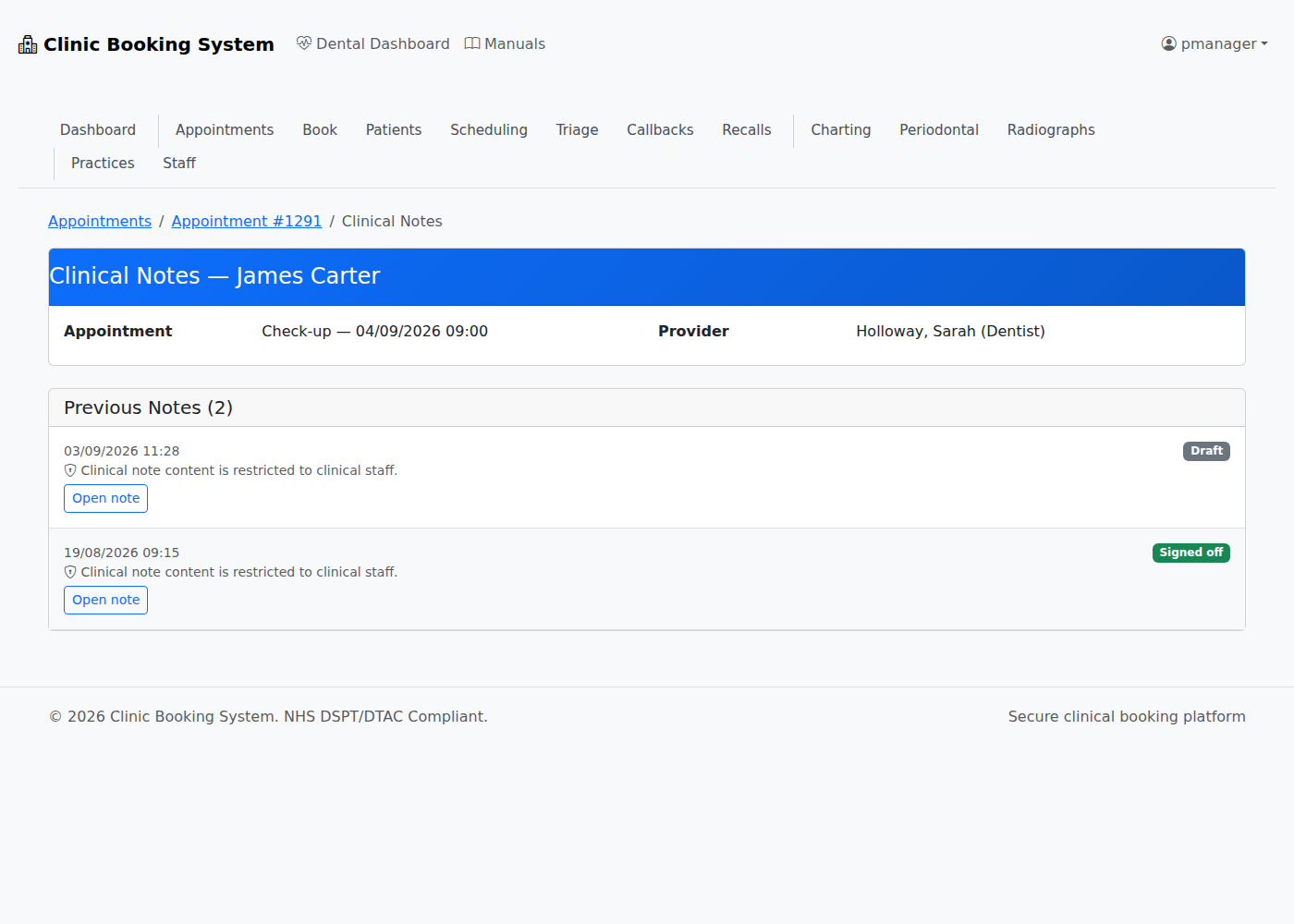
Practice managers and receptionists use the same screens but with clinical content deliberately withheld:
- No New Clinical Note form is shown, and the app rejects any attempt to add a note from a non-clinical account.
- Each note in the list shows only its date and Signed off / Draft badge, with the message "Clinical note content is restricted to clinical staff."
- Opening a note still shows the metadata, but the clinical content is replaced by the same restricted notice.
This is deliberate: the clinical narrative is for clinical staff only, whatever their seniority.
¶ Useful tips
- Write the note at the time — record each note immediately after the consultation, while it is fresh.
- Code as you go — consistent finding and procedure codes make audits, recalls and claims reporting easier later.
- Sign off only when complete — a signed note is a formal statement; add anything missing before you tick the box.
- Keep the tooth map and charting consistent — if a tooth has chart entries (see the charting guides), reflect the same findings in the note.
- Notes are legal documents — record only what you saw, did and advised; never invent data.