¶ What you'll be able to do
After reading this guide you will be able to use the Clinical Charting log in VeriPath Dental to tell apart historical treatment (work that is already in the patient's mouth) from proposed treatment (work that is planned but not yet done), and to review the full charting history for a patient. You will learn what the statuses mean, how the log is laid out, and how a saved chart's detail page records its surface treatments.
Who does this? Dentists record and update clinical charting. Practice managers and dental admins can view chart entries. Receptionists do not normally chart teeth.
¶ Before you start
You will need:
- A VeriPath Dental login with the Dentist (or other clinical) role
- The patient's Patient ID — the log filters to one patient by Patient ID
¶ About historical vs. proposed treatment
Every chart entry in VeriPath Dental has a status that places it in the patient's treatment timeline:
| Status | Meaning | Example |
|---|---|---|
| EXISTING | Treatment that is already present in the mouth — historical work, often from a previous course of care | An old amalgam filling on tooth 15 |
| PROPOSED | Treatment that is planned but not yet started — the future part of the treatment plan | A crown proposed for tooth 26 |
| COMPLETED | Treatment that was proposed and has now been finished | A root canal on tooth 16, now finished |
Reading the log is simply a matter of seeing which entries are EXISTING (what is there now), which are PROPOSED (what the patient still needs), and which are COMPLETED (proposed work that has since been done).
¶ Step 1: Open the Clinical Charting log
- Log in to VeriPath Dental.
- Click Charting in the top navigation bar.
The Clinical Charting screen opens. It lists every chart entry — one row per tooth — across patients, newest first.
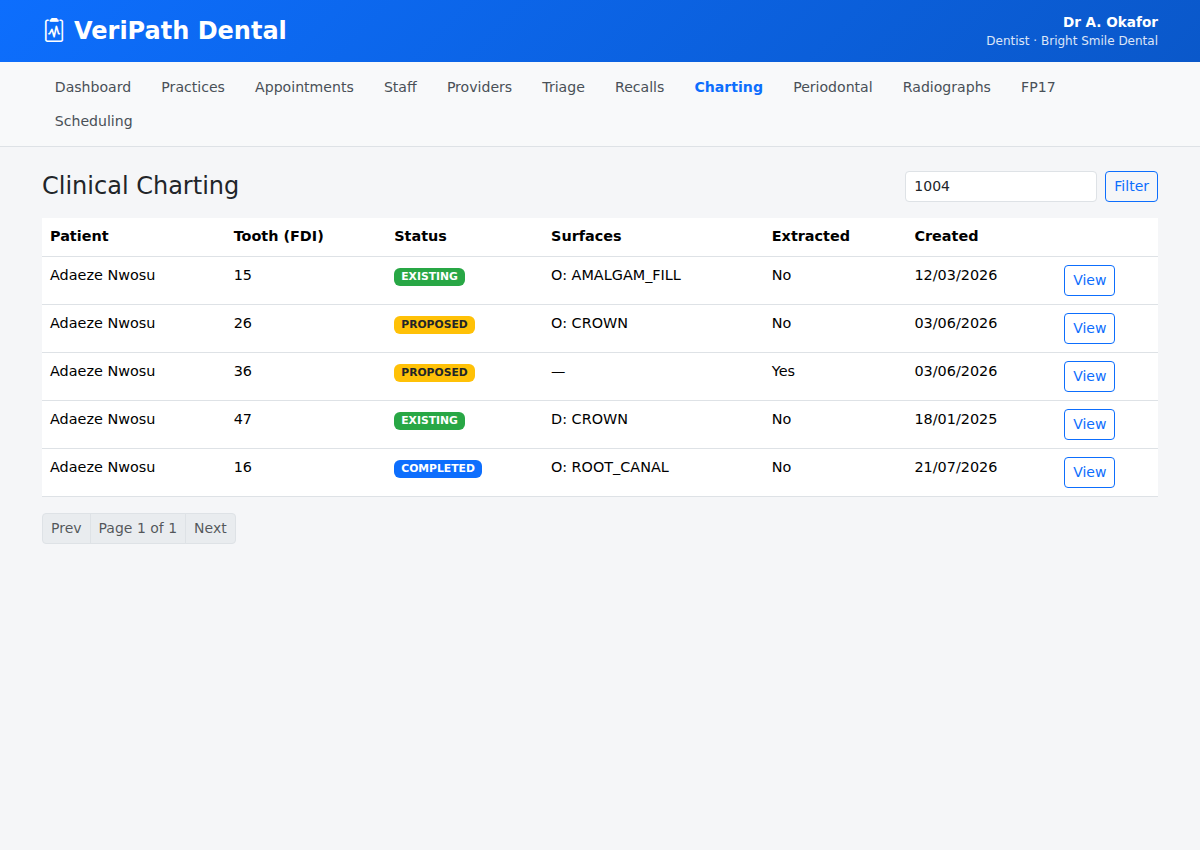
| Column | What it shows |
|---|---|
| Patient | The patient the entry belongs to |
| Tooth (FDI) | The two-digit FDI tooth number (11–48 adult, 51–85 primary) |
| Status | The entry's status — shown as Existing treatment, Proposed treatment, or Completed |
| Surfaces | The surface letters that have treatment recorded (e.g. O) — open the entry to see each treatment |
| Extracted | Yes if the tooth has been removed |
| Appointment | The appointment the entry was recorded at — linked to that visit |
¶ Step 2: Filter to one patient
- Type the patient's Patient ID in the box at the top right.
- Click Filter.
The log now shows only that patient's chart entries — their complete charting history in one place, with the patient's name shown above the list. The Status column tells you at a glance whether the work is historical (Existing treatment), planned (Proposed treatment), or finished (Completed).
¶ Step 3: Review a chart entry
- Click View on any row.
The Chart — Tooth detail page opens for that tooth.
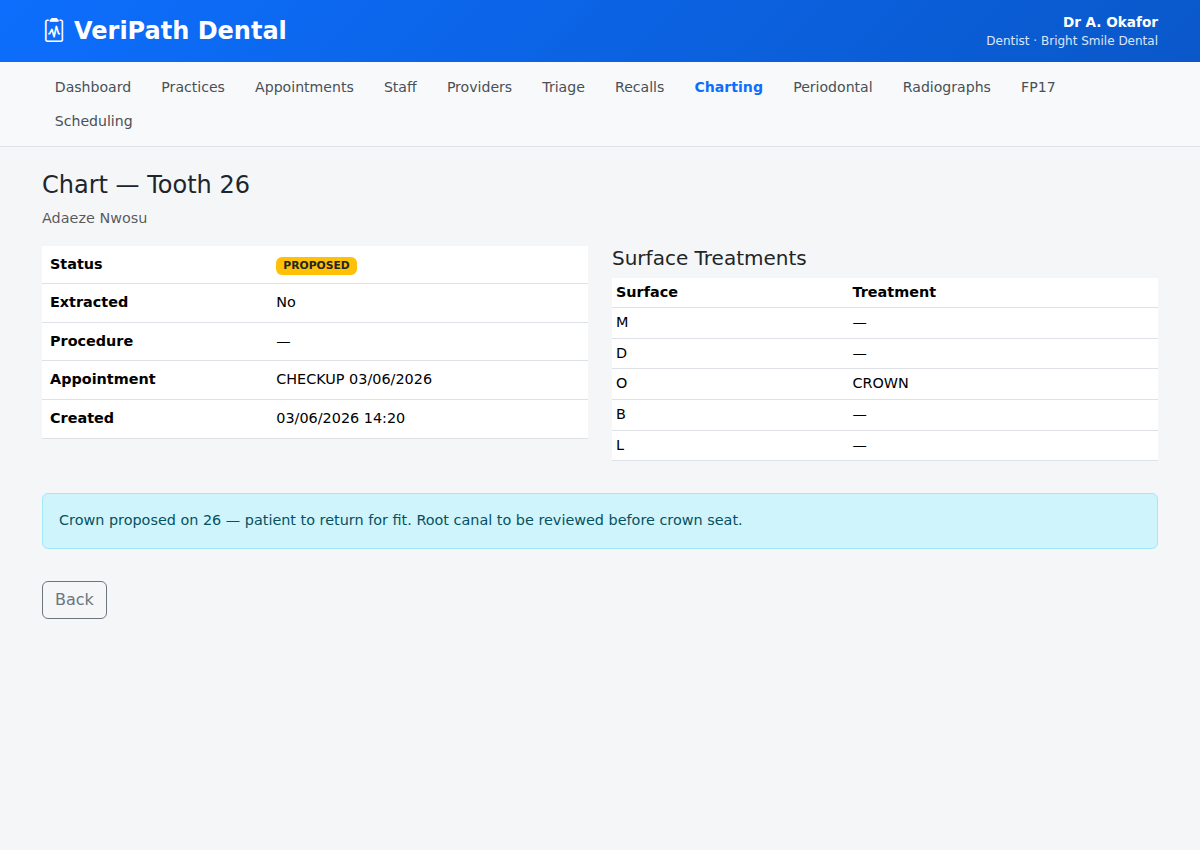
The detail page shows:
- Status — the entry's place in the treatment timeline (Existing treatment, Proposed treatment, or Completed).
- Extracted — whether the tooth has been removed.
- Procedure — a treatment code, e.g.
4111, if your practice uses them. - Appointment — the appointment the entry was recorded at (older entries may show "No linked appointment").
- Recorded — the date and time the entry was recorded at its appointment.
- Surface Treatments — a table of the five tooth surfaces (M, D, O, B, L) with the treatment recorded against each, e.g.
O: CROWN. - Notes — any clinical notes kept with the entry (shown in a blue box when present).
¶ Step 4: Record work as it progresses
An entry's status is set when you record it, and each visit adds its own entry — so the log naturally shows the plan and its completion as separate rows:
- When you plan work at a visit, record it as PROPOSED.
- When that work is carried out — at the same visit or a later one — record it as a COMPLETED entry on that visit.
- Work that is already in the mouth is recorded as EXISTING.
Recording the finished work as a new entry keeps the timeline accurate: the log shows both the original PROPOSED plan and the later COMPLETED entry, each traceable to the appointment it was recorded at. A saved entry cannot be changed afterwards, so choose the status carefully when you record it.
Tip: use EXISTING only for work that is already in the mouth — it forms the historical baseline. Use PROPOSED for anything planned, so the patient's future treatment plan stays visible on the chart.
¶ Useful tips
- Check the log before planning treatment — it shows both what is already there and what was already proposed, so you avoid duplicating work or re-planning.
- A tooth can have multiple entries over time — each visit may add a new row; the Recorded date shows the history.
- Extracted teeth — tick Extracted on the entry when a tooth is removed, so missing teeth are visible in the log.