¶ Invoicing (ERPNext)
Status: verified against the live app, 10 September 2026.
¶ What you'll be able to do
After reading this guide you will understand what an invoice is in VeriPath Dental, where invoices come from, what the Invoices list shows, what the statuses and types mean, and how to open the matching document in ERPNext (the practice's accounting system) with one click.
Who does this? Practice managers and admins raise and review invoices; clinicians can view them. Receptionists do not see the Invoices area.
Related guides: State-Subsidised FP17 Claim Submission for the NHS claim side, Private Ledger Billing for private money, and NHS Contract & FP17 Claims — The Full Journey for how it all fits together.
¶ About invoices
An invoice is the practice's billing record for a patient charge. Two things are worth knowing from the outset:
- Invoices are raised automatically when a course of treatment is closed and billed. Nobody types an invoice by hand, and nothing is invoiced at booking or on arrival.
- Every invoiced charge is also created in ERPNext as a Sales Invoice, with its own name there (for example
ACC-SINV-2026-00031). The two are the same document.
Each invoice holds:
| Field | What it records |
|---|---|
| Invoice | The ERPNext Sales Invoice name (ACC-SINV-…), or the local invoice number while it is not yet synced |
| Type | What the invoice is for (see below) |
| Claim | For an NHS charge, the FP17 claim it belongs to (a link); "—" otherwise |
| Appointment | The appointment the charge relates to |
| Patient | Who is responsible for paying |
| Issued | The date the invoice was raised |
| Amount | The total billed, in pounds |
| Status | Where the invoice is in its lifecycle |
| ERPNext | An Open in ERPNext button once the invoice has synced, or "—" |
¶ Invoice statuses
| Status | Meaning |
|---|---|
| Draft | Raised but not yet sent |
| Sent | Issued to the payer |
| Paid | The full amount has been received |
| Overdue | The due date passed without payment |
| Cancelled | The invoice has been voided |
¶ Invoice types
| Type | What it is | Where it posts in ERPNext |
|---|---|---|
| NHS Patient Charge | The statutory band charge for an NHS course of treatment — money collected for the NHS and clawed back from the next contract payment | NHS Patient Charges (Clearing) |
| Private Treatment | A private course's price-list charge | Fee Income |
(A seats-subscription invoice type also exists in the data model, but no treatment workflow raises one.)
¶ Step 1 — Open the Invoices list
- Log in to VeriPath Dental.
- Click Invoices in the top navigation.
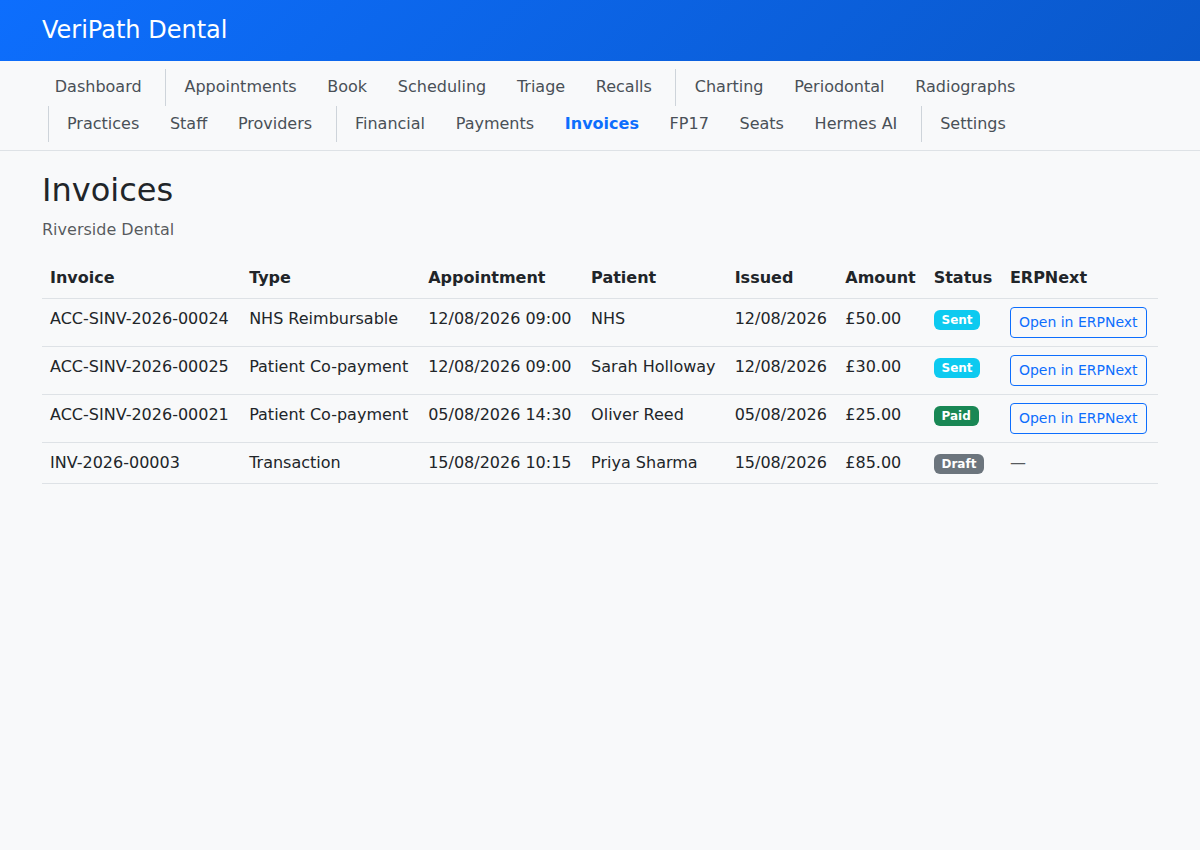
The list opens showing your practice's invoices, newest first, 50 to a page with paging controls underneath.
¶ Step 2 — Read an invoice row
| Column | What it shows |
|---|---|
| Invoice | The ERPNext Sales Invoice name, or the local invoice number while unsynced |
| Type | NHS Patient Charge or Private Treatment |
| Claim | The FP17 claim the NHS charge belongs to, as a link (— for private charges) |
| Appointment | The date and time of the appointment the charge relates to |
| Patient | The payer |
| Issued | The date the invoice was raised, or "—" |
| Amount | The total billed, in pounds |
| Status | A coloured badge — Draft (grey), Sent (blue), Paid (green), Overdue (amber), Cancelled (dark) |
| ERPNext | Open in ERPNext once synced, or "—" |
¶ Step 3 — Open an invoice in ERPNext
- Click Open in ERPNext on a synced invoice.
You are signed in to the practice's ERPNext site automatically and taken straight to that Sales Invoice, where you can see the full accounting record — items, amounts and payment status. Retired and cancelled invoices are hidden from this list.
¶ Where invoices come from
| What happened | What is raised |
|---|---|
| An NHS course was closed and billed | An NHS Patient Charge invoice for the statutory band charge (Band 1 £27.90, Band 2a/2b/2c £76.60, Band 3 £332.10, Urgent £27.90) |
| An NHS course for an exempt patient was closed | No invoice — there is no charge to collect. The claim still earns its fee basis |
| A private course was closed | A Private Treatment invoice for each completed appointment, at the price-list price for that appointment type |
| The patient paid | The invoice settles to Paid, and a matching Payment Entry is recorded in ERPNext |
So one course of treatment produces one invoice per charge — not two. The old claim-splitting flow that raised separate NHS and patient invoices no longer exists.
¶ Useful tips
- The name tells you where it lives.
ACC-SINV-…means the invoice exists in ERPNext; a localINV-…number means it has not synced yet. - Statuses follow the money. An invoice is Sent when issued, flips to Paid when the full amount lands, and shows Overdue if the due date passes unpaid.
- Chase the claim, not the invoice, for NHS money. The patient charge is only half the story — the practice's NHS income is earned through UDAs on the claim. See the full journey.