¶ Units of Dental Activity (UDA) Auditing
Status: verified against the live app, 10 September 2026.
¶ What you'll be able to do
After reading this guide you will understand how VeriPath Dental tracks UDA (Units of Dental Activity) contract performance. You will learn how to record each clinician's contractual UDA allocation for an NHS contract period, how the app counts UDA production from submitted FP17 claims, and how to read the UDA dashboard to see how much of the contract each clinician has delivered — and how much remains.
Who does this? Practice managers, dental admins and admins. The UDA link sits in the Financial group of the top navigation and appears for these roles only.
¶ About UDA allocations and production
A UDA allocation is the number of Units of Dental Activity a clinician is contracted to deliver in an NHS contract period. An allocation belongs to a practice, a clinician (provider) and a contract period, so a clinician can hold a separate allocation for each practice and each year.
- Contract period — the NHS financial year, e.g.
2026/27(1 April – 31 March). The long form (2026/2027) is also accepted. - Allocated — the contractual target you record for the clinician.
- Delivered — UDA production, derived automatically from submitted FP17 claims. You never type it in:
- Only claims that have been Transmitted, Accepted or Partially paid count. Drafts and rejected claims do not inflate the figures.
- Each claim credits the UDA value of the band it closed at — the codes the banding engine derives from the treatment actually completed:
| Band the course closed at | UDAs credited |
|---|---|
| Band 1 | 1 |
| Band 2a | 3 |
| Band 2b | 5 |
| Band 2c | 7 |
| Band 3 | 12 |
| Urgent (emergency-only care) | the contract's urgent UDA value — 1.2 by default |
| Exempt course of treatment | 0.5–1.2, per the exempt catalogue (nurse fluoride varnish is 0.5) |
| Private treatment, prescription-only | none |
UDA values are held to one decimal, so fractional credit (urgent 1.2, fluoride varnish 0.5) survives intact.
- Claims count towards the period in which they were transmitted, not the period the appointment took place in.
- Remaining — allocated minus delivered, never shown below zero.
- Delivered NHS fee basis — the delivered claims' NHS fee basis for the period: the frozen, date-anchored statutory band charges summed from each claim. This is Leg B — what the practice earns through the NHS contract, not patient money collected at reception. Month-end reconciliation is done against this figure.
¶ Step 1 — Open the UDA dashboard
- Log in to VeriPath Dental.
- In the Financial group of the top navigation, click UDA.
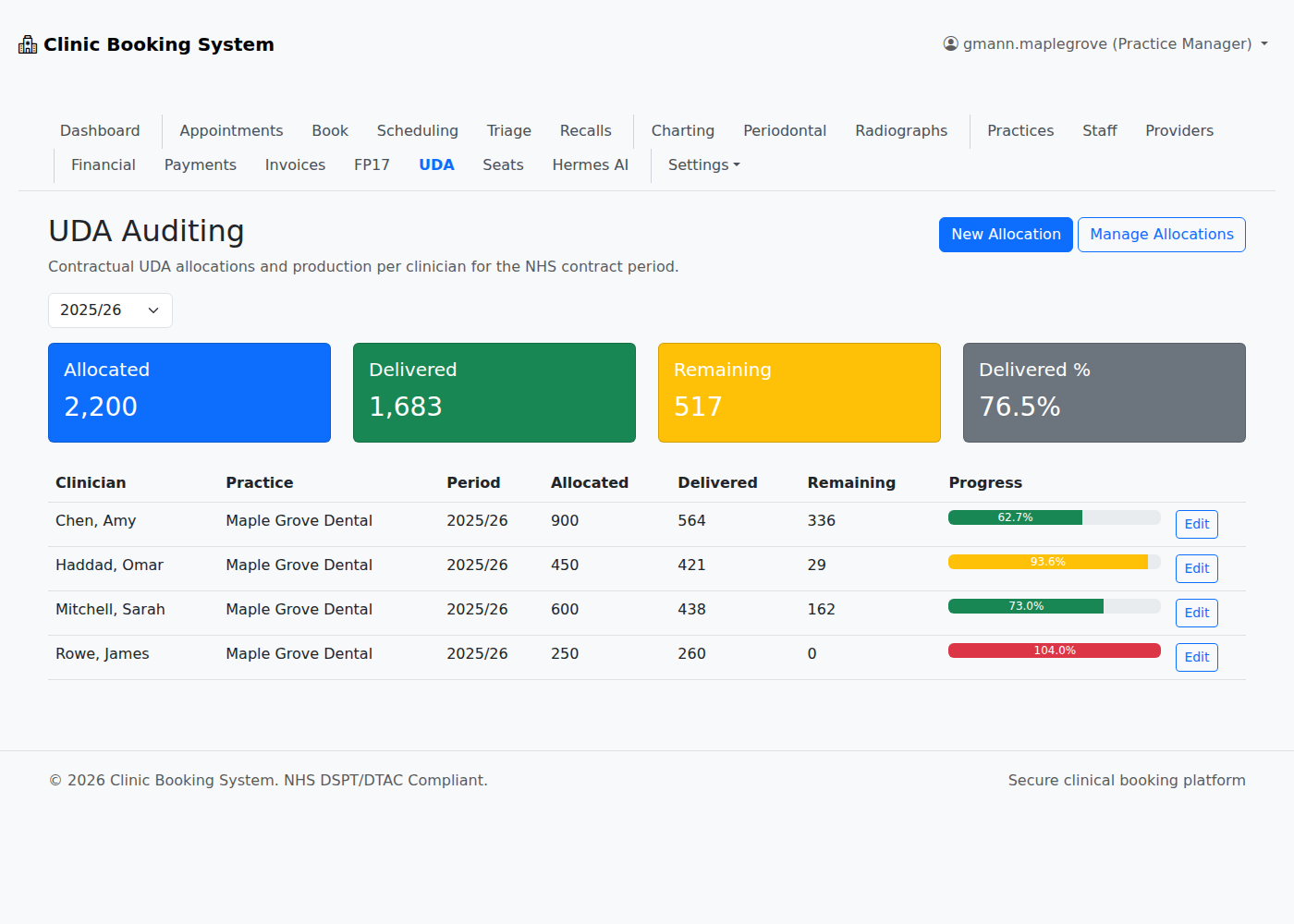
The summary cards give the practice-level position for the selected period:
| Card | Shows |
|---|---|
| Allocated | Total UDAs allocated across all clinicians |
| Delivered | Total UDAs credited from submitted FP17 claims |
| Remaining | Allocated minus delivered |
| Delivered % | Overall percentage delivered |
| Delivered NHS fee basis | The period's Leg B figure — the delivered claims' NHS fee basis |
Next to the fee-basis card is a panel explaining Leg B in place, so nobody mistakes it for money collected at reception.
Below the cards, one row per allocation:
| Column | What it shows |
|---|---|
| Clinician | Surname, first name |
| Practice | The practice the allocation belongs to |
| Period | The NHS contract period |
| Allocated | The contractual target |
| Delivered | UDAs credited from submitted claims |
| Delivered £ | The NHS fee basis of that clinician's delivered claims |
| Remaining | What is left of the target |
| Progress | A progress bar with the delivered percentage |
| Edit | Opens the allocation for editing |
Reading the progress bar: green means under 80% delivered, amber means 80–99%, red means the target has been reached or passed. A clinician at over 100% has delivered more UDAs than their allocation.
¶ Step 2 — Filter by contract period
Use the period dropdown above the cards:
- All periods — every allocation, active or not.
- 2026/27 (or any period you have set up) — only that year's allocations.
Choosing a period re-calculates the summary cards, the Leg B figure and the table together.
¶ Step 3 — Create a new allocation
- On the dashboard click New Allocation (also available from Manage Allocations).
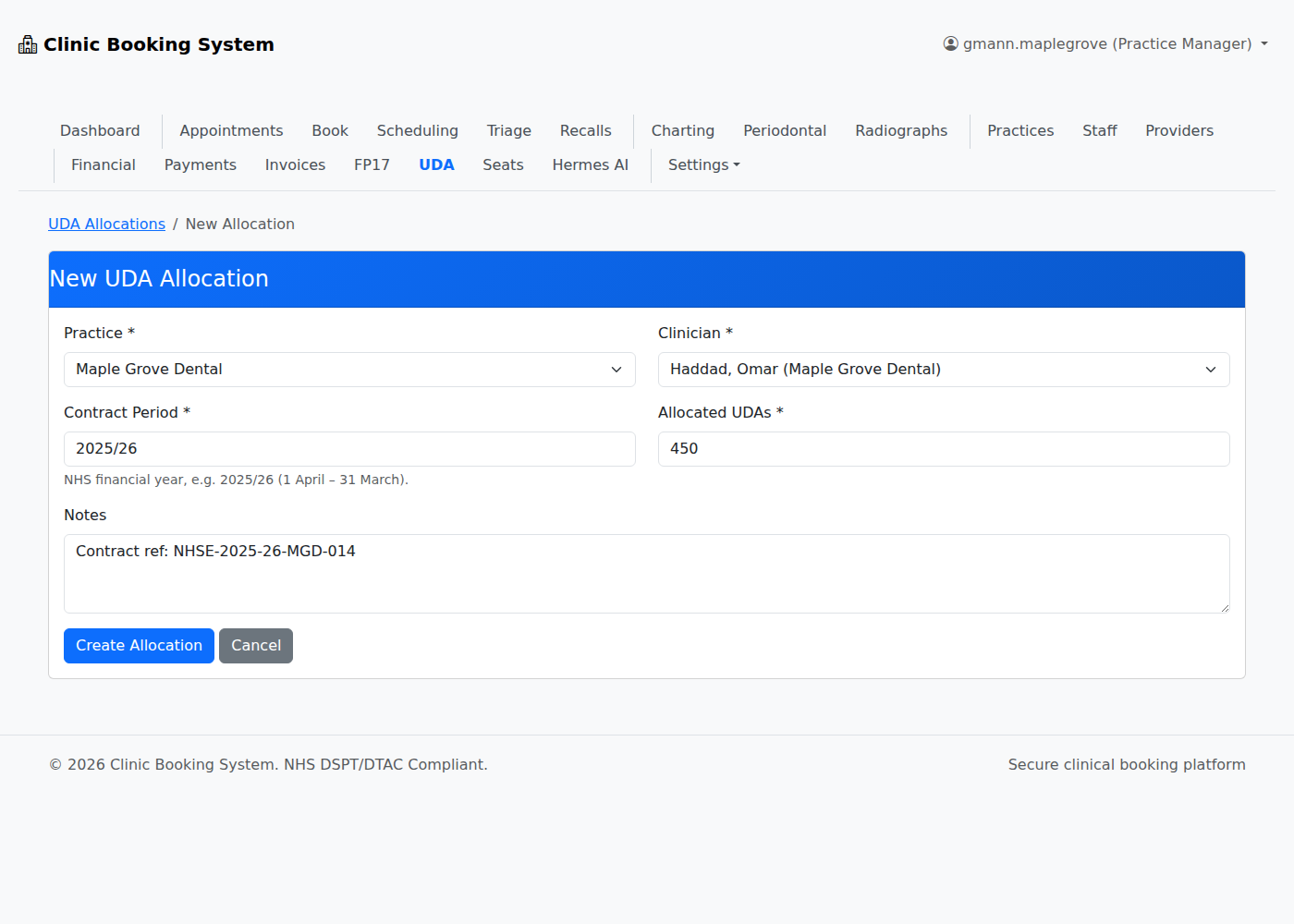
- Fill in the form:
| Field | What to enter |
|---|---|
| Practice * | The practice the allocation belongs to |
| Clinician * | The clinician (shown as surname, first name, with their practice) |
| Contract Period * | The NHS financial year, e.g. 2026/27 |
| Allocated UDAs * | The contractual UDA target |
| Notes | Optional — e.g. the contract reference |
- Click Create Allocation.
A clinician can hold only one allocation per practice per contract period. If you try to create a second for the same combination, the app keeps the existing one and asks you to edit it instead.
¶ Step 4 — Manage allocations
Open Manage Allocations from the dashboard to see every allocation:
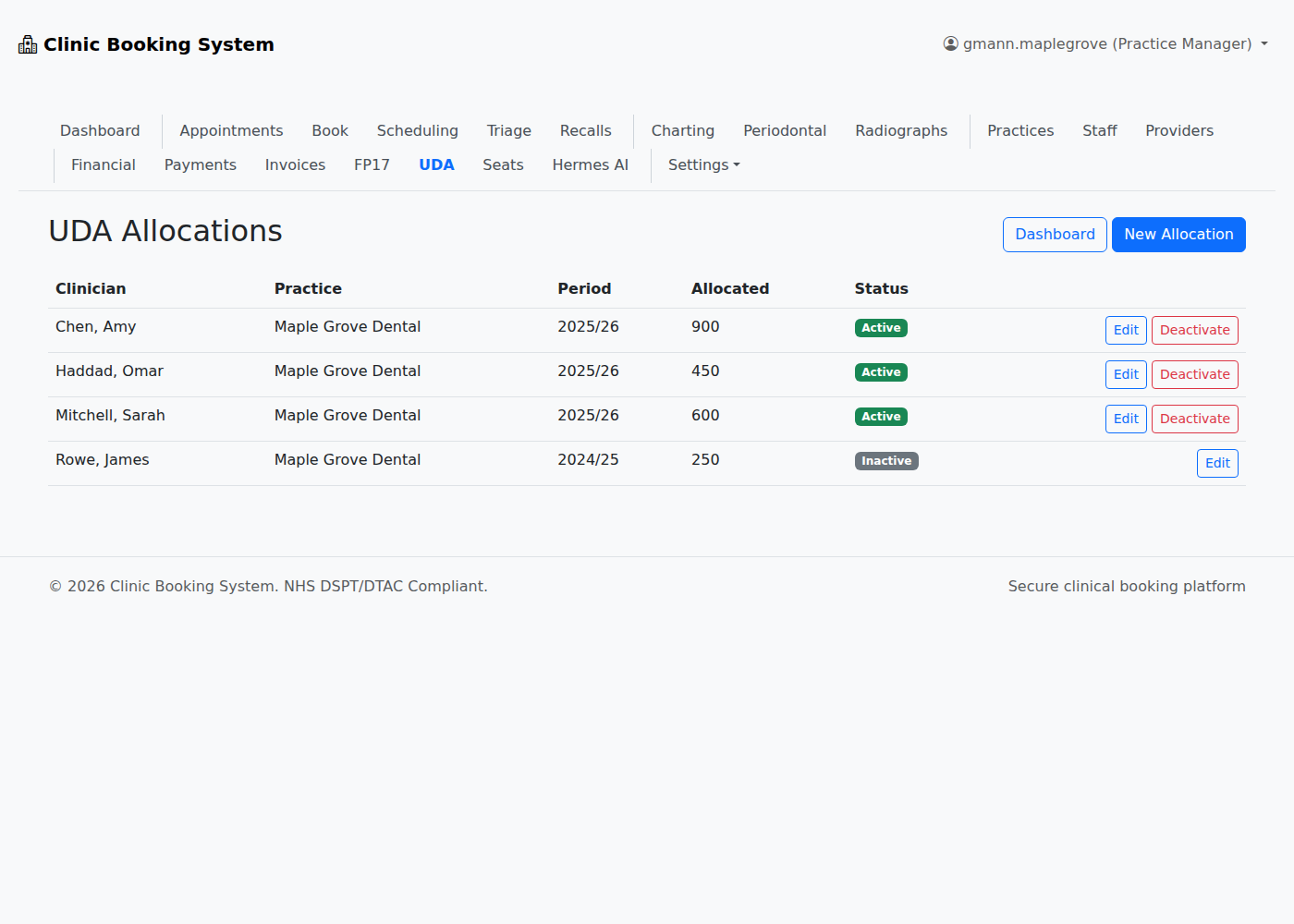
- Status — each allocation shows an Active (green) or Inactive (grey) badge.
- Edit — change the period, allocation or notes. On the edit screen the clinician and practice are locked (an existing row cannot be moved to another clinician), and the button reads Update Allocation.
- Deactivate — offered for active allocations only. Deactivating keeps the row for the audit trail but stops it counting as a current allocation:
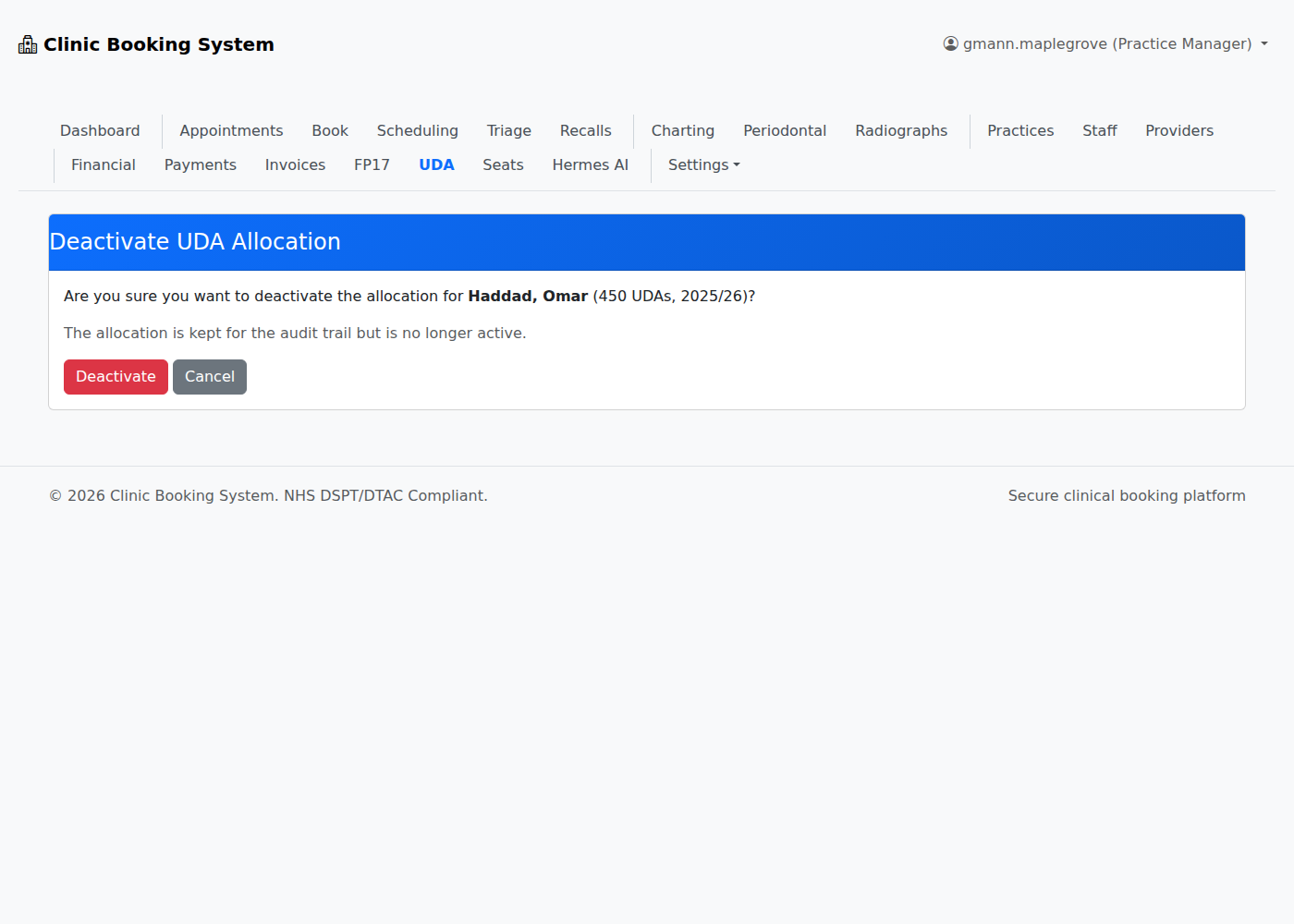
Tip: use Deactivate rather than deleting when a clinician leaves or a contract ends — the history stays visible and the audit trail intact.
¶ Useful tips
- Production is never typed in. Delivered UDAs come from your transmitted claims, so the figures always match what the practice has actually sent — and a claim that has not been transmitted does not count yet.
- Check the period before you judge the numbers. Delivered UDAs land in the period the claim was transmitted in, so a claim sent after 1 April counts towards the new contract year even if the treatment happened in March.
- Watch the amber and red bars. Amber means a clinician is closing on their allocation; red means they have met or passed it.
- The pound card is not income collected. Delivered NHS fee basis is what the contract earns through UDAs. The patient charge collected at reception is separate and is clawed back — see the full journey.